
Why Table of Contents Is Broken in Word
Headings Not Showing or Linking Incorrectly
Section titled “Headings Not Showing or Linking Incorrectly”Table of Contents (TOC) issues in Word are typically caused by incorrect heading structure rather than problems with the Table of Contents itself.
Why Table of Contents Problems Occur in Microsoft Word
Section titled “Why Table of Contents Problems Occur in Microsoft Word”Common symptoms include entries that link to incorrect locations, entries that do not link at all, or headings that are missing from the TOC. These issues occur when the document structure does not match the visual appearance of headings.
When Word generates a TOC, it reads the underlying structure of the document. If headings are not structured correctly, the Table of Contents may include incorrect entries, omit headings, or contain broken links.
Why Are Headings Not Showing or Working Correctly in the Table of Contents in Word
Section titled “Why Are Headings Not Showing or Working Correctly in the Table of Contents in Word”Headings in Word can appear correct while not functioning as headings. This occurs when formatting is applied manually instead of using built-in heading styles.
Manually Formatted Headings
Section titled “Manually Formatted Headings”A heading may appear correct because it uses a larger font, bold formatting, or numbering. However, it may still be styled as Normal text or another non-heading style.
Headings with Manual Formatting Overrides
Section titled “Headings with Manual Formatting Overrides”A heading may use a correct style but include additional direct formatting such as manually added numbering, modified spacing, or indentation.
Deleted or Broken Headings
Section titled “Deleted or Broken Headings”If a heading is deleted after the Table of Contents is created, the Table of Contents may still contain a corresponding entry.
How Microsoft Word Builds the Table of Contents
Section titled “How Microsoft Word Builds the Table of Contents”Word builds the Table of Contents using built-in heading styles such as Heading 1, Heading 2, and so on. It does not recognize visual formatting such as bold text, font size changes, or manually applied numbering.
Structure overrides appearance in Word. If the correct style is not applied, the heading does not function correctly in the Table of Contents.
How to Fix Table of Contents Issues in Microsoft Word
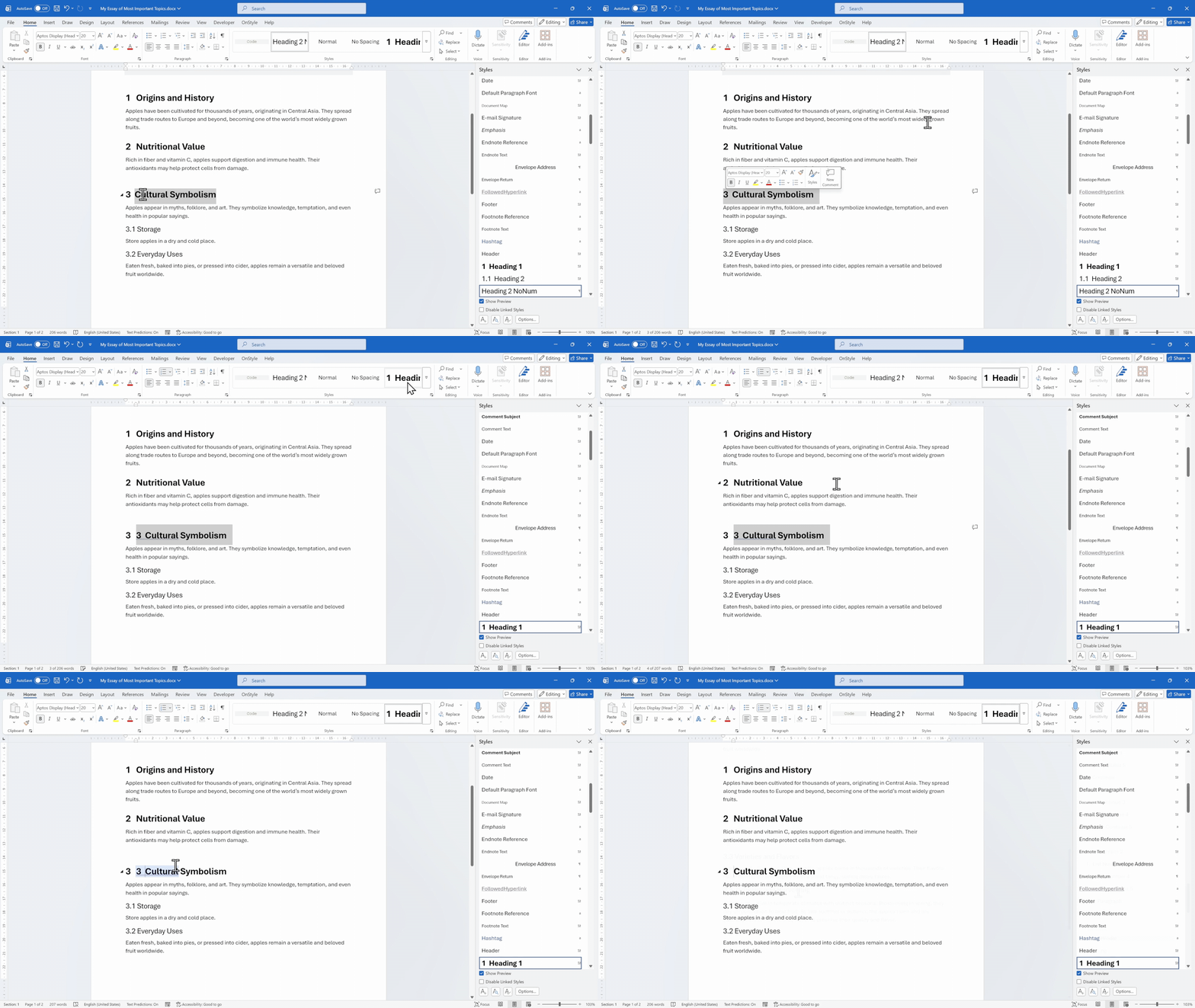
Section titled “How to Fix Table of Contents Issues in Microsoft Word”Step 1: Apply Built-In Heading Styles
Section titled “Step 1: Apply Built-In Heading Styles”- Select the heading text.
- On the Home tab of the Ribbon, apply the correct style such as Heading 1 or Heading 2.
Step 2: Remove Direct Formatting from Headings
Section titled “Step 2: Remove Direct Formatting from Headings”Remove manually applied numbering, spacing, indentation, and other direct formatting.
- Select the heading text.
- Remove manually added numbering.
- Remove any direct formatting.
- Check that the heading still uses the correct built-in heading style.
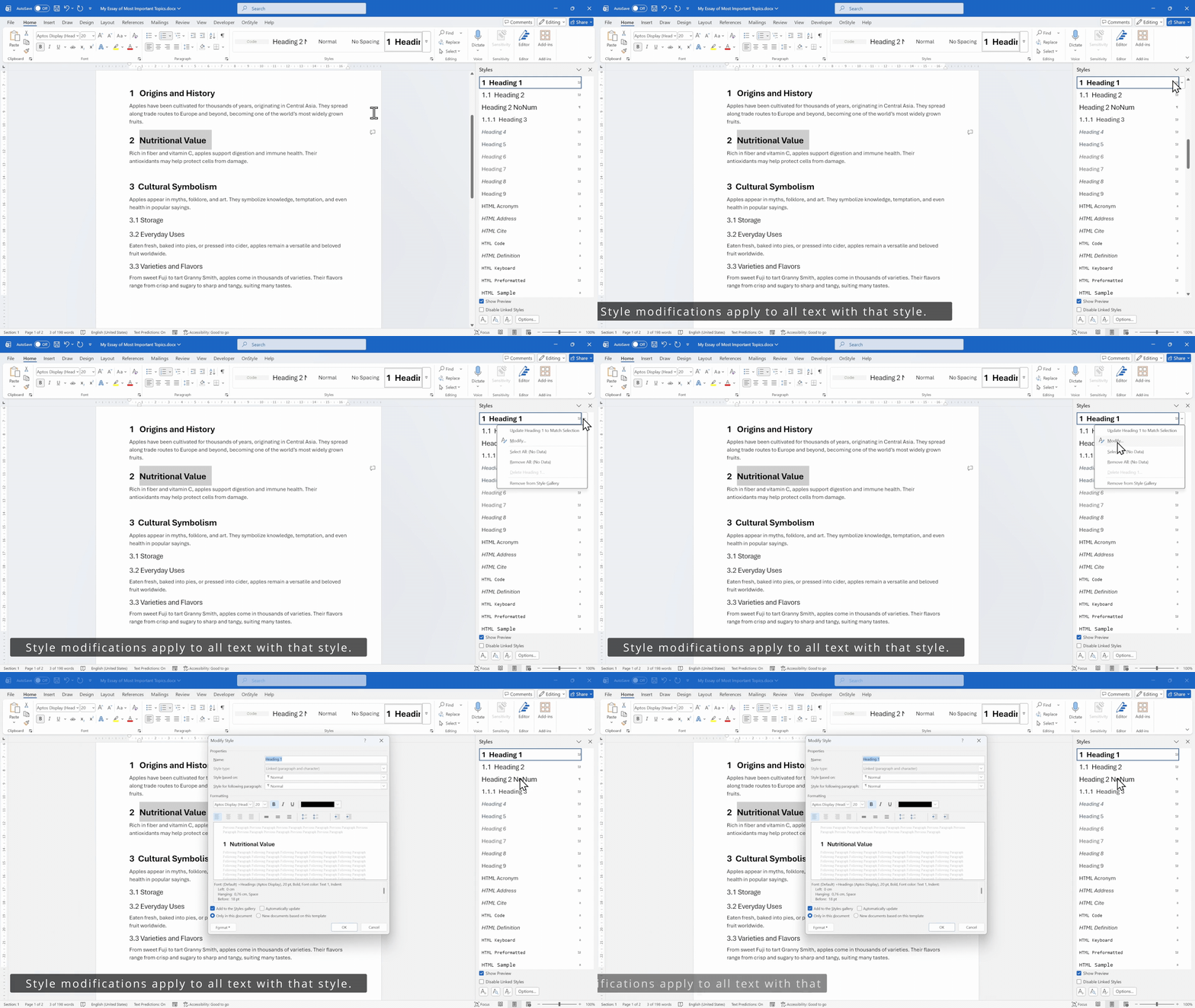
Step 3: Modify Styles Instead of Formatting Text
Section titled “Step 3: Modify Styles Instead of Formatting Text”- Right-click the style such as Heading 1.
- Select Modify.
- Adjust formatting in the dialog box.
Step 4: Update the Table of Contents
Section titled “Step 4: Update the Table of Contents”- Click inside the Table of Contents.
- Select Update Table.
- Select Update entire table.
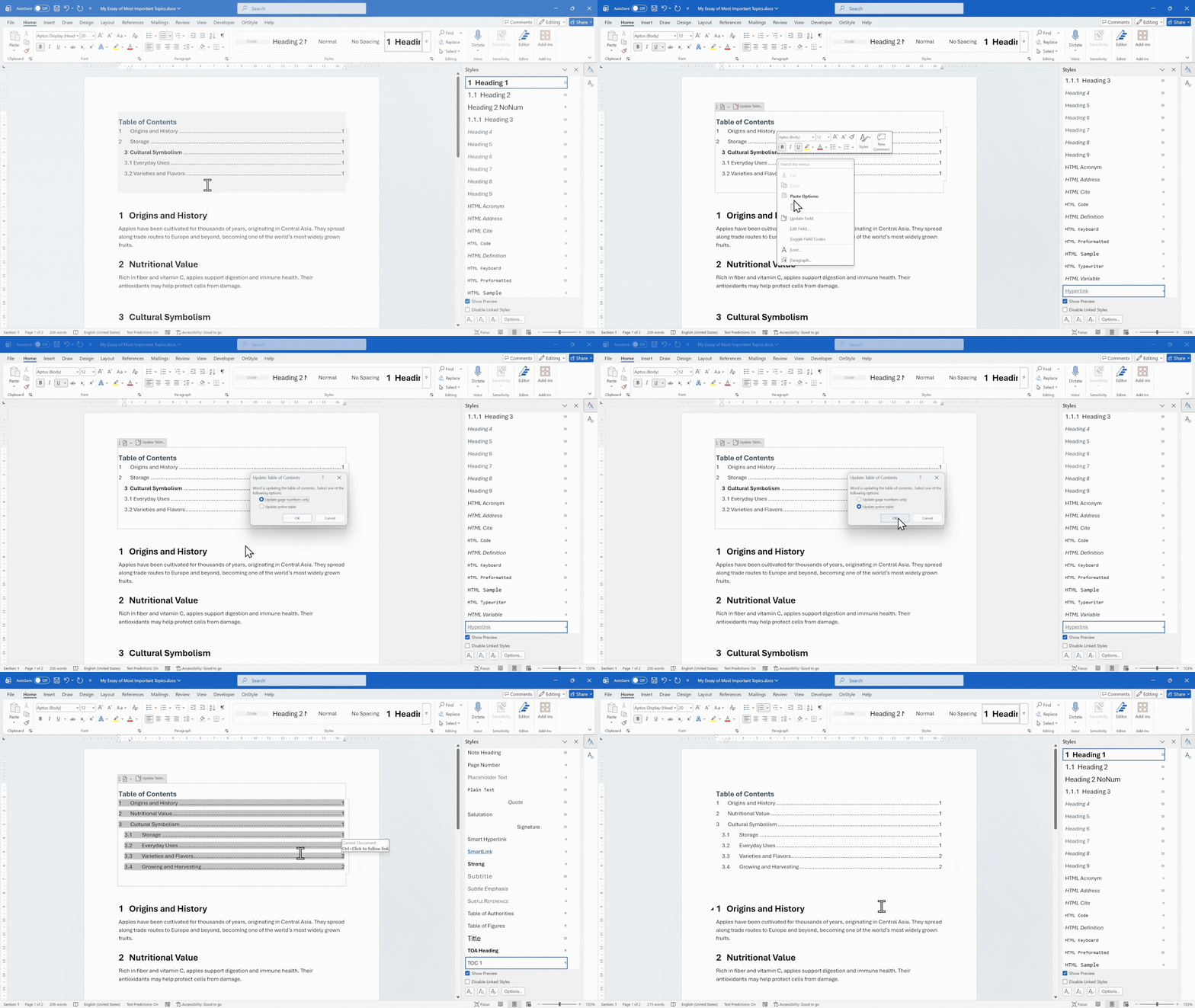
The Table of Contents updates based on the corrected heading structure and reflects the intended hierarchy.
Real-Life Challenges with Heading Structures
Section titled “Real-Life Challenges with Heading Structures”Documents often contain content from multiple authors, copied sections from other files, and mixed templates. This results in inconsistent heading structures and hidden formatting issues.
Correcting headings individually can be time-consuming and may introduce additional inconsistencies.
How to Automate Heading and Table of Contents Corrections Using OnStyle
Section titled “How to Automate Heading and Table of Contents Corrections Using OnStyle”The OnStyleWord Add-in provides toolsto detect and correct heading-related issues automatically.
OnStyle can detect heading numbering issues, incorrect list formatting, headings that are out of sequence, broken internal hyperlinks, and direct formatting applied to headings.
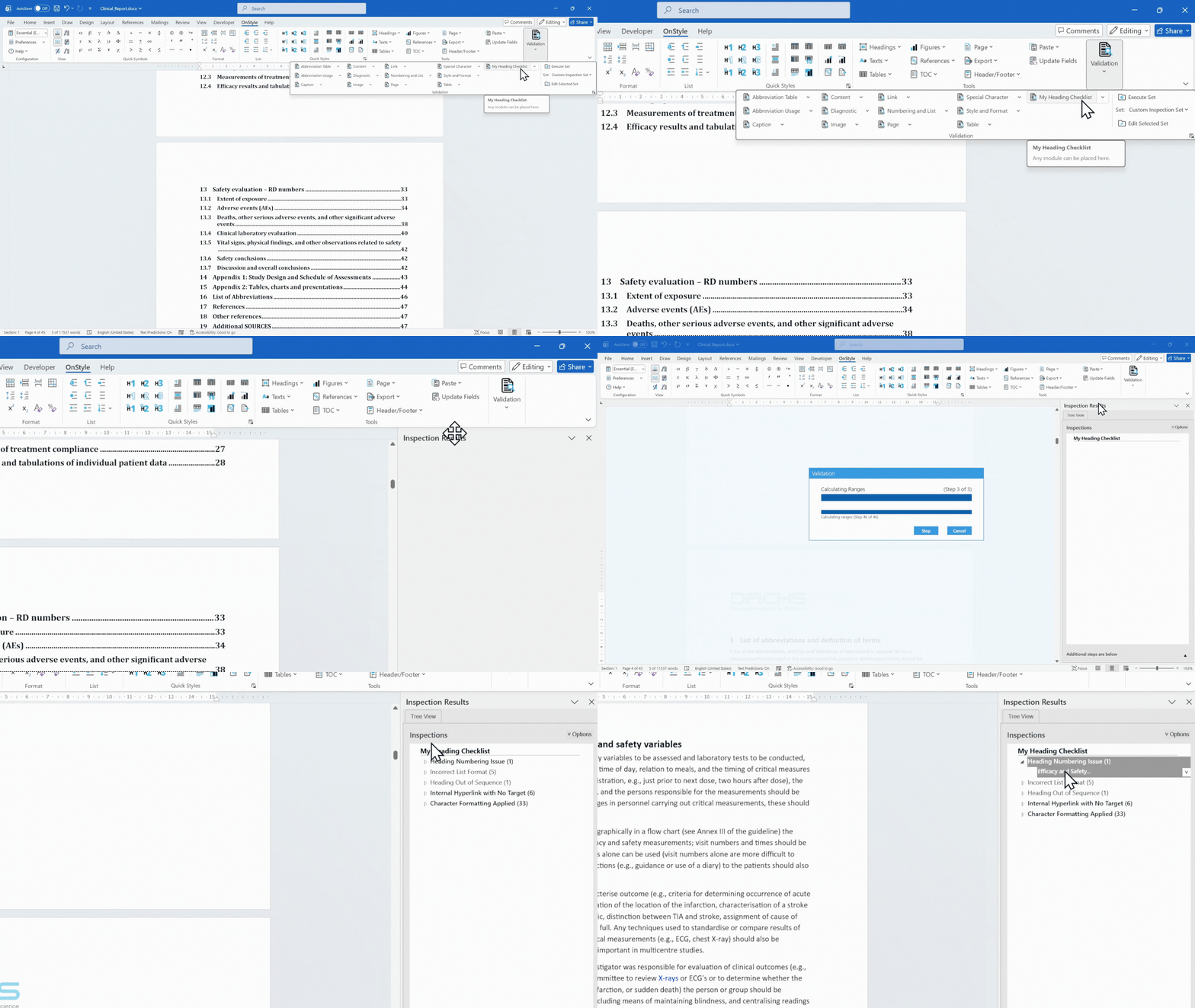
This enables faster identification and correction of structural issues compared to manual review.
How to Fix Heading Structure in Word
Section titled “How to Fix Heading Structure in Word”The OnStyle Word add-in can remove direct formatting from headings, apply correct styles to manually formatted text, remove manually added numbering, and normalize heading structure across the document.
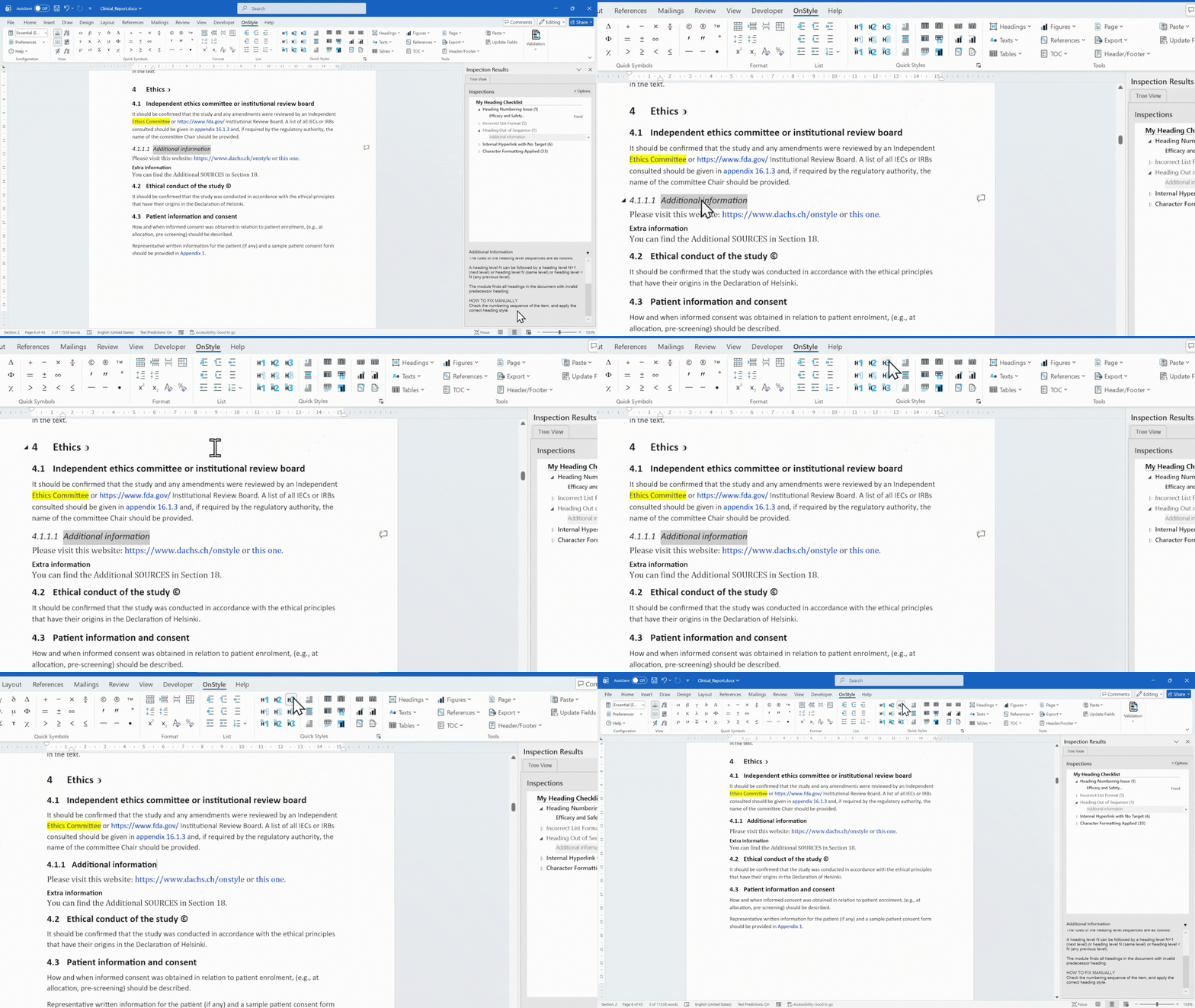
Once the structure is corrected, the Table of Contents updates automatically.
Why Structure Is More Important Than Formatting in Word
Section titled “Why Structure Is More Important Than Formatting in Word”A key principle in Word formatting is that structure overrides appearance. A heading functions correctly only when the correct style is applied and the hierarchy is consistent.
Maintaining proper structure ensures accurate Table of Contents entries, correct navigation, and consistent document formatting.
Summary
Section titled “Summary”Table of Contents issues in Microsoft Word are typically caused by incorrect heading structure. Using built-in heading styles, removing direct formatting, and maintaining a consistent structure ensures correct Table of Contents behavior. In complex documents, automation tools like OnStyle can support detection and correction of structural issues, improving consistency and document quality control.