
How to Convert an Image to Editable Text in Word
How to Convert an Image to Editable Text in Word: Converting an image to editable text in Microsoft Word helps avoid retyping text from scanned pages, screenshots, presentations, flyers, notes, or printed documents. Microsoft Word does not provide a single direct image-to-text button for every use case, but there are practical workflows that can turn image text into editable Word content.
This guide explains two methods. The first method uses OneNote to extract plain editable text quickly. The second method uses Word and PDF conversion to rebuild the image as a styled text. Both methods rely on OCR, which stands for Optical Character Recognition.
Which Method Should Be Used to Convert an Image to Editable Text
Section titled “Which Method Should Be Used to Convert an Image to Editable Text”The best method on how to convert an image to editable text in Word depends on whether the goal is plain editable text or a text keeping the formatting used in the image.
OneNote OCR is best for quickly extracting plain text from an image. It produces editable text in Word, but formatting is not preserved and must be cleaned manually.
PDF-to-Word conversion is better when the image contains formatting or layout that should be partly retained. It creates an editable document, but OCR errors, layout changes, spacing, tables, and formatting still need review.
Fastest Method to Convert an Image to Editable Text Using OneNote
Section titled “Fastest Method to Convert an Image to Editable Text Using OneNote”The fastest method is to use OneNote to read the text from the image, copy the recognized text, and paste it into Word. This method works well when only the words are needed and the original image layout does not need to be preserved.
This workflow is suitable for Windows and Mac users who have the desktop version of OneNote available. If OneNote is not already installed, it can be downloaded from Microsoft.
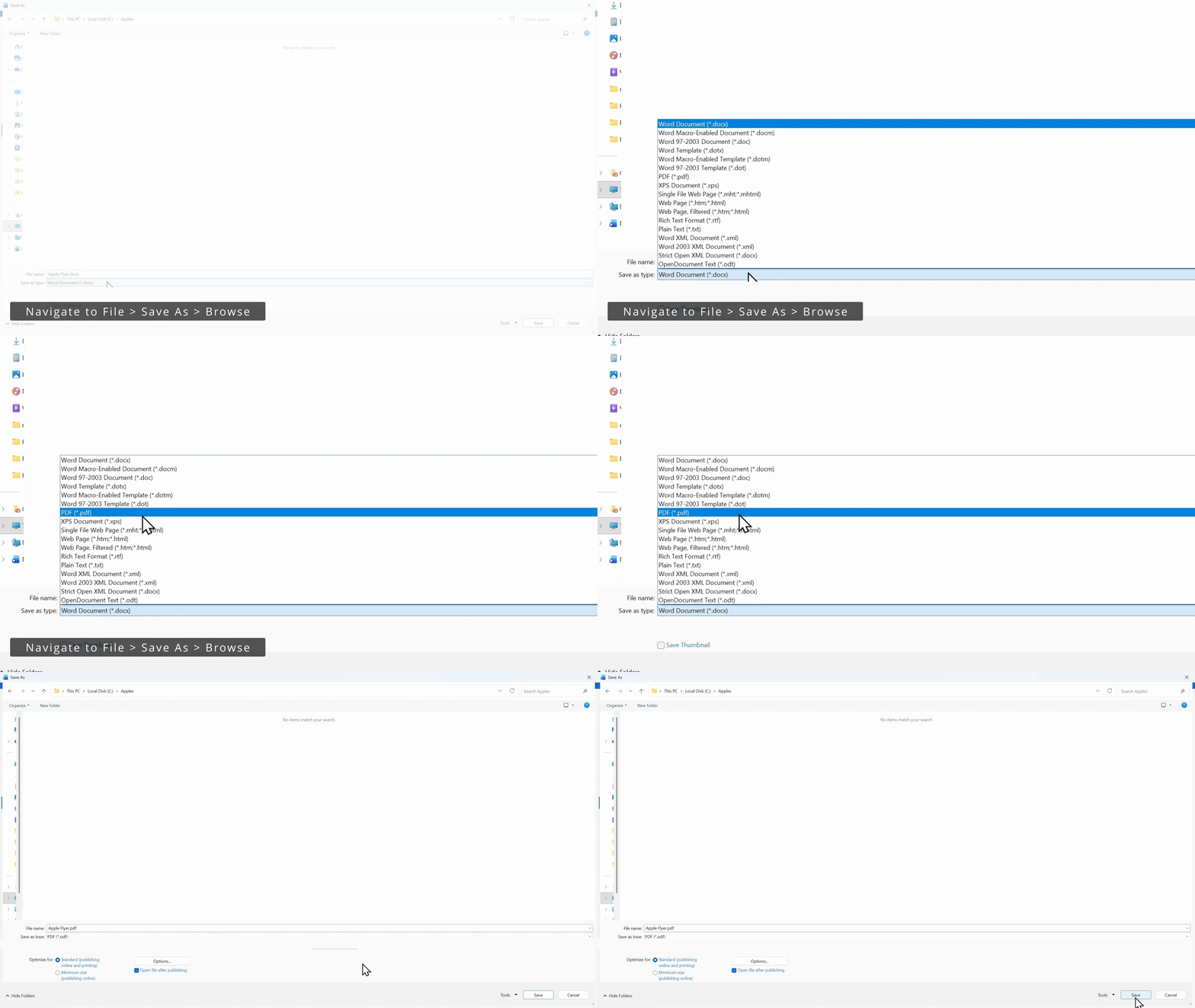
Step 1: Open OneNote and Create a Blank Note
Section titled “Step 1: Open OneNote and Create a Blank Note”- Open OneNote on the computer.
- Create a blank note.
Step 2: Insert the Image into OneNote
Section titled “Step 2: Insert the Image into OneNote”- Insert the image that contains the text.
- Make sure the image is clear enough for OneNote to read the text.
Step 3: Copy Text from the Picture
Section titled “Step 3: Copy Text from the Picture”- Right-click the picture.
- Select Copy Text from Picture.
Step 4: Paste the Text into Word
Section titled “Step 4: Paste the Text into Word”- Open Microsoft Word.
- Click where the editable text should be inserted.
- Paste the copied text.
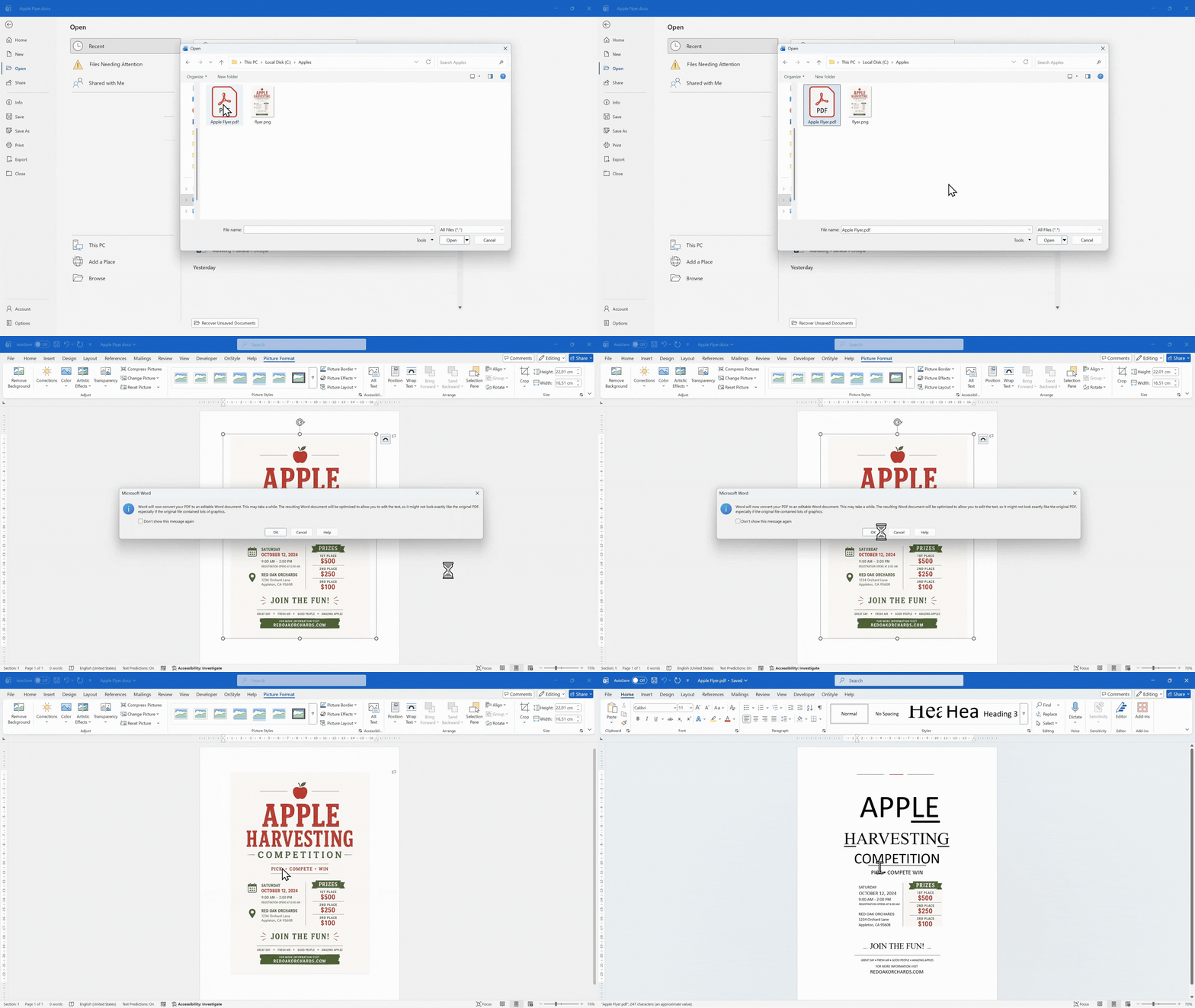
The pasted result is editable text inside Word. It can be selected, formatted, corrected, and styled like normal Word text.
How to Clean Up OCR Text After Pasting into Word
Section titled “How to Clean Up OCR Text After Pasting into Word”The OneNote method is usually fast, but the result still needs review. OCR (Optical Character Recognition) detects text in an image and converts it into editable text, but it is not perfect. It can misread characters, split lines incorrectly, miss punctuation, or change numbers.
After pasting OCR text into Word, check the text carefully and correct issues before applying final formatting.
- Fix spelling mistakes and incorrect characters.
- Correct punctuation that was missed or misread.
- Remove unnecessary line breaks.
- Apply the correct Word styles.
- Use proper bullets if bullet points were converted into plain text.
Best Image Quality Tips for Better OCR Results
Section titled “Best Image Quality Tips for Better OCR Results”The clearer the source image, the more accurate the OCR result. Image quality directly affects how well OneNote, Word, or an OCR tool can recognize the text.
- Use a bright, high-resolution image.
- Keep the page straight while scanning.
- Avoid pictures with shadows.
- Crop extra background before converting.
- Avoid using handwritten text or fonts that resemble handwriting.
Handwriting, blurry photos, very small text, and low-contrast images are much less reliable and usually need manual cleanup.
How to Convert an Image to Editable Text with PDF Conversion
Section titled “How to Convert an Image to Editable Text with PDF Conversion”The second method is useful when the goal is not just to extract plain text, but to make Word rebuild the page as a preformatted, editable document. This can be helpful for scanned pages, handouts, or image-based pages that contain a more document-like structure.
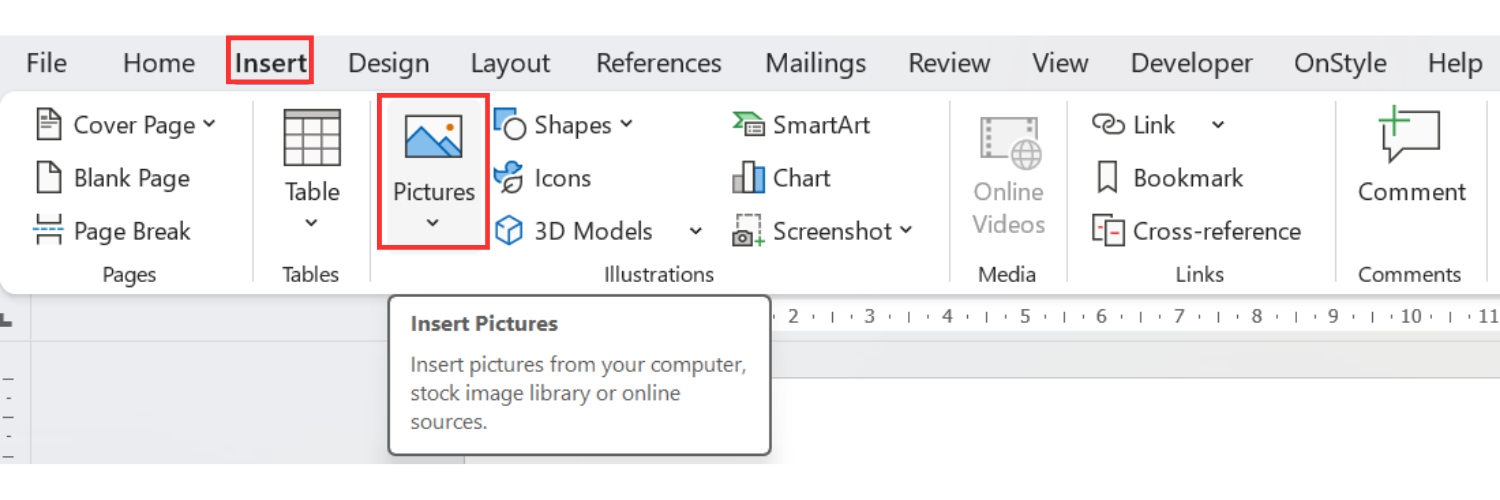
Step 1: Insert the Image into Word
Section titled “Step 1: Insert the Image into Word”- Open a blank Word document.
- On the Insert tab of the Ribbon, select Pictures.
- Choose the image that contains the text.
- Place the image on the page.
Step 2: Save the Word File as a PDF
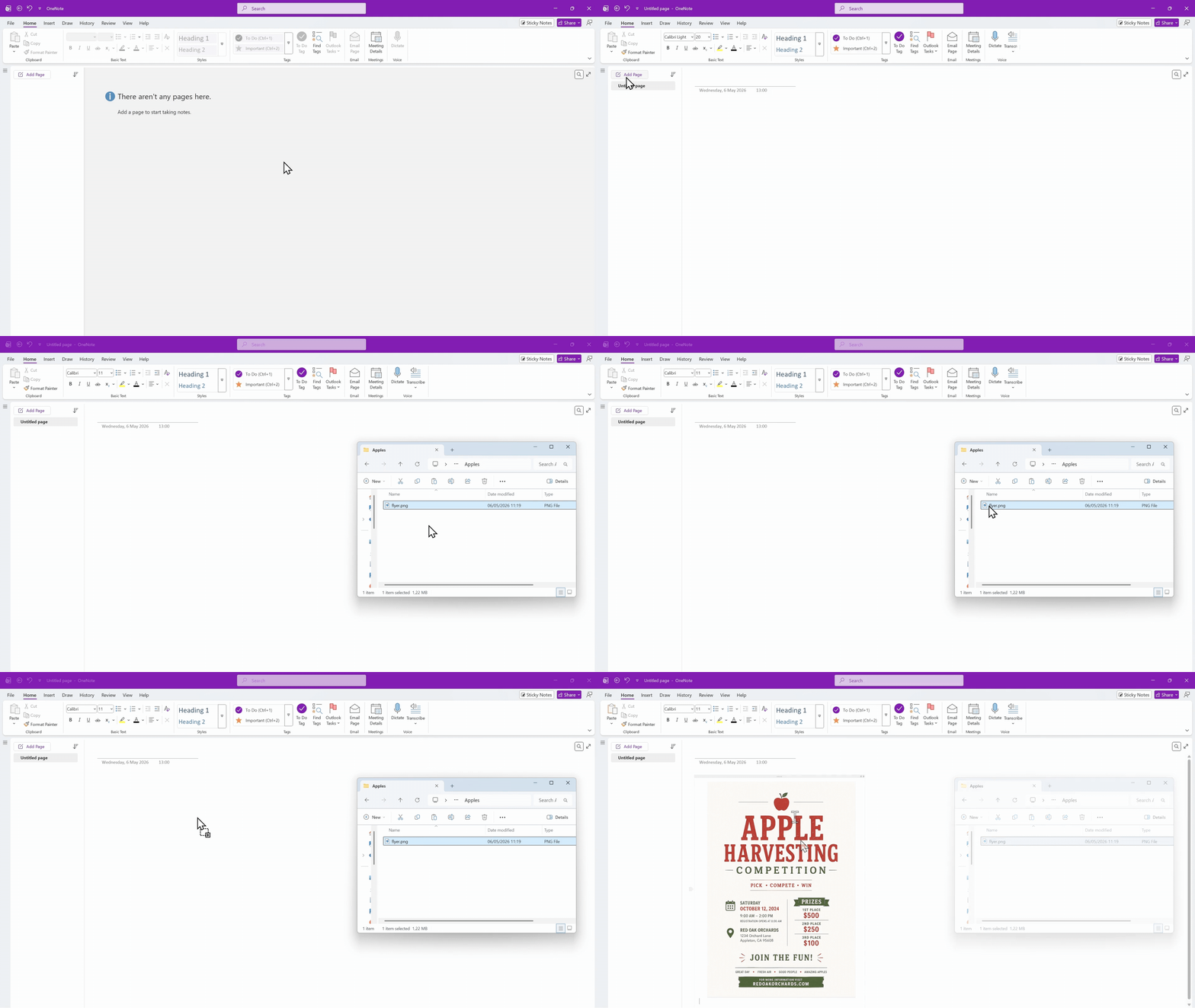
Section titled “Step 2: Save the Word File as a PDF”- Open the File tab.
- Select Save As.
- Choose PDF as the file type.
- Save the file.
Step 3: Open the PDF in Word
Section titled “Step 3: Open the PDF in Word”- Open the File tab.
- Select Open.
- Choose the PDF that was just saved.
- When Word displays a conversion message, select OK.
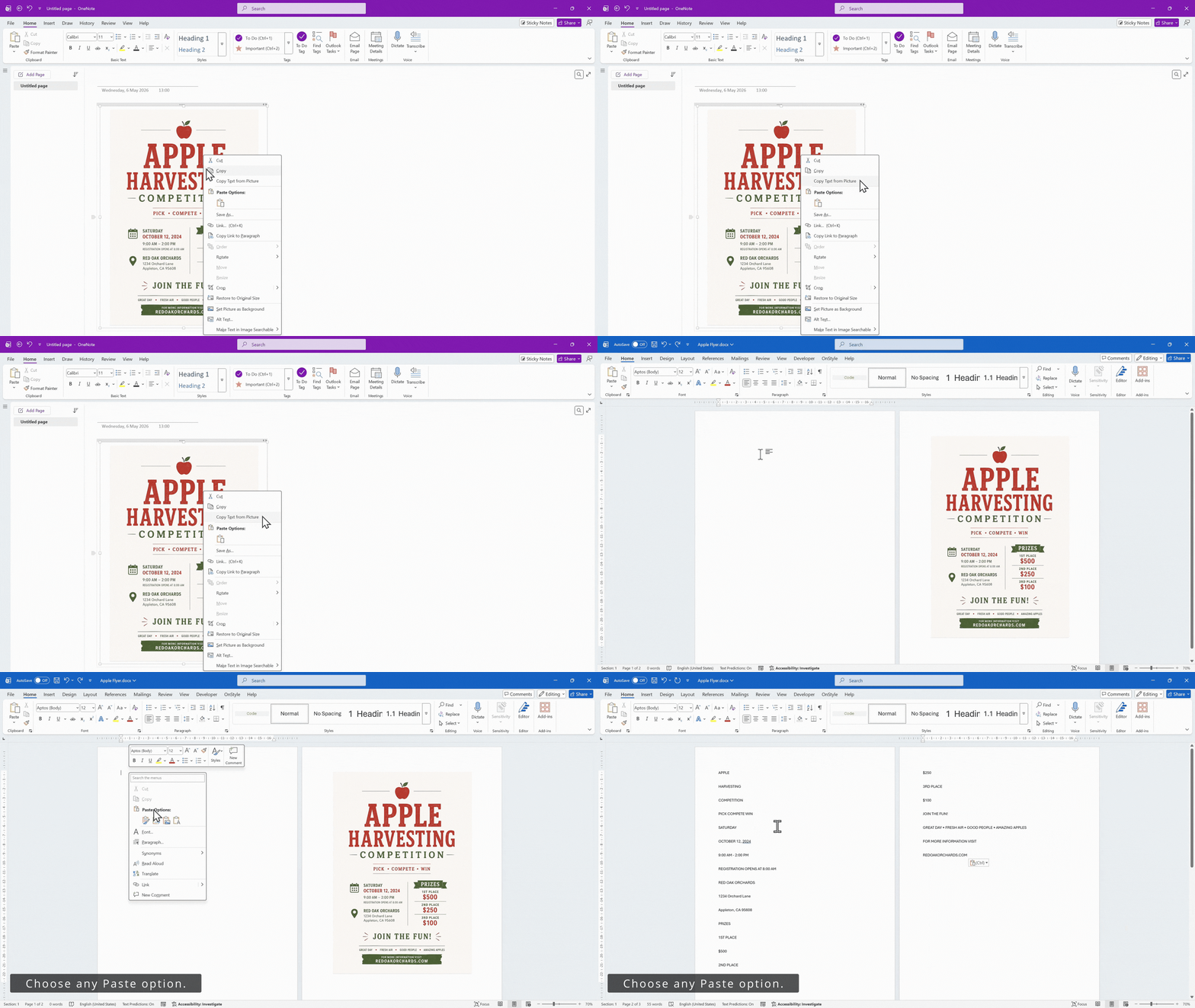
Word converts the PDF into an editable Word document. The text can then be edited, corrected, styled, and reused.
What to Expect from the PDF-to-Word Conversion Method
Section titled “What to Expect from the PDF-to-Word Conversion Method”The PDF-to-Word method can work well, but the converted layout may not match the original image perfectly.
- Line breaks may move.
- Tables may need fixing.
- Fonts can change.
- Spacing can change.
- Complex images may fail to convert accurately.
This method is best when the image is basically a scanned page and the goal is to rebuild the page structure, not just copy the words.
Which Image-to-Text Method Should Be Used
Section titled “Which Image-to-Text Method Should Be Used”If only the words are needed, use the OneNote method. It is quicker, simpler, and easier for beginners. If a formatted document is needed, use the PDF-to-Word method. It takes longer, but it can save time on formatting.
Both methods require review. Optical Character Recognition can make mistakes, and the PDF method is not always accurate when recreating formatting.
Common OCR Mistakes to Fix in Word
Section titled “Common OCR Mistakes to Fix in Word”After conversion, check these common OCR problems before using the document as a final version.
- Line breaks in the wrong place.
- Incorrect letters, numbers, or characters.
- Missing punctuation.
- Bullet points that became plain text.
- Headingsor emphasized text that lost the original formatting.
A short cleanup step makes the final document look much more polished. Correct mistakes in the text, apply formatting, styles, fix spacing, and convert plain text bullets into real Word bullets where needed.
Additional Tips on How to Convert an Image to Editable Text
Section titled “Additional Tips on How to Convert an Image to Editable Text”- If the copy-text option does not appear right away, wait a moment and try again.
- Very small text and low-contrast images usually need manual cleanup.
- A cropped screenshot often converts better than a full photo with lots of background.
- For long scanned pages, the PDF-to-Word method is usually easier to manage than pasting raw OCR text.
Summary
Section titled “Summary”How to Convert an Image to Editable Text in Word: convert image text into editable Word content using two practical methods. The OneNote method is best for quick text extraction. The PDF-to-Word method is better when a scanned page needs to be rebuilt as an editable document.
Both methods depend on OCR quality. Clear images, straight pages, good lighting, and printed text improve the results. After conversion, the text should always be reviewed, cleaned up, and formatted with proper Word styles before final use.