
How to Indent Paragraphs in Word
How to Indent Paragraphs in Word: Paragraph indents in Microsoft Word help make documents easier to read by creating a clear visual structure. A document with no indentation can look flat, dense, and difficult to scan, especially when it contains long blocks of text.
Microsoft Word provides several ways to indent paragraphs. The fastest method is the Tab key, the most visual method is the ruler, and the most precise method is the Paragraph dialog box. Each method has a different purpose, so choosing the correct one helps keep formatting clean and consistent.
This guide explains how to indent paragraphs using the Tab key, the ruler, Paragraph settings, and the Increase Indent button. It also explains when each method should be used and which beginner mistakes to avoid.
What Is Paragraph Indentation in MS Word
Section titled “What Is Paragraph Indentation in MS Word”Paragraph indentation controls how far paragraph text starts from the page margin. It affects the horizontal position of text and helps separate paragraphs visually.
Common paragraph indentation types include:
- First-line indent, where only the first line of a paragraph moves inward.
- Hanging indent, where the first line stays aligned and the remaining lines move inward.
- Full paragraph indent, where the entire paragraph moves inward.
A first-line indent is often used in body textcof essays, reports, and letters. A hanging indent is often used for references, bibliographies, and structured lists. A full paragraph indent is useful when an entire block of text needs to be visually separated from the margin.
How to Indent a Paragraph in Microsoft Word Using the Tab Key
Section titled “How to Indent a Paragraph in Microsoft Word Using the Tab Key”The fastest way to indent a paragraph in Microsoft Word is by using the Tab key. This method is useful when only one paragraph needs a quick first-line indent.
Step 1: Place the Cursor at the Beginning of the Paragraph
Section titled “Step 1: Place the Cursor at the Beginning of the Paragraph”Click at the very beginning of the paragraph that should be indented.
Step 2: Press the Tab Key
Section titled “Step 2: Press the Tab Key”Press the Tab key on the keyboard.
Word adds a first-line indent to the paragraph. This means only the first line moves inward, while the rest of the paragraph remains aligned with the original margin.

This method is useful for a quick one-paragraph adjustment. It is simple and fast, especially in short documents or when only a small formatting change is needed.
When the Tab Key Is Not the Best Indent Method
Section titled “When the Tab Key Is Not the Best Indent Method”The Tab key should not be used as the main formatting method for large documents. When many paragraphs require the same indentation, using the Tab key repeatedly can create inconsistent formatting and increase editing time.
For clean and consistent formatting across multiple paragraphs, use the ruler or the Paragraph dialog box instead. These methods provide better control and make it easier to apply the same indentation to several paragraphs at once.
How to Use the Ruler to Indent Paragraphs in Word
Section titled “How to Use the Ruler to Indent Paragraphs in Word”The ruler is a better method when visual control is needed. It allows paragraph indentation to be adjusted directly on the page and shows how far the indent moves from the margin.
Step 1: Turn On the Ruler in Word
Section titled “Step 1: Turn On the Ruler in Word”On the View tab of the Ribbon, select Ruler.
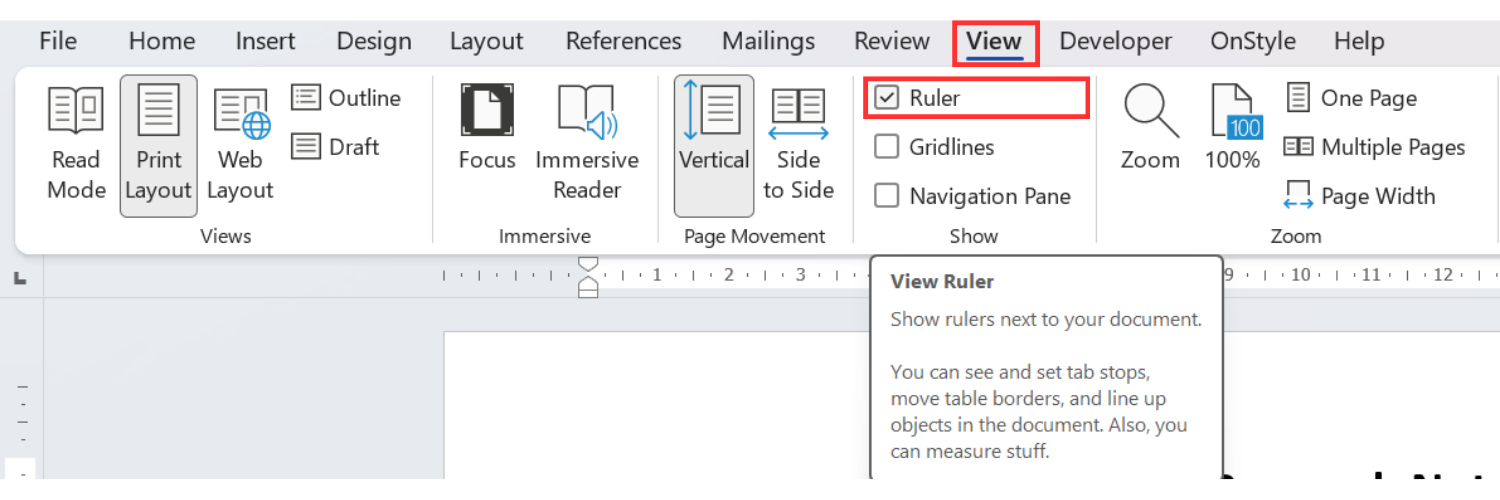
The horizontal ruler appears above the document. If the ruler is already visible, no additional action is needed.
Step 2: Select the Paragraph to Indent
Section titled “Step 2: Select the Paragraph to Indent”Select the paragraph that should be indented.
Only the selected paragraph is affected. To indent multiple paragraphs together, select all paragraphs that should receive the same indentation.
Step 3: How to Use the Indent Markers
Section titled “Step 3: How to Use the Indent Markers”The ruler includes separate markers for different indentation controls. Understanding these markers helps prevent accidental formatting changes.
- The upper marker controls the first line of the paragraph.
- The lower marker affects the remaining lines of the paragraph.
For a standard first-line paragraph indent, the upper marker is usually the correct control. Moving the lower marker changes the rest of the paragraph and may create a hanging indent. The small rectangle below the lower triangle moves the entire paragraph indent, shifting both markers together.
How to Indent Multiple Paragraphs with the Ruler
Section titled “How to Indent Multiple Paragraphs with the Ruler”The ruler can be used to indent several paragraphs at the same time.
- Select the paragraphs that should be indented.
- Drag the upper ruler marker to the desired position. The same first-line indent is applied to all selected paragraphs.
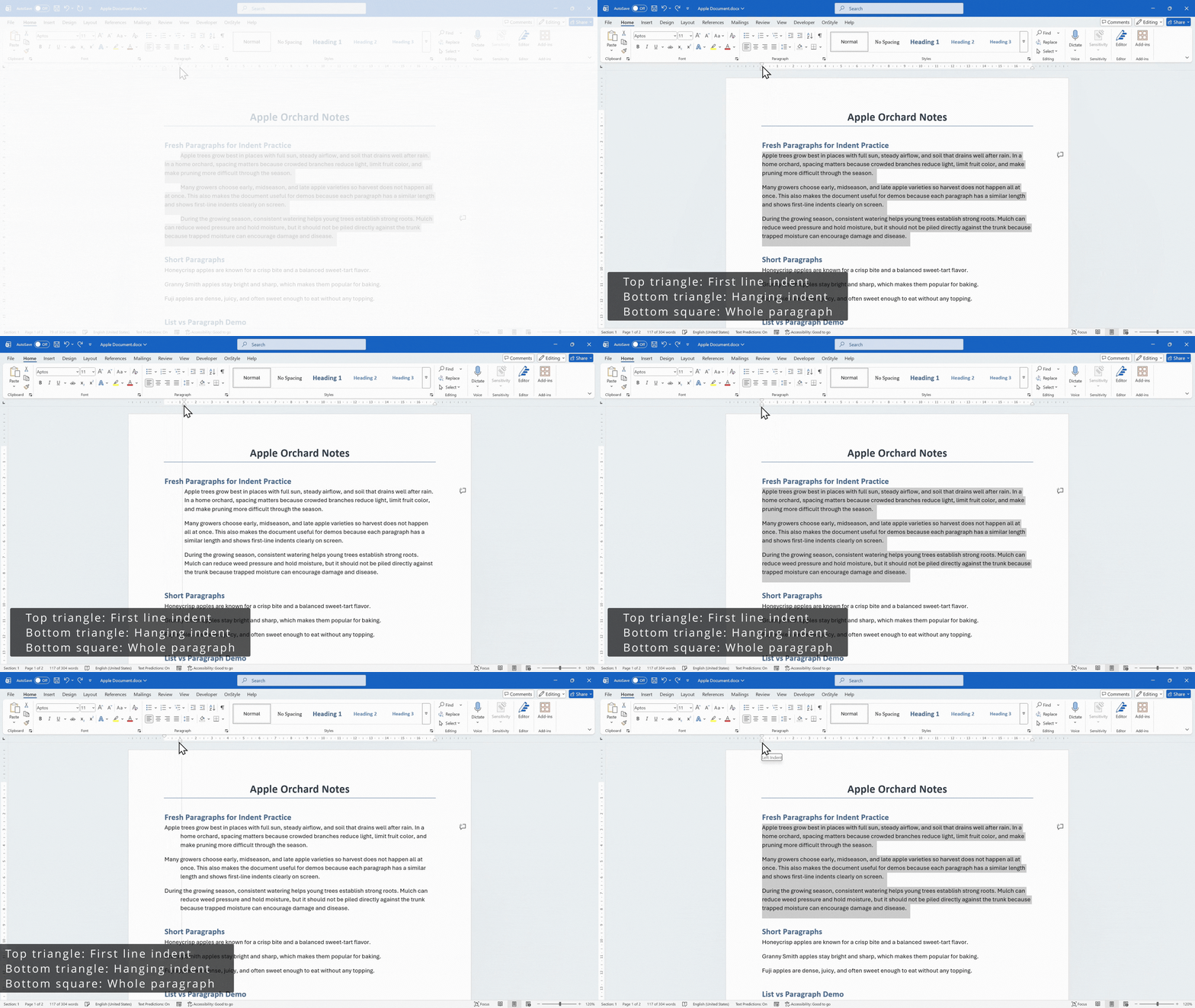
Multiple non-adjacent text areas can be selected by holding Ctrl while selecting additional text. This is useful when several paragraphs in different places need the same indentation.
The ruler allows the indent position to be adjusted visually. This makes it useful when the exact appearance is more important than entering a specific measurement.
How to Select Paragraphs with Similar Formatting in Long Word Documents
Section titled “How to Select Paragraphs with Similar Formatting in Long Word Documents”In long documents, selecting each paragraph manually can take too much time. Word includes a selection option that can help select text with matching formatting.
Step 1: Select Similar Formatting
Section titled “Step 1: Select Similar Formatting”- Click inside a paragraph that has the formatting to match.
- On the Home tab of the Ribbon, select Select.
- Select Select Text with Similar Formatting.
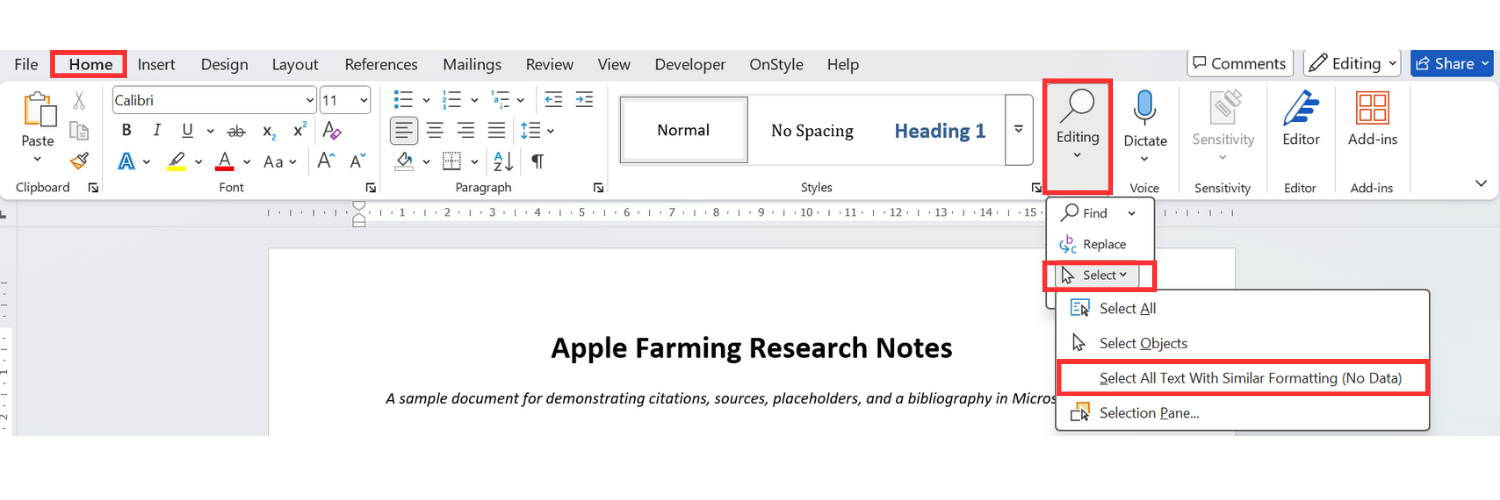
If stylesare used correctly, Word selects text that has the same formatting while omitting text with different styles. This makes it easier to apply indentation to matching paragraphs without selecting headings or other differently styled content.
After the matching paragraphs are selected, adjust the ruler marker as needed.
How to Create a First-Line or Hanging Indent in Word Using Paragraph Settings
Section titled “How to Create a First-Line or Hanging Indent in Word Using Paragraph Settings”The Paragraph dialog box provides the most precise method for creating first-line indents and hanging indents. This method is best for professional documents where consistency matters, such as reports, essays, letters, and structured business documents.
Step 1: Select the Paragraphs to Format
Section titled “Step 1: Select the Paragraphs to Format”Select the paragraphs that should receive the same indentation.
Step 2: Open the Paragraph Dialog Box
Section titled “Step 2: Open the Paragraph Dialog Box”On the Home tab of the Ribbon, in the Paragraph group, select the Paragraph Dialog Box launcher.
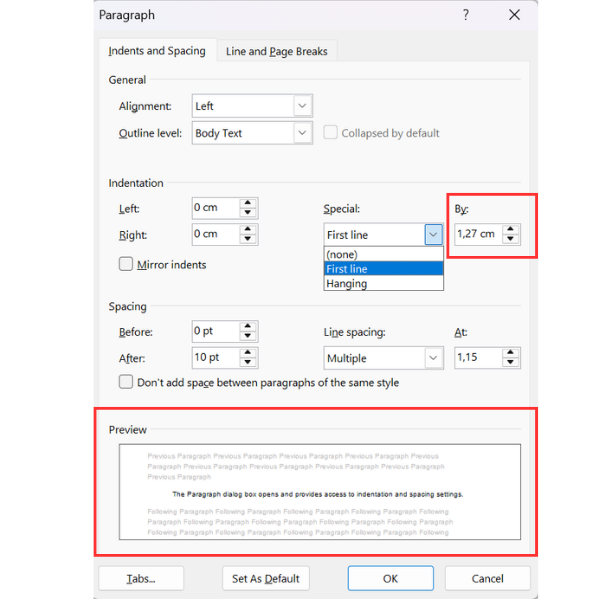
The Paragraph dialog box opens and provides access to indentation and spacing settings.
Step 3: Choose the Indentation Type
Section titled “Step 3: Choose the Indentation Type”- In the Indentation section, open the “Special” drop-down menu.
- Select “First line” to indent only the first line of each selected paragraph.
- Select “Hanging” to create a hanging indent. A hanging indent moves all lines except the first line. This type of indent is common in reference lists, bibliographies, citations, and structured lists.
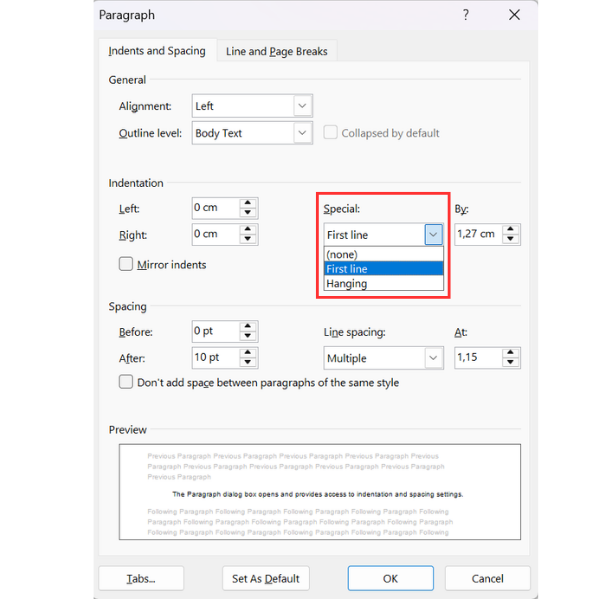
Step 4: Set the Indent Size
Section titled “Step 4: Set the Indent Size”In the “By” field, enter the indent size.
The preview at the bottom of the dialog box shows how the paragraph will look before the change is applied.
Step 5: Apply the Indent
Section titled “Step 5: Apply the Indent”Select OK.
Word applies a consistent indent to all selected paragraphs.
How to Indent an Entire Paragraph Using the Increase Indent Button
Section titled “How to Indent an Entire Paragraph Using the Increase Indent Button”Microsoft Word also includes an Increase Indent button. This method is useful when the entire paragraph needs to move inward from the left margin.
Step 1: Select the Paragraph
Section titled “Step 1: Select the Paragraph”Select the paragraph that should move inward.
Step 2: Use the Increase Indent Button
Section titled “Step 2: Use the Increase Indent Button”On the Home tab of the Ribbon, in the Paragraph group, select Increase Indent.
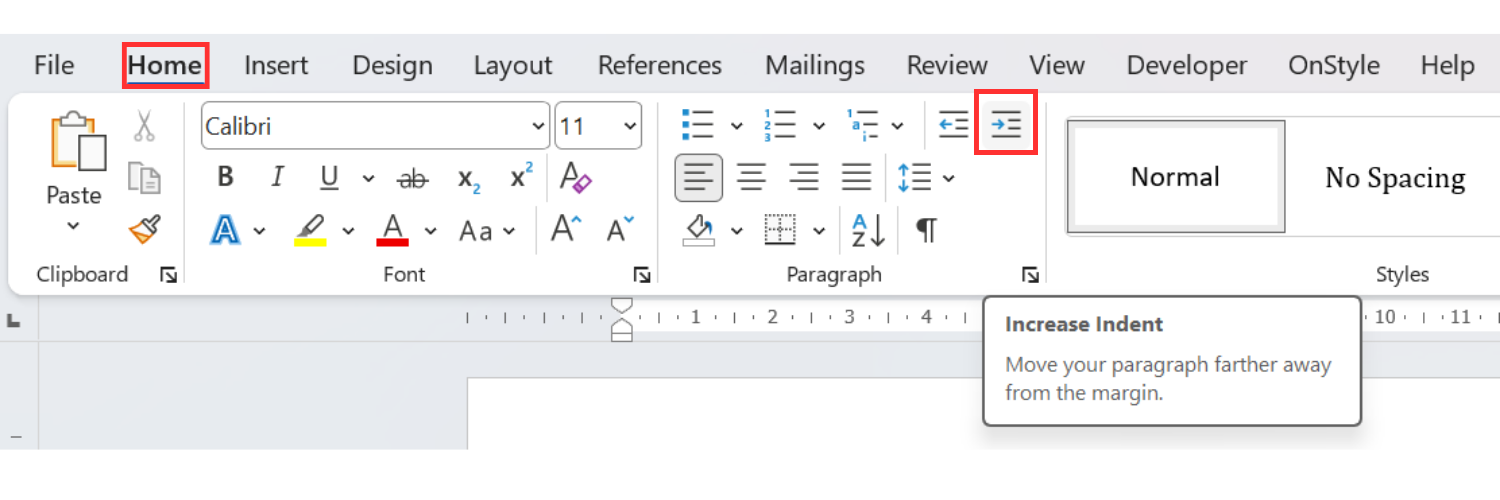
The entire paragraph moves inward. Unlike a first-line indent, this affects every line in the selected paragraph.
When to Use Each Paragraph Indent Method in Word
Section titled “When to Use Each Paragraph Indent Method in Word”Each indentation method has a different purpose. Choosing the correct method depends on whether the goal is speed, visual adjustment, or precise formatting.
- Use the Tab key when a quick one-paragraph first-line indent is needed.
- Use the ruler when visual control and fast adjustment are needed.
- Use the Paragraph dialog box when the most professional and consistent result is required.
- Use the Increase Indent button when the entire paragraph should move inward.
Common Paragraph Indent Mistakes in Microsoft Word
Section titled “Common Paragraph Indent Mistakes in Microsoft Word”Indentation problems often occur when manual formatting is mixed with structured formatting. Common mistakes include:
- Using spaces instead of indentation controls.
- Pressing the Tab key repeatedly across many paragraphs.
- Confusing first-line indents with full paragraph indents.
- Dragging the wrong ruler marker.
- Applying indentation to only one paragraph when several paragraphs require the same formatting.
- Ignoring paragraph styles in long documents.
These mistakes can lead to inconsistent formatting, especially when a document is edited, reused, or reviewed by multiple contributors.
Summary
Section titled “Summary”Microsoft Word provides several methods for indenting paragraphs. The Tab key is the fastest method for a single paragraph, the ruler provides visual control, and the Paragraph dialog box provides the most precise and consistent results.
The Increase Indent button is useful when the entire paragraph needs to move inward, but it is not a substitute for first-line indentation. For long or professional documents, the Paragraph dialog box and consistent styles provide the cleanest formatting workflow.
Using the correct indentation method improves readability, document structure, and formatting consistency.