
How to Adjust the Space Between Words in Word
How to adjust the space between words in Word? This is a more advanced formatting task that requires understanding how Word handles space characters. Unlike line spacing or letter spacing, Word does not provide a direct setting to control the distance between words. Instead, word spacing is defined by the formatting applied to space characters themselves.
This guide explains in detail how to control word spacing using Find and Replace, how Word processes spacing internally, and how to avoid common formatting errors in professional documents.
What Word Spacing Between Word Means
Section titled “What Word Spacing Between Word Means”Word spacing refers to the horizontal space between words in a line of text. This is distinct from other spacing settings available in Word.
It is important to distinguish between:
• Word spacing (space between words)
• Letter spacing (space between characters)
• Line spacing (vertical space between lines)
Changing letter spacing or line spacing will not affect the space between words. Word spacing must be adjusted separately.
How to Display Space Characters in Word
Section titled “How to Display Space Characters in Word”Turn On Formatting Marks
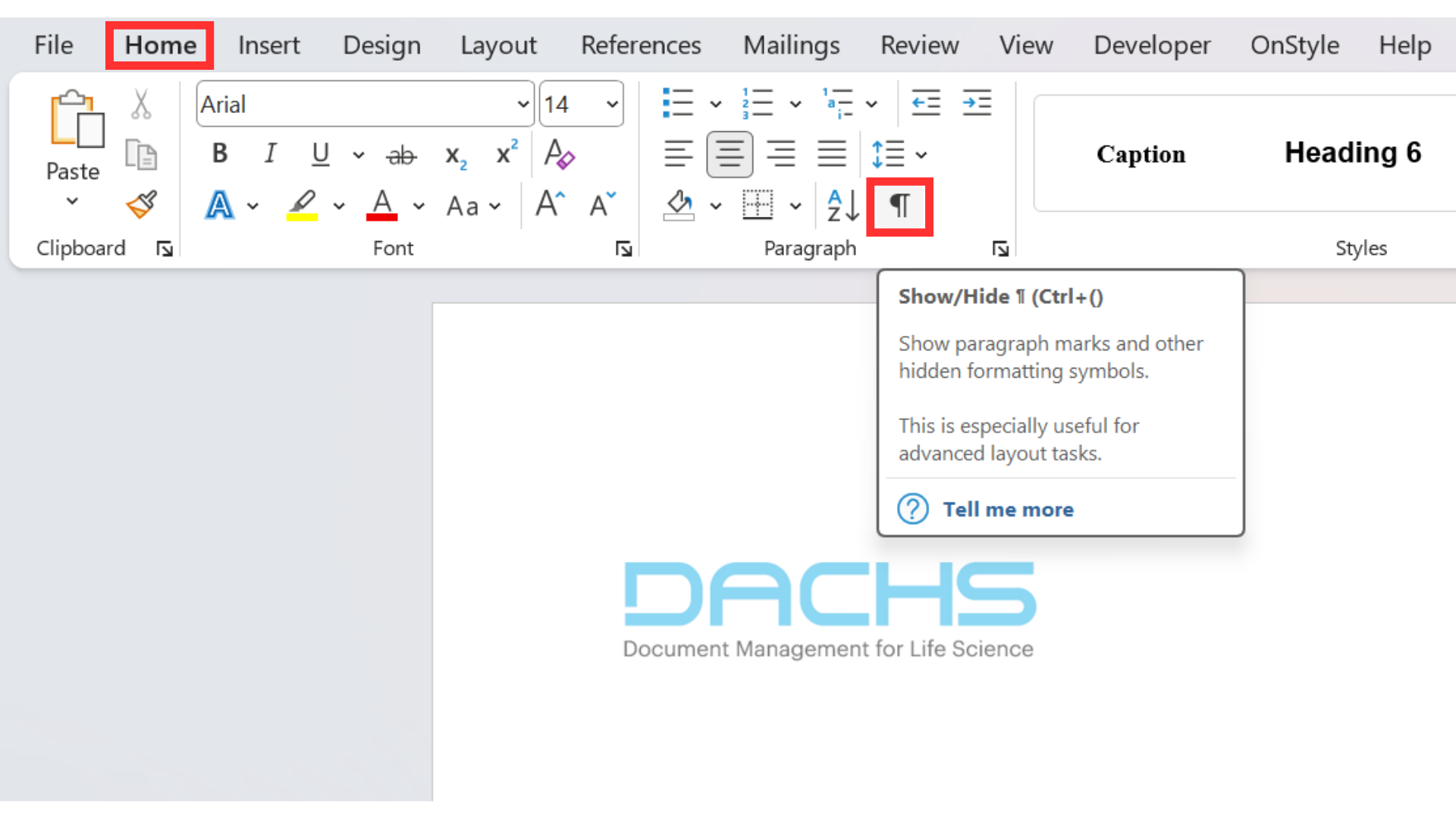
Section titled “Turn On Formatting Marks”On the Home tab of the Ribbon, in the Paragraph group, select Show/Hide ¶.
Spaces are now displayed as dots. Turning on paragraph marks allows precise identification of individual spaces between words.
How to Select Text for Word Spacing Changes
Section titled “How to Select Text for Word Spacing Changes”Word spacing changes can be applied to selected text or the entire document.
- Select the text to modify.
- To apply changes to the entire document, press Ctrl + A.
- To apply changes to a specific section, select only that section.
How Font Size Affects Word Spacing
Section titled “How Font Size Affects Word Spacing”The default width of a space is based on the font size currently applied to the text.
This means that adjusting the font size of a space character directly affects the visible gap between words.
- Larger font size = wider spacing
- Smaller font size= tighter spacing
This method allows fine control without affecting overall document structure.
How to Adjust the Space Between Words in Word Using Find and Replace
Section titled “How to Adjust the Space Between Words in Word Using Find and Replace”Word spacing can be adjusted by replacing existing spaces with spaces that have different formatting.
Step 1: Select Text
Section titled “Step 1: Select Text”Word spacing changes can be applied to selected text or the entire document.
- Select the text to modify.
- To apply changes to the entire document, press Ctrl + A.
- To apply changes to a specific section, select only that section.
Step 2: Open the Replace dialog box
Section titled “Step 2: Open the Replace dialog box”On the Home tab of the Ribbon, in the Editing group, select Replace.
The Find and Replace dialog box opens.
Step 3: Find Space Characters
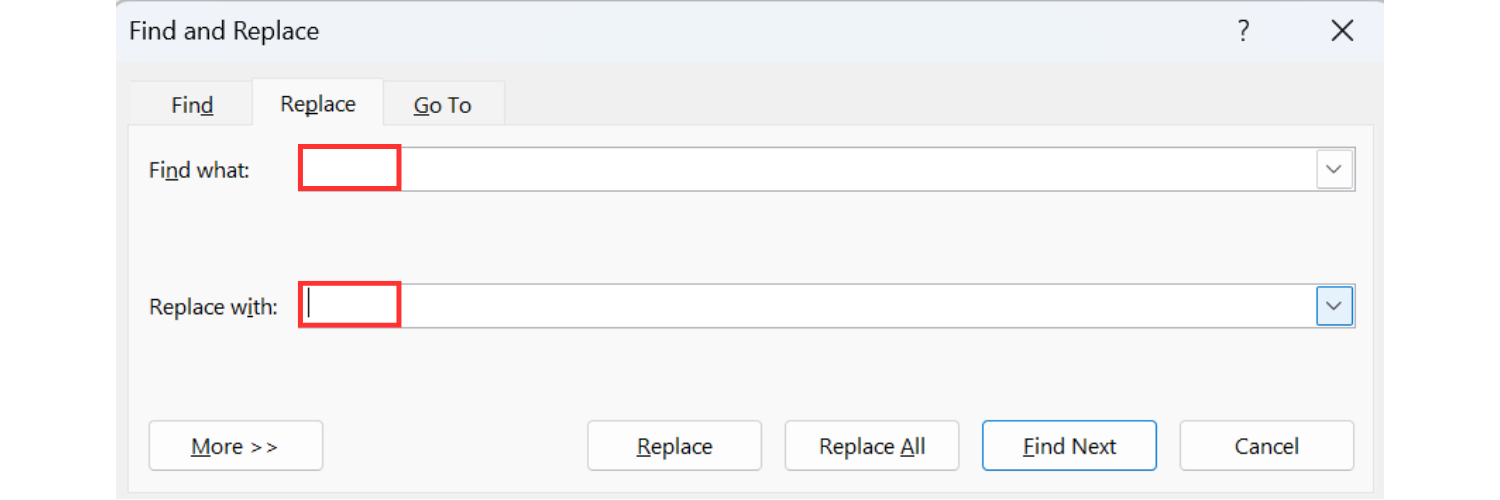
Section titled “Step 3: Find Space Characters”In the “Find what” field, press the spacebar once.
In the “Replace with” field, press the spacebar once.
This ensures that only space characters are targeted.
Step 4: Apply Formatting to Replacement Spaces
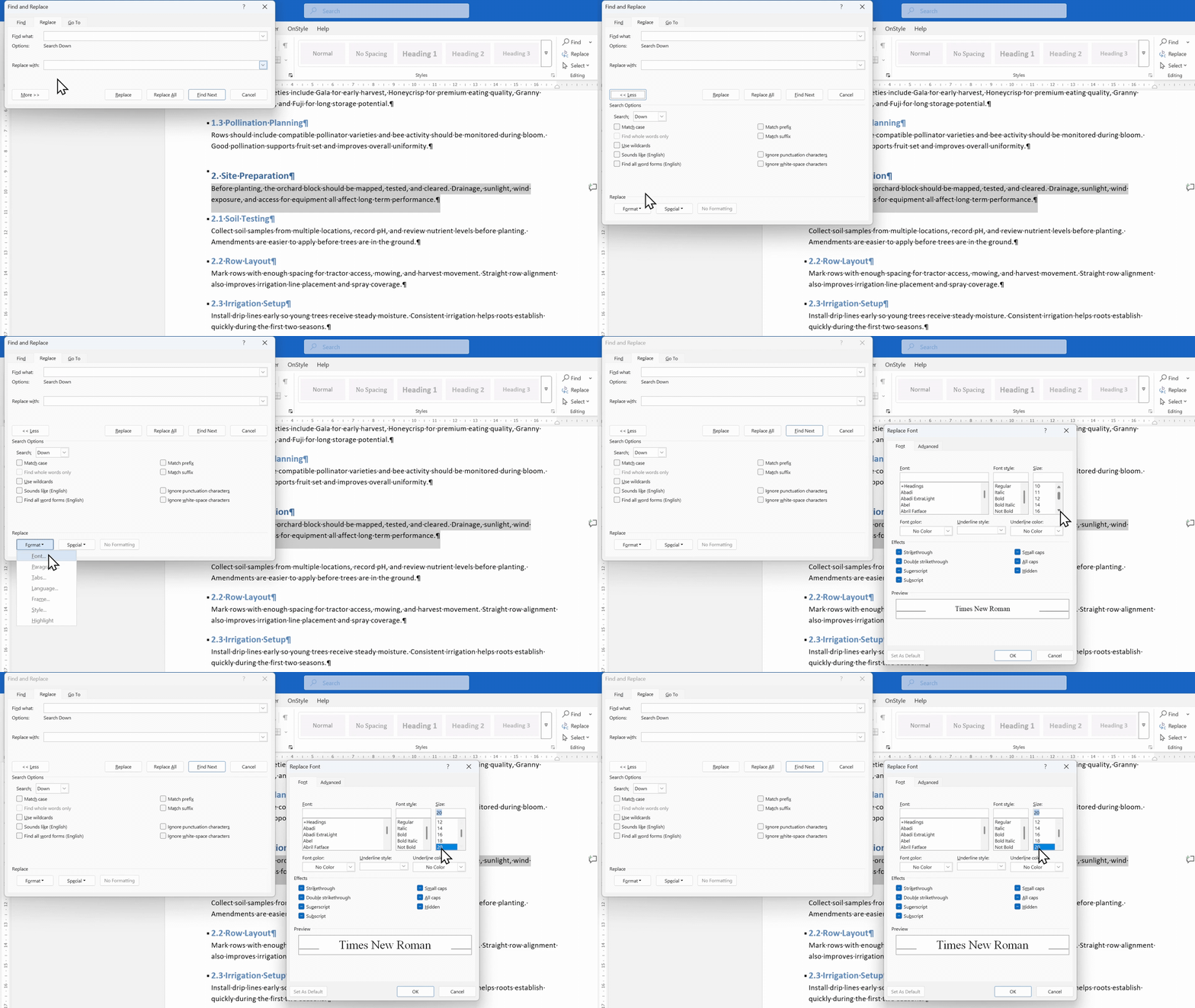
Section titled “Step 4: Apply Formatting to Replacement Spaces”Select More, then select Format, then select Font.
In the Font dialog box, select a font size larger than the current text to increase spacing, or smaller to decrease spacing.
Step 5: Change Word Spacing
Section titled “Step 5: Change Word Spacing”Select Replace All.
Word will confirm the number of replacements made.
If prompted, choose whether to apply changes to selected text or the entire document.
Why Multiple Spaces Should Not Be Used in Word
Section titled “Why Multiple Spaces Should Not Be Used in Word”Using multiple spaces to adjust layout is a common mistake that leads to inconsistent formatting.
Multipled manual spacing creates issues with alignment, justification, and document maintenance.
Best Use Cases for Word Spacing Adjustments
Section titled “Best Use Cases for Word Spacing Adjustments”This method is most effective for:
- headings
- invitations
- short text sections
- stylized formatting
It should be used carefully in long documents, as excessive spacing reduces readability.
What Are Common Mistakes When Adjusting Word Spacing
Section titled “What Are Common Mistakes When Adjusting Word Spacing”Common issues include:
- using multiple spaces instead of formatting
- changing letter spacing instead of word spacing
- not selecting the correct text
- applying changes to unintended sections
- using excessively large spacing values
Summary
Section titled “Summary”Word spacing in Microsoft Word is controlled by the formatting of space characters. Using Find and Replace allows precise adjustment without affecting other formatting settings.
Understanding how Word handles spacing improves document quality, ensures consistency, and avoids common formatting errors.