
How to Export Links from a Word Document
How to export links from a Microsoft Word document? Exporting all links from Word is not a simple task, especially in long, technical, or regulatory documents. Many documents contain dozens or even hundreds of links, including external hyperlinks, internal navigation links, and cross-references.
These links often look identical in the document, but they are fundamentally different in how they are stored and managed by Microsoft Word. This creates a major limitation: Word does not provide a built-in way to extract or export all links into a single structured list.
In large documents, this becomes a serious problem. Manual review is slow, error-prone, and incomplete. Missing links, broken references, or outdated URLs can go unnoticed without a structured overview.
How Many Types of Links are there in Microsoft Word
Section titled “How Many Types of Links are there in Microsoft Word”Before attempting to export links, it is essential to understand the three main link types in Word documents and how they behave internally.
- External hyperlinks connect to locations outside the document. These include websites, SharePoint locations, files, and email addresses.
- Internal hyperlinks navigate within the document. These typically point to bookmarks or headings.
- Cross-references are dynamic references to structured elements such as headings, tables, figures, or numbered items. These update automatically when the document changes.
Although these links look similar visually, they are stored differently. Hyperlinks are stored in the document’s Hyperlinks collection, while cross-references are stored as fields such as REF or PAGEREF.
This separation is the core reason why exporting all links is difficult.
Why Microsoft Word Cannot Export All Links Directly
Section titled “Why Microsoft Word Cannot Export All Links Directly”Microsoft Word does not include an “Export Links” feature because it does not maintain a unified link structure.
Hyperlinks are stored as objects in the Hyperlinks collection. Cross-references are stored as field codes. Bookmarks act as hidden anchors.
Because of this, extracting all links requires multiple methods. Each method only covers part of the document structure.
Method 1: How to Export Links in Word Using Field Codes
Section titled “Method 1: How to Export Links in Word Using Field Codes”Step 1: How to Display Field Codes
Section titled “Step 1: How to Display Field Codes”Press Alt + F9 to display all field codes in the document. Hyperlinks and cross-references will appear as structured code, such as { HYPERLINK “https://dachs.ch” } or { REF__OnS_HypTool_5436_5455 \* CHARFORMAT \h }.
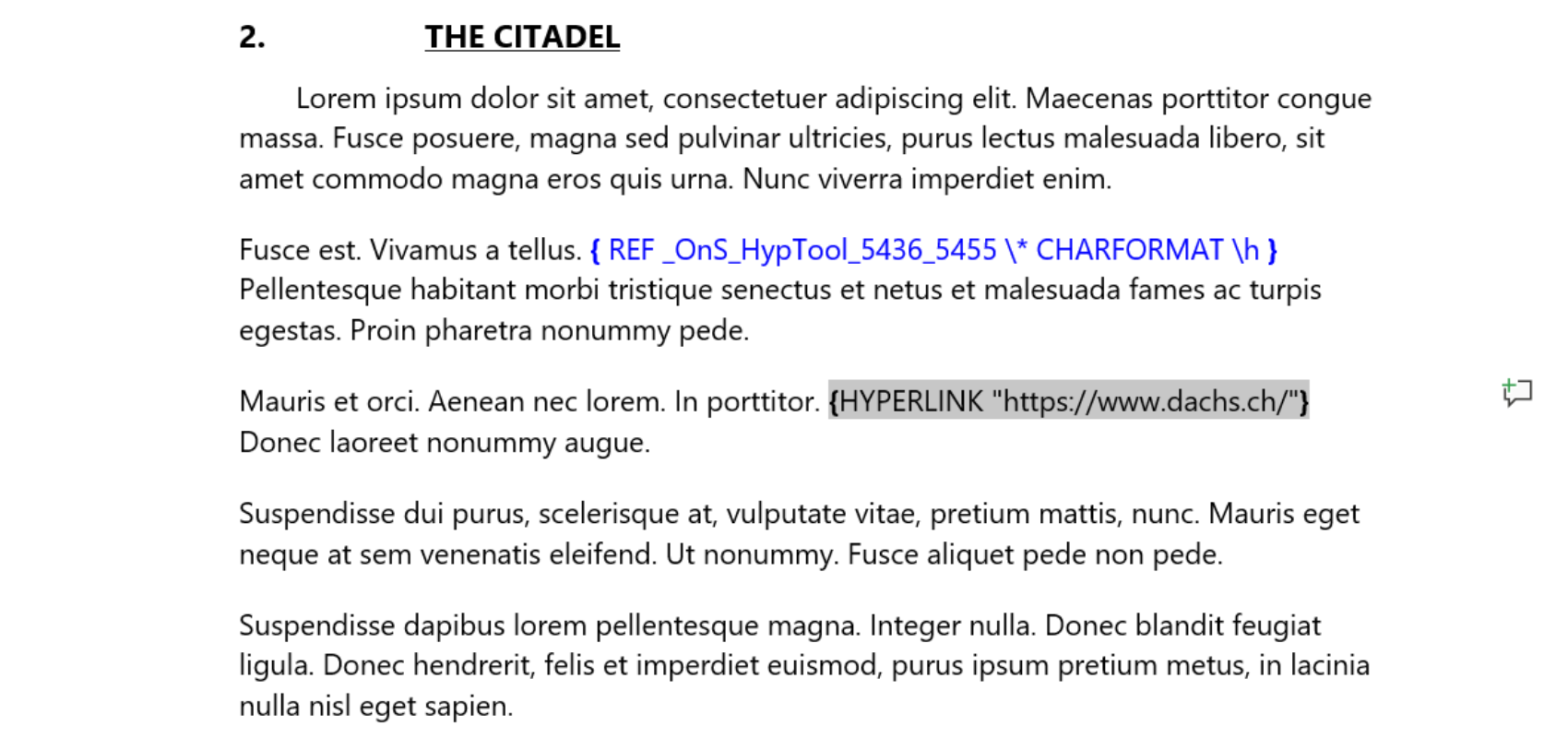
Step 2: Identify Link Types in Field Codes
Section titled “Step 2: Identify Link Types in Field Codes”- HYPERLINK fields represent external or internal hyperlinks.
- REF and PAGEREF fields represent cross-references.
Each field contains a reference to a target or address.
Step 3: How to Find All Hyperlink Fields in Word
Section titled “Step 3: How to Find All Hyperlink Fields in Word”- Press Ctrl + H to open the Find and Replace dialog box.
- In the “Find what” field, enter “HYPERLINK”.
- Select Reading Highlight, then select Highlight All to highlight all hyperlink fields in the document.
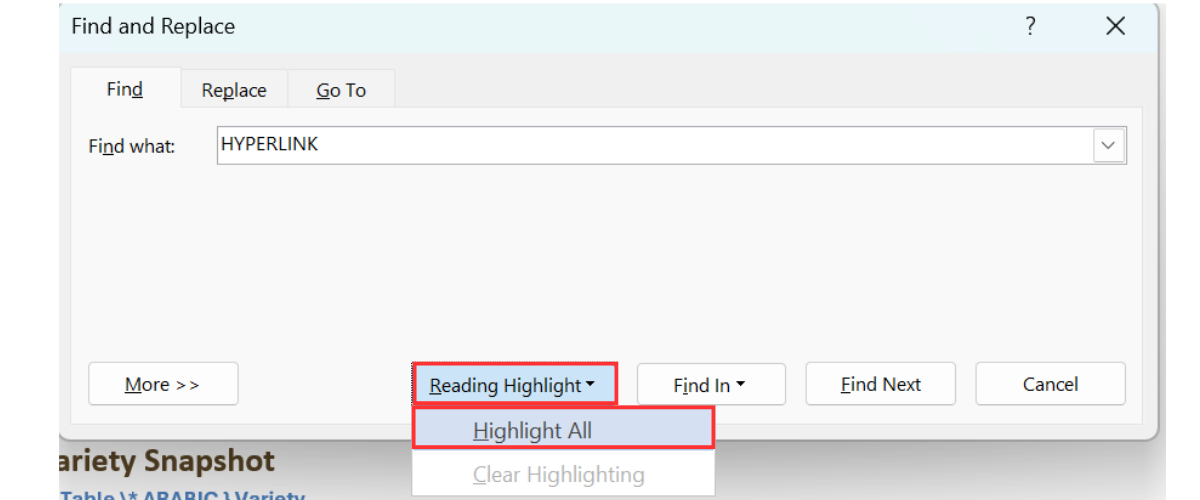
Step 4: How to Find Only External Hyperlinks (https Links) in Word
Section titled “Step 4: How to Find Only External Hyperlinks (https Links) in Word”- Press Ctrl + H to open the Find and Replace dialog box.
- Select More >> to expand advanced options.
- Enable Use wildcards.
- In the “Find what” field, enter a pattern to locate external links (e.g., links starting with “https”).
- Select Find In, then select Main Document.
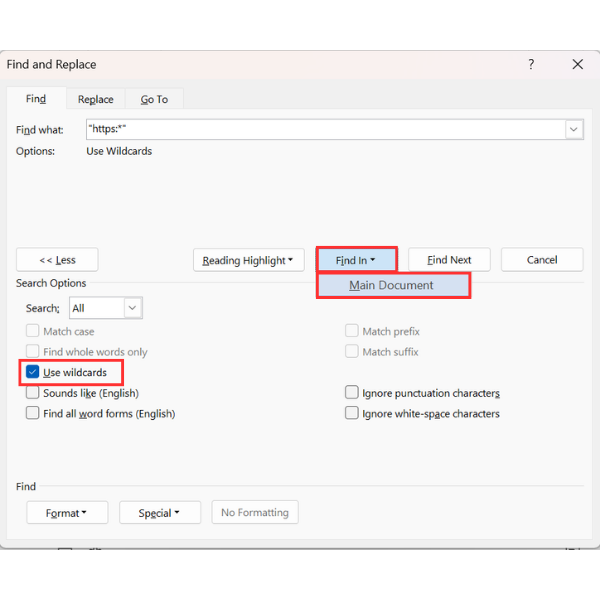
All external hyperlinks are now selected and can be copied at once.
Step 5: Copy Field Code Data
Section titled “Step 5: Copy Field Code Data”Manually select highlighted field codes while holding Ctrl, then press Ctrl + C to copy them. Paste the results into another document or spreadsheet.
Step 6: How to Find Cross-References in Word
Section titled “Step 6: How to Find Cross-References in Word”Repeat the process using “REF” or “PAGEREF” in the Find dialog box to locate cross-references.
Method 2: Export Links Using Macros (VBA)
Section titled “Method 2: Export Links Using Macros (VBA)”A VBA macro can extract links more systematically by accessing Word’s internal object model. To extract all links, a macro must process both the Hyperlinks collection and the Fields collection.
The Hyperlinks collection contains external and some internal links. The Fields collection contains cross-references and other dynamic references. A complete macro must loop through both collections and combine the results into a structured output.
Before using a macro, close other Word documents to reduce the risk of conflicts during export.
How to Export Links with VBA Codes
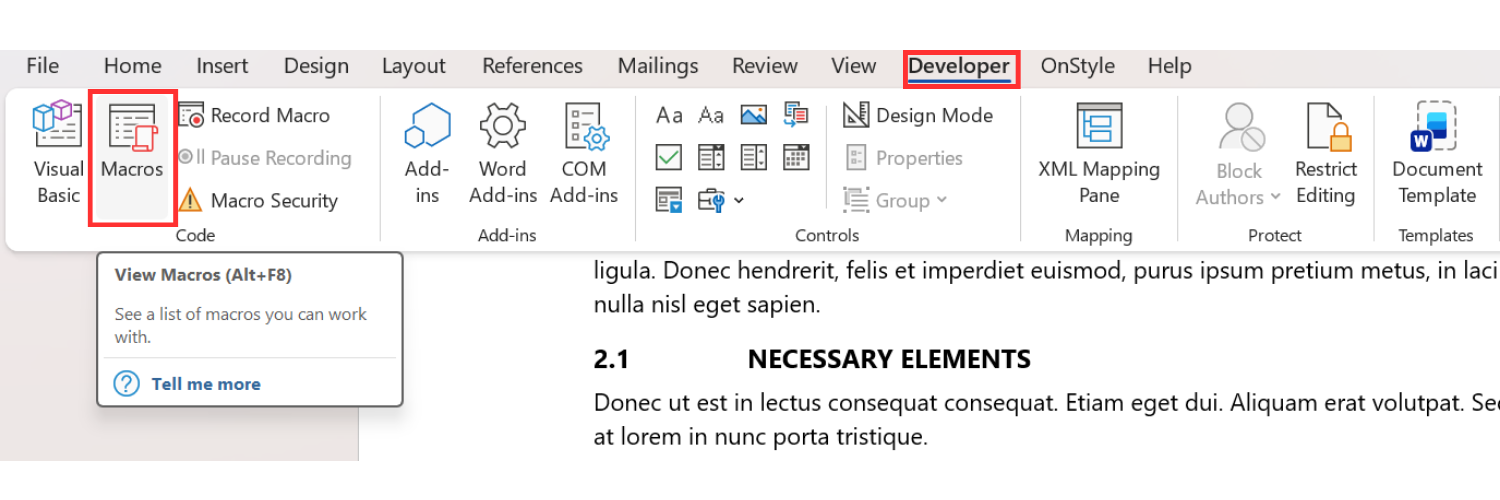
Section titled “How to Export Links with VBA Codes”- Enable the Developer tab if it is not visible. (File → Options → Customize Ribbon)
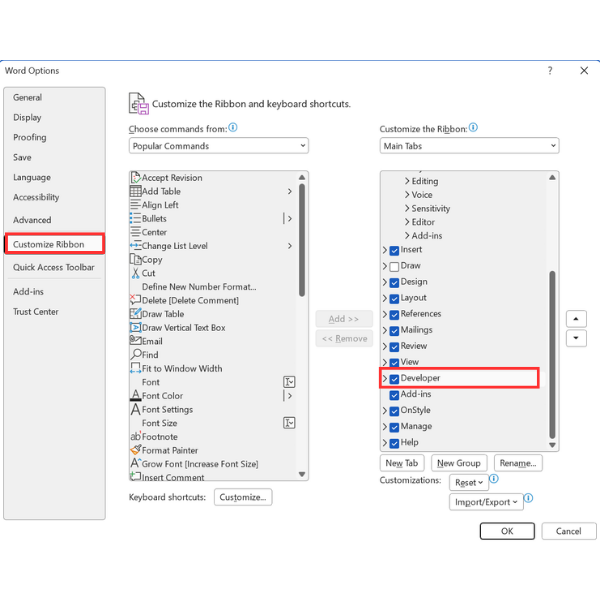
- On the Developer tab of the Ribbon, select Macros.
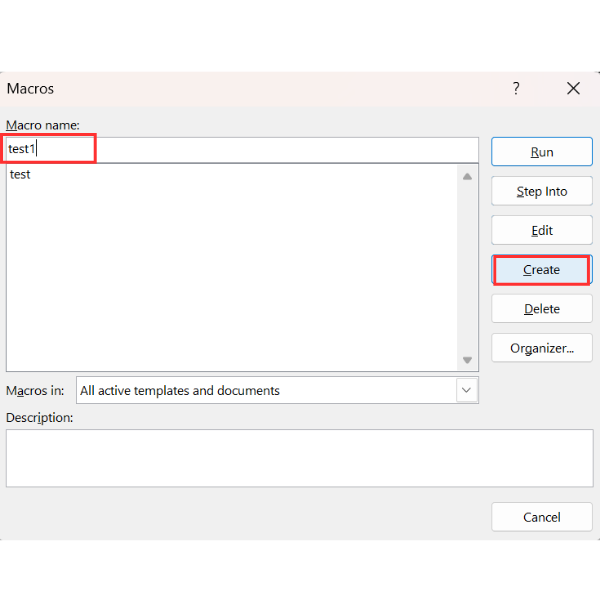
- Enter a macro name without spaces or special characters.
- Select Create.
- In the Microsoft Visual Basic for Applications editor, delete the placeholder code.
- Paste the following macro code:
'==========================' ENTRY POINT (RUN THIS)'==========================Public Sub Export_AllLinks_ToExcel()    Dim xlApp As Object, wb As Object, ws As Object    Dim nextRow As Long
    Set xlApp = CreateObject("Excel.Application")    xlApp.Visible = True    Set wb = xlApp.Workbooks.Add    Set ws = wb.Worksheets(1)    ws.Name = "Word Links"
    WriteHeaders ws    nextRow = 2
    ' Export Hyperlinks collection (external + internal hyperlinks)    Export_Hyperlinks_Collection ActiveDocument, ws, nextRow
    ' Export cross-references (REF/PAGEREF/NOTEREF) + field hyperlinks    Export_CrossReference_Fields ActiveDocument, ws, nextRow
    ' Final formatting    ws.Columns("A:H").EntireColumn.AutoFit    ws.Rows(1).Font.Bold = True    ws.Rows(1).AutoFilter
    MsgBox "Done. Exported " & (nextRow - 2) & " items to Excel.", vbInformationEnd Sub
'==========================' OPTIONAL: RUN INDIVIDUALS'==========================Public Sub Export_Only_Hyperlinks_ToExcel()    Dim xlApp As Object, wb As Object, ws As Object    Dim nextRow As Long
    Set xlApp = CreateObject("Excel.Application")    xlApp.Visible = True    Set wb = xlApp.Workbooks.Add    Set ws = wb.Worksheets(1)    ws.Name = "Hyperlinks"
    WriteHeaders ws    nextRow = 2
    Export_Hyperlinks_Collection ActiveDocument, ws, nextRow
    ws.Columns("A:H").EntireColumn.AutoFit    ws.Rows(1).Font.Bold = True    ws.Rows(1).AutoFilter
    MsgBox "Done. Exported " & (nextRow - 2) & " hyperlinks.", vbInformationEnd Sub
Public Sub Export_Only_CrossReferences_ToExcel()    Dim xlApp As Object, wb As Object, ws As Object    Dim nextRow As Long
    Set xlApp = CreateObject("Excel.Application")    xlApp.Visible = True    Set wb = xlApp.Workbooks.Add    Set ws = wb.Worksheets(1)    ws.Name = "CrossRefs"
    WriteHeaders ws    nextRow = 2
    Export_CrossReference_Fields ActiveDocument, ws, nextRow
    ws.Columns("A:H").EntireColumn.AutoFit    ws.Rows(1).Font.Bold = True    ws.Rows(1).AutoFilter
    MsgBox "Done. Exported " & (nextRow - 2) & " cross-reference/field links.", vbInformationEnd Sub
'==========================' CORE EXPORTERS'==========================Private Sub Export_Hyperlinks_Collection(ByVal doc As Document, ByVal ws As Object, ByRef nextRow As Long)    Dim h As Hyperlink    Dim linkType As String    Dim displayText As String    Dim address As String    Dim subAddress As String    Dim loc As String
    For Each h In doc.Hyperlinks        address = Nz(h.Address)        subAddress = Nz(h.SubAddress)
        If address <> "" Then            linkType = "Hyperlink (External)"        Else            linkType = "Hyperlink (Internal)"        End If
        ' Hyperlink.TextToDisplay can fail in some edge cases; fall back to range text        On Error Resume Next        displayText = h.TextToDisplay        On Error GoTo 0        If Trim$(displayText) = "" Then displayText = CleanText(h.Range.Text)
        loc = RangeLocation(h.Range)
        WriteRow ws, nextRow, linkType, displayText, address, subAddress, "", loc, "Hyperlinks"        nextRow = nextRow + 1    Next hEnd Sub
Private Sub Export_CrossReference_Fields(ByVal doc As Document, ByVal ws As Object, ByRef nextRow As Long)    Dim rngStory As Range    Dim fld As Field    Dim codeText As String    Dim resultText As String    Dim linkType As String    Dim target As String    Dim loc As String
    ' Iterate all story ranges (main text, headers/footers, footnotes, endnotes, textboxes, etc.)    For Each rngStory In AllStoryRanges(doc)        For Each fld In rngStory.Fields            If IsCrossRefOrLinkField(fld) Then                codeText = CleanText(fld.Code.Text)                resultText = CleanText(fld.Result.Text)
                linkType = FieldLinkType(fld, codeText)                target = FieldTarget(codeText) ' bookmark name, etc.                loc = RangeLocation(fld.Result)
                WriteRow ws, nextRow, linkType, resultText, "", target, codeText, loc, "Fields"                nextRow = nextRow + 1            End If        Next fld    Next rngStoryEnd Sub
'==========================' FIELD HELPERS'==========================Private Function IsCrossRefOrLinkField(ByVal fld As Field) As Boolean    ' Cross-reference related fields:    ' wdFieldRef, wdFieldPageRef, wdFieldNoteRef    ' Also include wdFieldHyperlink because some links are stored as fields.    Select Case fld.Type        Case wdFieldRef, wdFieldPageRef, wdFieldNoteRef, wdFieldHyperlink            IsCrossRefOrLinkField = True        Case Else            IsCrossRefOrLinkField = False    End SelectEnd Function
Private Function FieldLinkType(ByVal fld As Field, ByVal codeText As String) As String    Select Case fld.Type        Case wdFieldRef            FieldLinkType = "Cross-reference (REF)"        Case wdFieldPageRef            FieldLinkType = "Cross-reference (PAGEREF)"        Case wdFieldNoteRef            FieldLinkType = "Cross-reference (NOTEREF)"        Case wdFieldHyperlink            ' Could be external or internal; inspect the field code text quickly            If InStr(1, codeText, "HYPERLINK", vbTextCompare) > 0 Then                If InStr(1, codeText, "\l", vbTextCompare) > 0 Then                    FieldLinkType = "Field Hyperlink (Internal)"                Else                    FieldLinkType = "Field Hyperlink (External)"                End If            Else                FieldLinkType = "Field Link"            End If        Case Else            FieldLinkType = "Field"    End SelectEnd Function
Private Function FieldTarget(ByVal codeText As String) As String    ' Attempts to extract the bookmark/target from REF / PAGEREF / NOTEREF / HYPERLINK    Dim s As String    s = Trim$(codeText)
    If StartsWithField(s, "REF") Then        FieldTarget = FirstTokenAfterKeyword(s, "REF")        Exit Function    End If
    If StartsWithField(s, "PAGEREF") Then        FieldTarget = FirstTokenAfterKeyword(s, "PAGEREF")        Exit Function    End If
    If StartsWithField(s, "NOTEREF") Then        FieldTarget = FirstTokenAfterKeyword(s, "NOTEREF")        Exit Function    End If
    If StartsWithField(s, "HYPERLINK") Then        ' External often: HYPERLINK "https://..."        ' Internal often uses: \l "BookmarkName"        FieldTarget = ExtractHyperlinkFieldTarget(s)        Exit Function    End If
    FieldTarget = ""End Function
Private Function StartsWithField(ByVal codeText As String, ByVal keyword As String) As Boolean    ' Field codes can start with the keyword or with leading spaces    Dim s As String    s = LCase$(Trim$(codeText))    StartsWithField = (Left$(s, Len(keyword)) = LCase$(keyword))End Function
Private Function FirstTokenAfterKeyword(ByVal codeText As String, ByVal keyword As String) As String    Dim s As String, rest As String    s = Trim$(codeText)
    ' Remove the keyword    rest = Trim$(Mid$(s, Len(keyword) + 1))
    ' Token ends at first space or switch "\"    FirstTokenAfterKeyword = NextToken(rest)End Function
Private Function NextToken(ByVal s As String) As String    Dim i As Long, ch As String    s = Trim$(s)    If s = "" Then        NextToken = ""        Exit Function    End If
    ' If quoted    If Left$(s, 1) = """" Then        NextToken = ExtractQuoted(s)        Exit Function    End If
    For i = 1 To Len(s)        ch = Mid$(s, i, 1)        If ch = " " Or ch = "\" Then            NextToken = Left$(s, i - 1)            Exit Function        End If    Next i
    NextToken = sEnd Function
Private Function ExtractQuoted(ByVal s As String) As String    ' Expects something starting with a quote; returns content inside first pair of quotes    Dim p2 As Long    If Left$(s, 1) <> """" Then        ExtractQuoted = ""        Exit Function    End If    p2 = InStr(2, s, """")    If p2 > 0 Then        ExtractQuoted = Mid$(s, 2, p2 - 2)    Else        ExtractQuoted = ""    End IfEnd Function
Private Function ExtractHyperlinkFieldTarget(ByVal codeText As String) As String    ' Prefer internal \l "Bookmark"    Dim s As String    Dim p As Long    s = codeText
    p = InStr(1, s, "\l", vbTextCompare)    If p > 0 Then        ' After \l there is usually a quoted bookmark name        ExtractHyperlinkFieldTarget = ExtractQuoted(Trim$(Mid$(s, p + 2)))        Exit Function    End If
    ' Else try first quoted string after HYPERLINK (URL/path)    p = InStr(1, s, "HYPERLINK", vbTextCompare)    If p > 0 Then        ExtractHyperlinkFieldTarget = ExtractQuoted(Trim$(Mid$(s, p + Len("HYPERLINK"))))        Exit Function    End If
    ExtractHyperlinkFieldTarget = ""End Function
'==========================' EXCEL WRITING HELPERS'==========================Private Sub WriteHeaders(ByVal ws As Object)    ws.Cells(1, 1).Value = "Type"    ws.Cells(1, 2).Value = "Display Text"    ws.Cells(1, 3).Value = "Address (External)"    ws.Cells(1, 4).Value = "Target / SubAddress (Internal)"    ws.Cells(1, 5).Value = "Field Code (if applicable)"    ws.Cells(1, 6).Value = "Location (Page:Para)"    ws.Cells(1, 7).Value = "Story"    ws.Cells(1, 8).Value = "Notes"End Sub
Private Sub WriteRow(ByVal ws As Object, ByVal rowN As Long, _                     ByVal typ As String, ByVal disp As String, _                     ByVal addr As String, ByVal target As String, _                     ByVal fieldCode As String, ByVal location As String, _                     ByVal notes As String)    ws.Cells(rowN, 1).Value = typ    ws.Cells(rowN, 2).Value = disp    ws.Cells(rowN, 3).Value = addr    ws.Cells(rowN, 4).Value = target    ws.Cells(rowN, 5).Value = fieldCode    ws.Cells(rowN, 6).Value = location    ws.Cells(rowN, 7).Value = ""  ' filled by RangeLocation (optional); left blank here    ws.Cells(rowN, 8).Value = notesEnd Sub
'==========================' RANGE / DOCUMENT HELPERS'==========================Private Function RangeLocation(ByVal rng As Range) As String    On Error GoTo SafeExit    Dim pg As Long
    pg = rng.Information(wdActiveEndPageNumber)    RangeLocation = "p." & pg & " : approx"    Exit Function
SafeExit:    RangeLocation = ""End Function
Private Function CleanText(ByVal s As String) As String    ' Remove common Word endmarks and trim    s = Replace(s, vbCr, " ")    s = Replace(s, vbLf, " ")    s = Replace(s, ChrW(7), "")  ' cell end mark (tables)    CleanText = Trim$(s)End Function
Private Function Nz(ByVal v As Variant) As String    If IsNull(v) Then        Nz = ""    Else        Nz = CStr(v)    End IfEnd Function
'==========================' STORY RANGE ITERATION'==========================Private Function AllStoryRanges(ByVal doc As Document) As Collection    Dim col As New Collection    Dim rng As Range    Dim i As Long
    ' Add each story type and chain through linked story ranges    For i = wdMainTextStory To wdTextFrameStory        On Error Resume Next        Set rng = doc.StoryRanges(i)        On Error GoTo 0
        If Not rng Is Nothing Then            Do                col.Add rng.Duplicate                Set rng = rng.NextStoryRange            Loop While Not rng Is Nothing        End If
        Set rng = Nothing    Next i
Set AllStoryRanges = colEnd Function- Select the green Run button, or press F5.
The macro runs inside the active document and collects link information based on the code.
However, this approach has significant limitations. Macros must be enabled, which is often restricted in corporate environments. Writing or maintaining macros requires technical expertise. Macros can introduce security risks and are difficult to scale across teams.
Method 3: Export All Links in Word Using OnStyle
Section titled “Method 3: Export All Links in Word Using OnStyle”Step 1: Export All Links from a Word Document
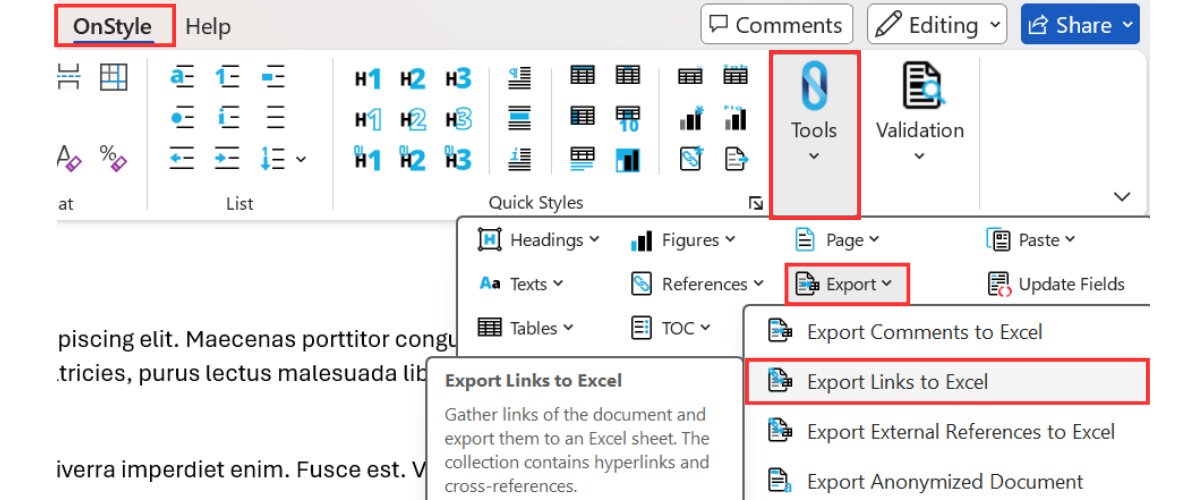
Section titled “Step 1: Export All Links from a Word Document”On the OnStyle tab of the Ribbon, select Export, then select Export Links to Excel.
Step 2: Automatically Find External Hyperlinks, Internal Links, and Cross-References in Word
Section titled “Step 2: Automatically Find External Hyperlinks, Internal Links, and Cross-References in Word”OnStyle scans the entire document structure. It detects external hyperlinks, internal hyperlinks, and cross-references without requiring manual selection or field code inspection.
Step 3: Review All Exported Links in Excel
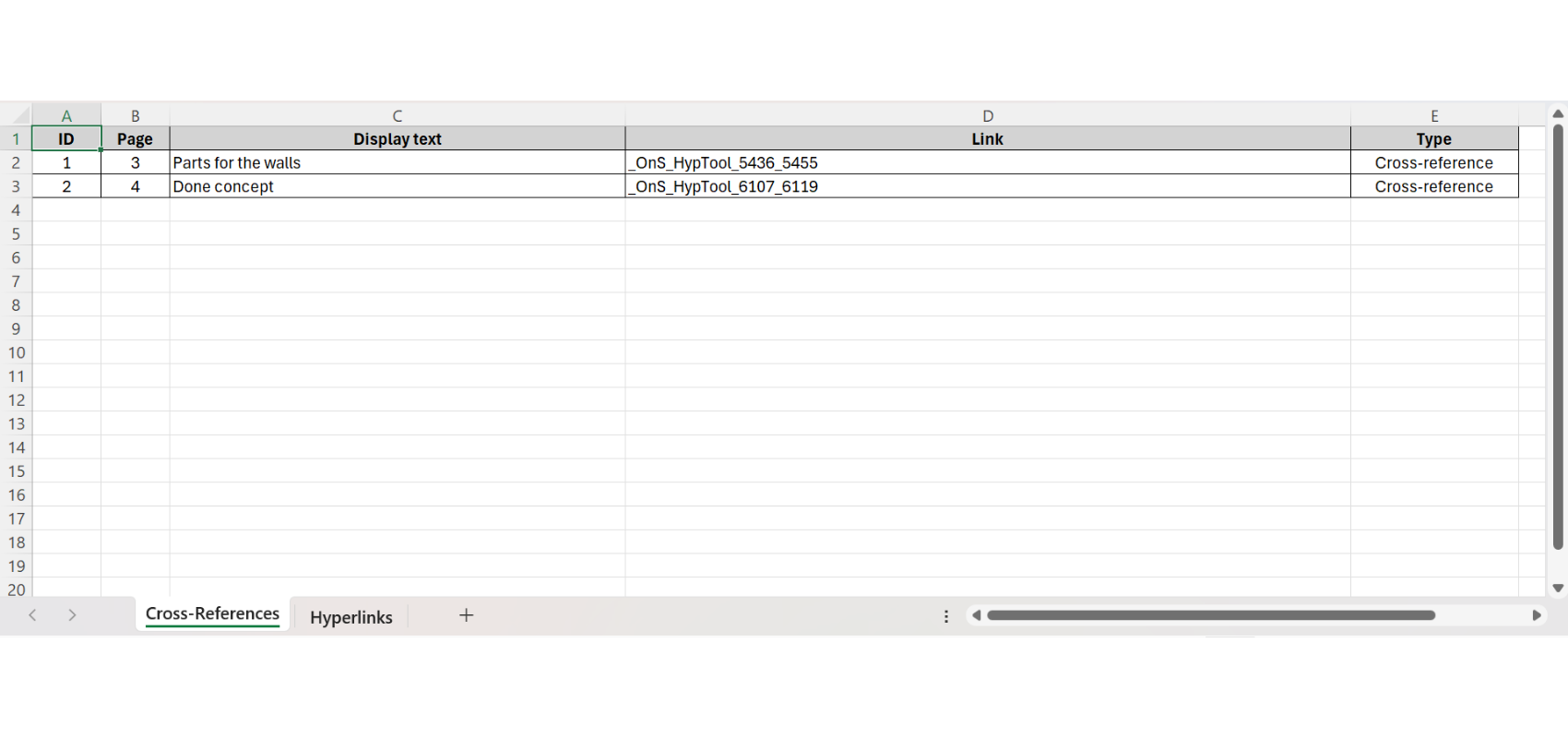
Section titled “Step 3: Review All Exported Links in Excel”The exported Excel file provides a structured overview of all links in the document.
Typical columns include ID, Page, Display Text, Link, and Type. Links are grouped into categories such as Hyperlinks and Cross-References, making analysis easier.
Step 4: Analyze and Validate Links
Section titled “Step 4: Analyze and Validate Links”The Excel output can be filtered and sorted. This allows quick identification of broken links, outdated references, or incorrect targets. This structured approach enables review workflows that are not possible in Word itself.
Practical Use Cases for Exporting Links in Word Documents
Section titled “Practical Use Cases for Exporting Links in Word Documents”Exporting links is critical in environments where document accuracy is essential.
In regulatory or legal documents, all external references must be verified before submission. In technical documentation, cross-references must remain accurate after updates. In large templates, internal links must be validated to ensure correct navigation.
Exporting links provides a complete overview that supports auditing, quality assurance, and compliance processes.
Summary
Section titled “Summary”Microsoft Word does not provide a built-in way to export all links because hyperlinks and cross-references are stored separately.
Field code methods and VBA macros provide partial solutions but are limited, technical, and inefficient.
Automated tools provide a complete and structured solution by detecting all link types and exporting them into a usable format.
Using a structured approach improves document quality, reduces manual effort, and minimizes the risk of missing or incorrect links.