
How to Fix ‘Error! Reference Source Not Found’ in Word
This guide explains in detail how to fix ‘Error! Reference source not found’ in Word,why the error appears, how cross-references work internally, how to fix broken references step by step, and how to prevent cross-reference related issues in long and complex documents.
How Cross-References Work in Microsoft Word
Section titled “How Cross-References Work in Microsoft Word”Cross-references in Word are based on field codes and hidden bookmarks. When a cross-reference is inserted, Word creates a REF field that points to a bookmark. This bookmark is automatically placed around the referenced item, such as a heading, figure caption, table caption, or numbered element.
The visible text in the document is only the display value of the field.
Why ‘Error! Reference Source Not Found’ Appears
Section titled “Why ‘Error! Reference Source Not Found’ Appears”The error appears when the REF field cannot locate its target bookmark. This means the link between the reference and the referenced content has been lost.
This can happen even when the document appears correct visually. A reference may still display text, but internally the connection is no longer valid.
Common causes include:
- Deleting a referenced heading, table, or figure.
- Cutting and pasting referenced content incorrectly.
- Inserting content at the beginning of a bookmarked paragraph.
- Using manual captions instead of Word caption tools.
- Not updating fields after making document changes.
- Copying content from other documents with hidden formatting.
- Breaking bookmark structure through editing operations.
How Hidden Bookmarks Break in Word Documents
Section titled “How Hidden Bookmarks Break in Word Documents”Hidden bookmarks are sensitive to structural changes. When text is inserted at the beginning of a bookmarked paragraph, the bookmark may expand or shift.
For example, placing the cursor at the beginning of a heading and pressing Enter creates a new paragraph above it. The bookmark remains attached to the original paragraph, that changes the reference target.
As a result, cross-references may point to the wrong location or fail completely.
How to Fix ‘Error! Reference Source Not Found’ in Word
Section titled “How to Fix ‘Error! Reference Source Not Found’ in Word”Step 1: Update All Fields in the Document
Section titled “Step 1: Update All Fields in the Document”- Press Ctrl + A to select the entire document.
- Press F9 to update all fields.
Step 2: Find Broken Cross-References
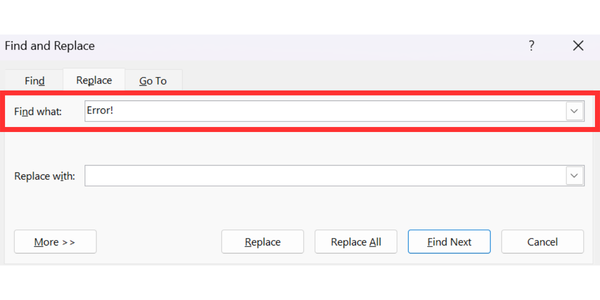
Section titled “Step 2: Find Broken Cross-References”- Press Ctrl + H to open the Find and Replace dialog box.
- In the “Find what” field, enter Error!
- Select Find Next to navigate through each broken reference.
Step 3: How to Display the Field Codes in Word
Section titled “Step 3: How to Display the Field Codes in Word”- Select the broken reference.
- Press Alt + F9 to toggle field codes.
- In the field code, look for the REF field (e. g., REF _Ref123456789).
- Check whether this reference name looks valid or corresponds to an existing item in the document.
If the bookmark is missing, the reference cannot be repaired automatically and must be recreated.
Step 4: How to Check if a Bookmark Exists in Word
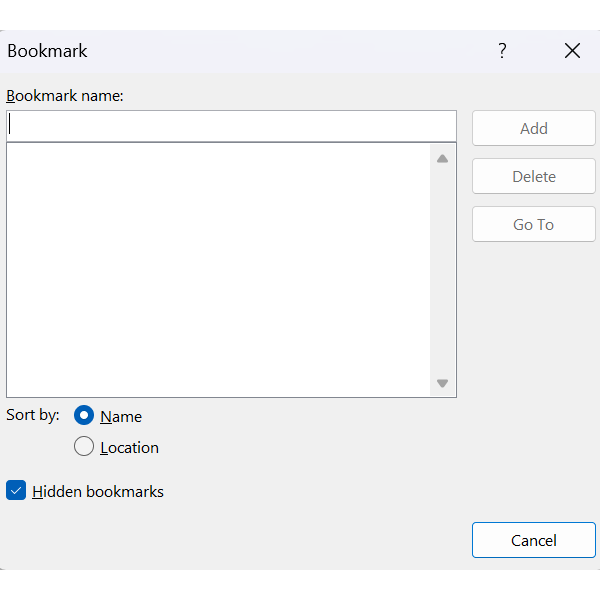
Section titled “Step 4: How to Check if a Bookmark Exists in Word”- On the Insert tab of the Ribbon, select Bookmark.
- In the Bookmark dialog box, review the list of bookmarks.
- Check whether the referenced bookmark is present.
Step 5: How to Fix a Broken Reference
Section titled “Step 5: How to Fix a Broken Reference”If the Bookmark Is Missing:
Section titled “If the Bookmark Is Missing:”For figures or tables:
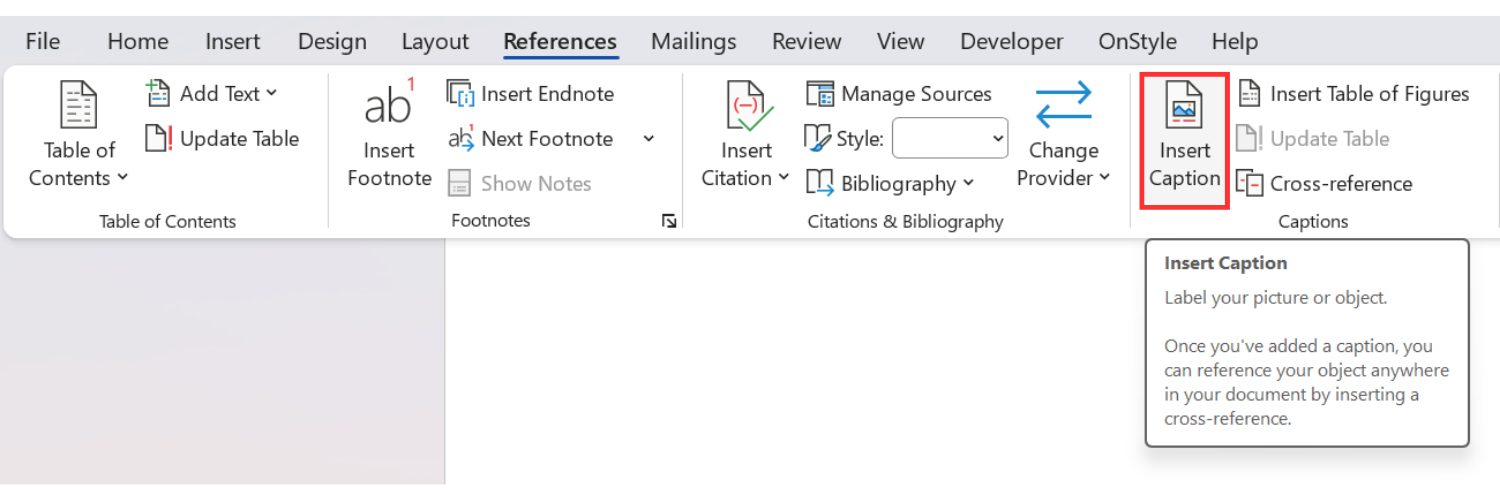
- On the References tab of the Ribbon, select Insert Caption.
- Insert a new caption.
For headings:
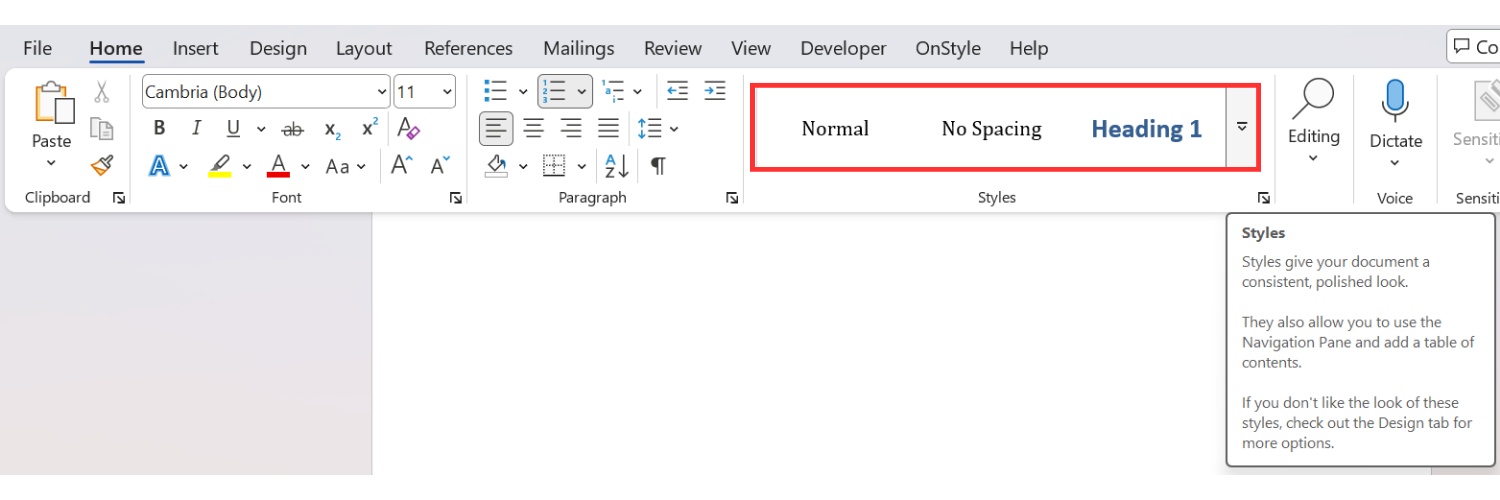
- Select the heading text.
- On the Home tab of the Ribbon, apply the correct heading style (e.g., Heading 1)
If the Bookmark Exists but the Reference Is Incorrect:
Section titled “If the Bookmark Exists but the Reference Is Incorrect:”- Delete the broken reference
- Insert a new cross-reference
Step 6: How to Insert a New Cross-Reference
Section titled “Step 6: How to Insert a New Cross-Reference”- Place the cursor where the reference should appear.
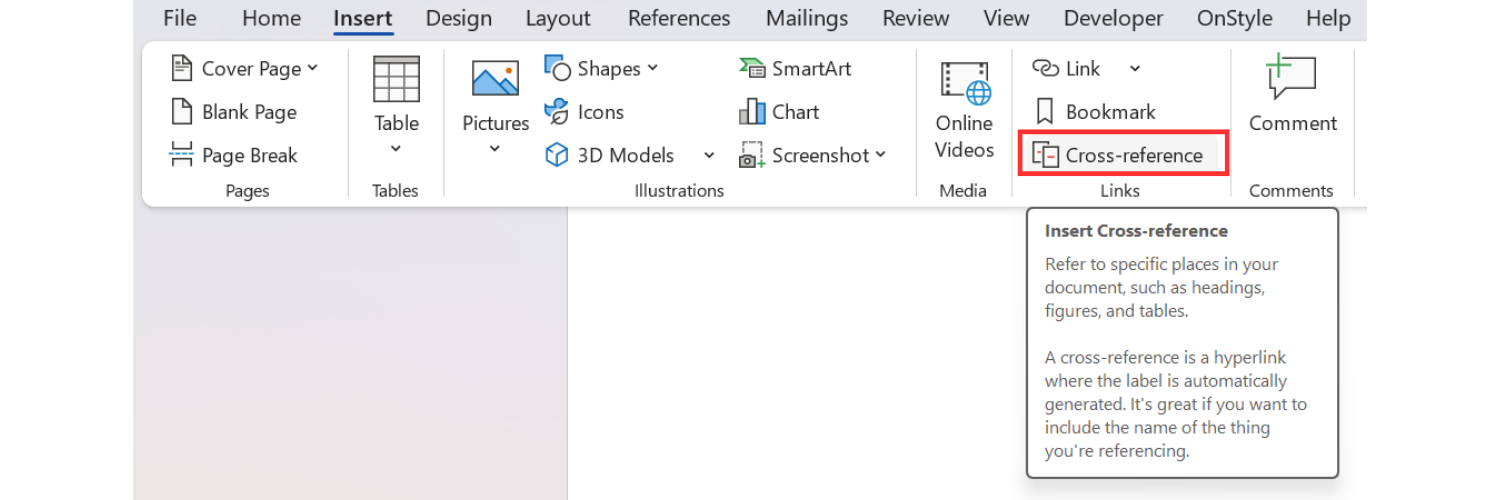
- On the Insert tab of the Ribbon, select Cross-reference.
- Select the appropriate reference type (e.g., heading, figure, table).
- Select the target item.
- Select Insert.
Step 7: How to Remove References in Word
Section titled “Step 7: How to Remove References in Word”- Select the broken reference text.
- Press Delete if the reference is no longer needed.
Limitations of Manual Fixing in Word
Section titled “Limitations of Manual Fixing in Word”Manual correction of cross-references is time-consuming and requires careful attention, especially in long documents.
- Each broken reference must be checked individually.
- Word does not detect references pointing to incorrect targets.
- Obsolete references are not flagged automatically.
- Field updates do not repair missing bookmarks.
How OnStyle Improves Cross-Reference Management in Word
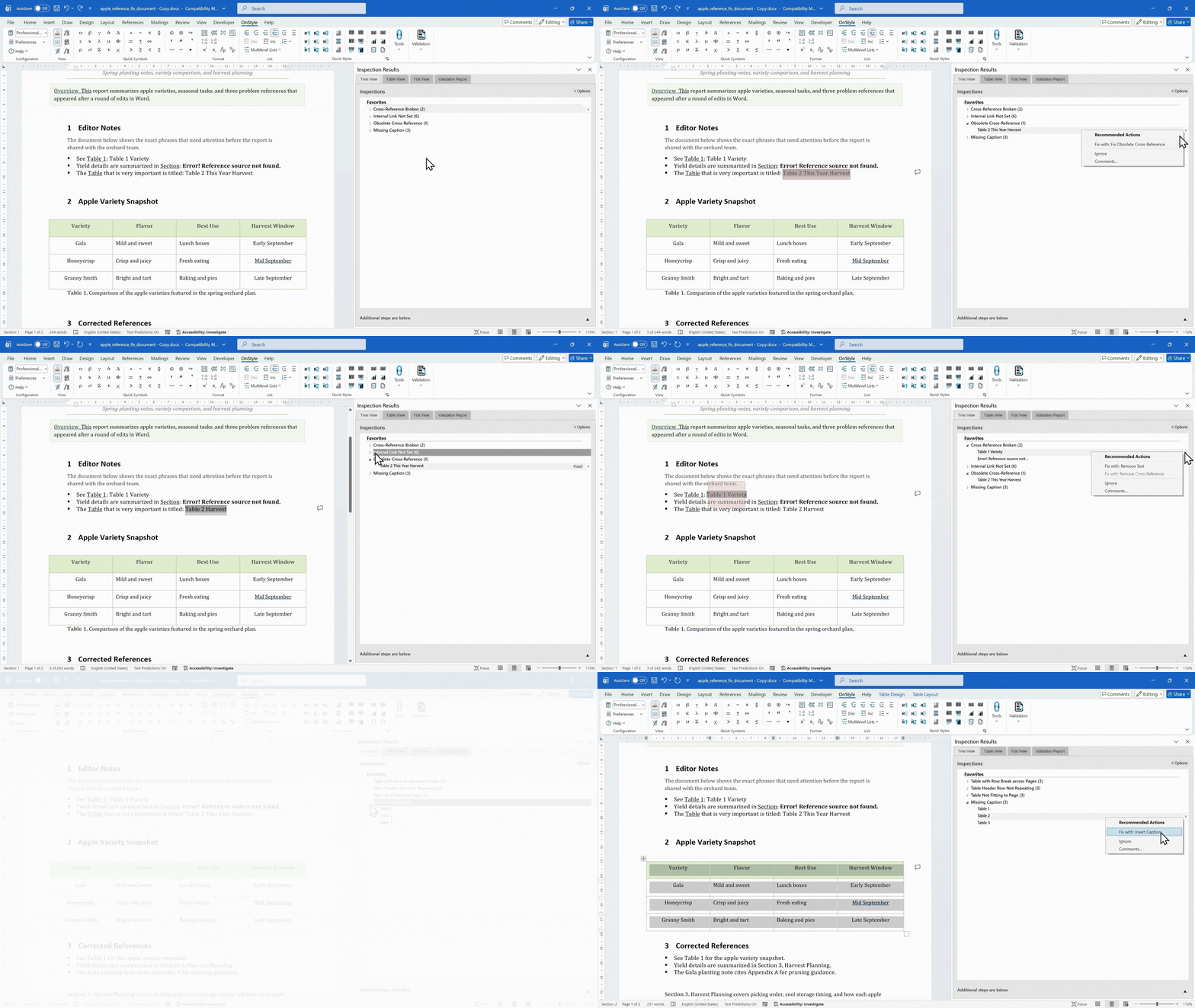
Section titled “How OnStyle Improves Cross-Reference Management in Word”The OnStyle Word Add-in provides a structured validation workflow that detects and resolves cross-reference issues across the entire document.
OnStyle can detect:
- Broken cross-references with missing targets.
- Obsolete cross-references that are not updated.
- Missing captions for figures, and tables.
- Internal hyperlinks without valid targets.
- Inconsistent document structure affecting references.
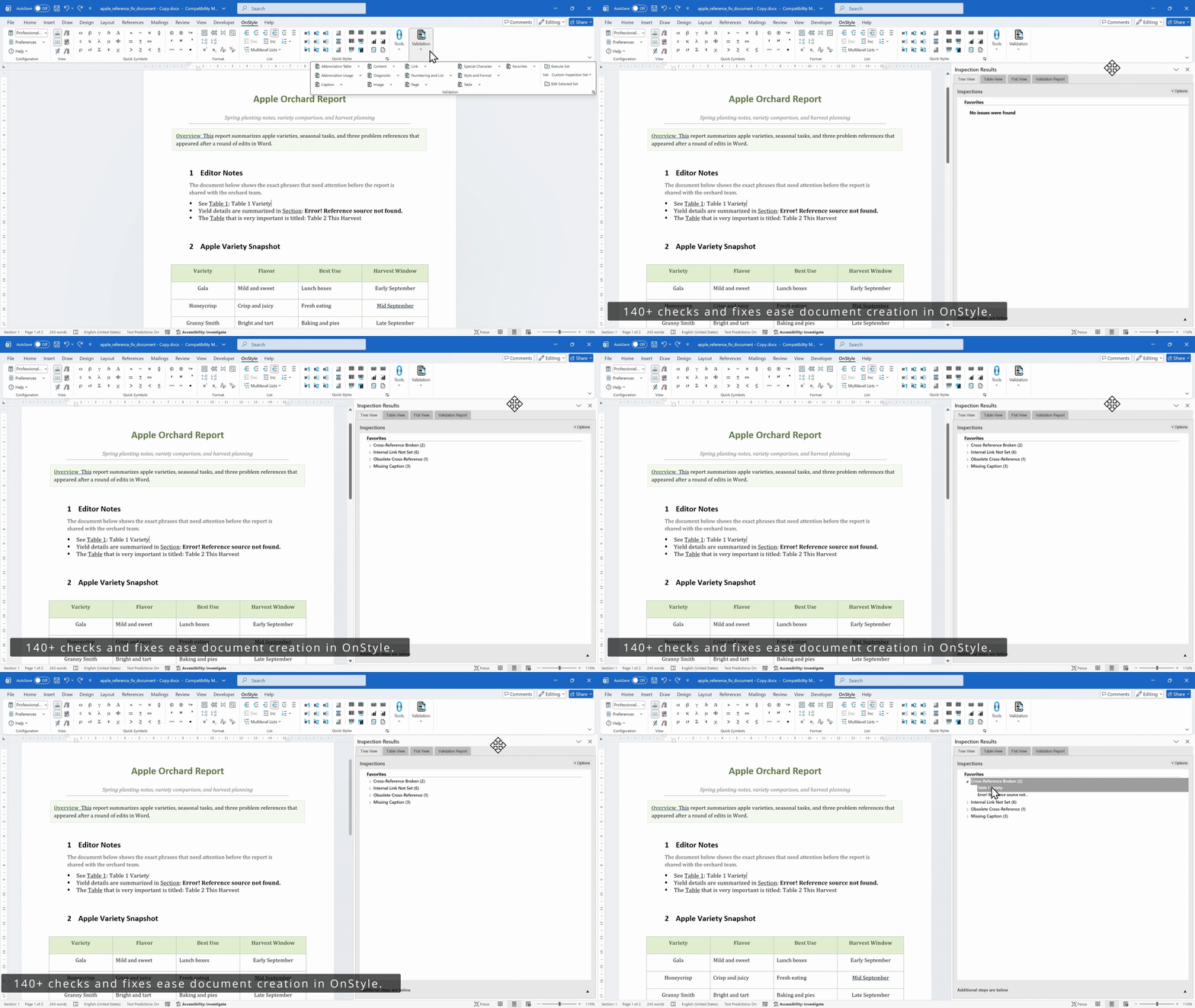
These issues are identified based on document structure, not just visible errors.
Corrections can be applied individually or in batch, improving efficiency and consistency.
How to Prevent Cross-Reference Errors in Word Documents
Section titled “How to Prevent Cross-Reference Errors in Word Documents”Preventive practices include:
- Always use Insert Caption for figures, and tables.
- Avoid manual numbering.
- Update fields regularly using Ctrl + A and F9.
- Avoid inserting content at the beginning of referenced paragraphs.
- Maintain consistent document structure.
- Use heading styles for all section headings.
Summary
Section titled “Summary”The ‘Error! Reference source not found’ occurs when a cross-reference loses its connection to a valid target due to missing or broken bookmarks. While Microsoft Word provides tools to fix these issues, manual correction becomes inefficient in large documents.
Understanding how cross-references work and using structured workflows improves document quality, reduces errors, and ensures reliable navigation and referencing.