
When to Use Hyperlinks, Internal Links or Cross-References in Word
Hyperlinks, internal links, and cross-references in Microsoft Word may appear similar, but they serve different purposes. Using the wrong type can make a document harder to navigate, harder to maintain, and less reliable when content changes. This article explains what each option does and when to use it.
What Is the Difference Between Hyperlinks, Internal Links, and Cross-References in Word
Section titled “What Is the Difference Between Hyperlinks, Internal Links, and Cross-References in Word”The distinction is based on destination and purpose. A hyperlink is used when the destination is outside the document, such as a website, a file, or an email address. An internal hyperlink is used to jump to another location within the same document. A cross-reference is used when the reference belongs in the text itself and should remain connected to a real target such as a heading, figure, table, numbered item, or page.
The practical rule is simple:
- Outside the document: use a hyperlink
- Inside the document for navigation: use an internal hyperlink
- Inside the document as part of the written reference: use a cross-reference
How to Insert a Hyperlink in Word for Websites, Files, and Email Addresses
Section titled “How to Insert a Hyperlink in Word for Websites, Files, and Email Addresses”A standard hyperlink is used when the reader needs to leave the Word document and open another destination. Typical examples include websites, shared files, and email addresses.
This method is appropriate when the link is external to the document and is intended to provide access to another resource.
How to Insert an External Hyperlink
Section titled “How to Insert an External Hyperlink”- Select the text that should become the hyperlink.
- Press Ctrl + K to open the Insert Hyperlink dialog box.
- In the destination field, enter the web address, file path, or email address.
- Select OK.
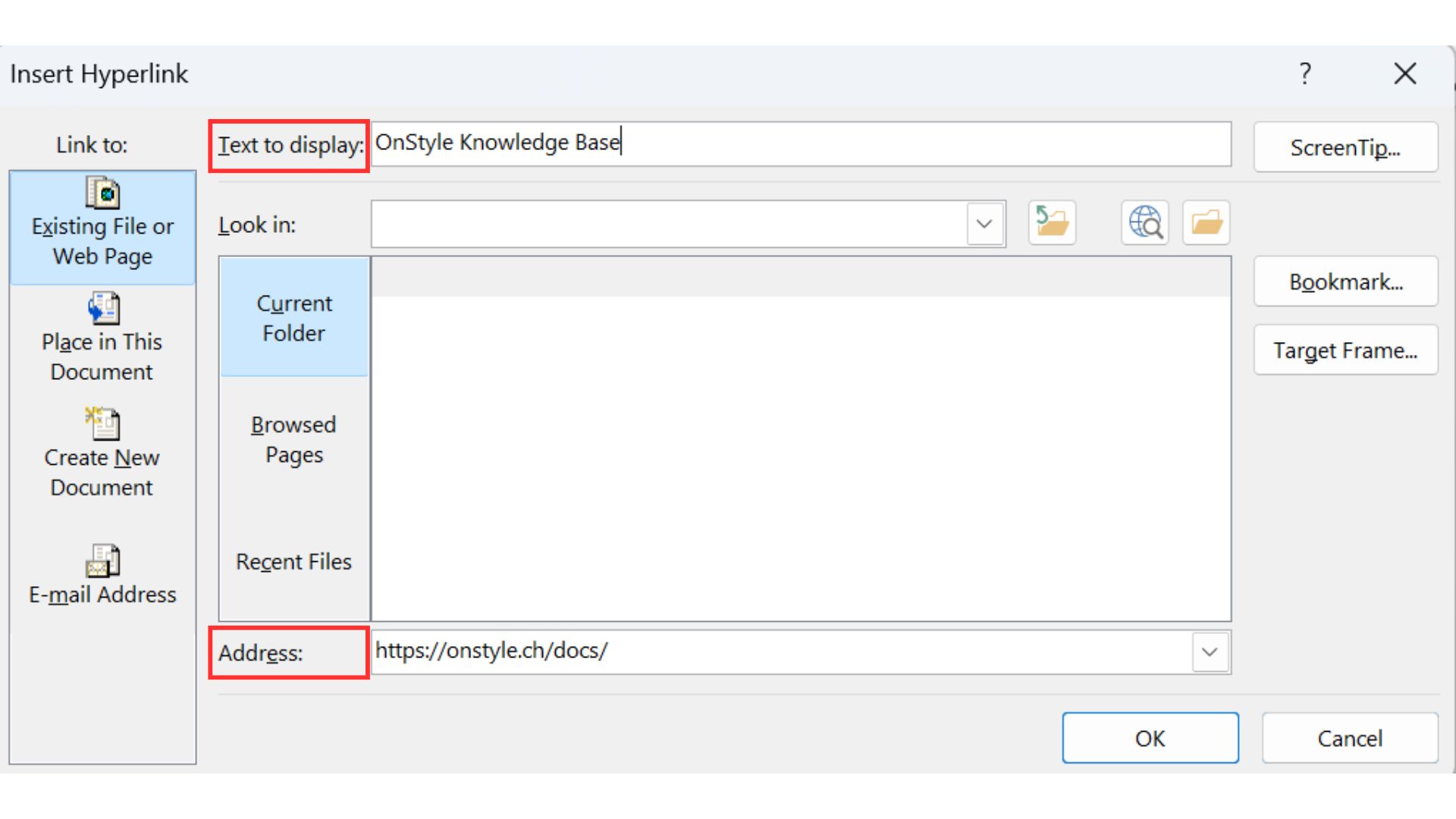
The text that was selected appears in the Text to display field. If no text is selected in advance, the destination itself may be displayed and must be replaced manually if a cleaner label is required.
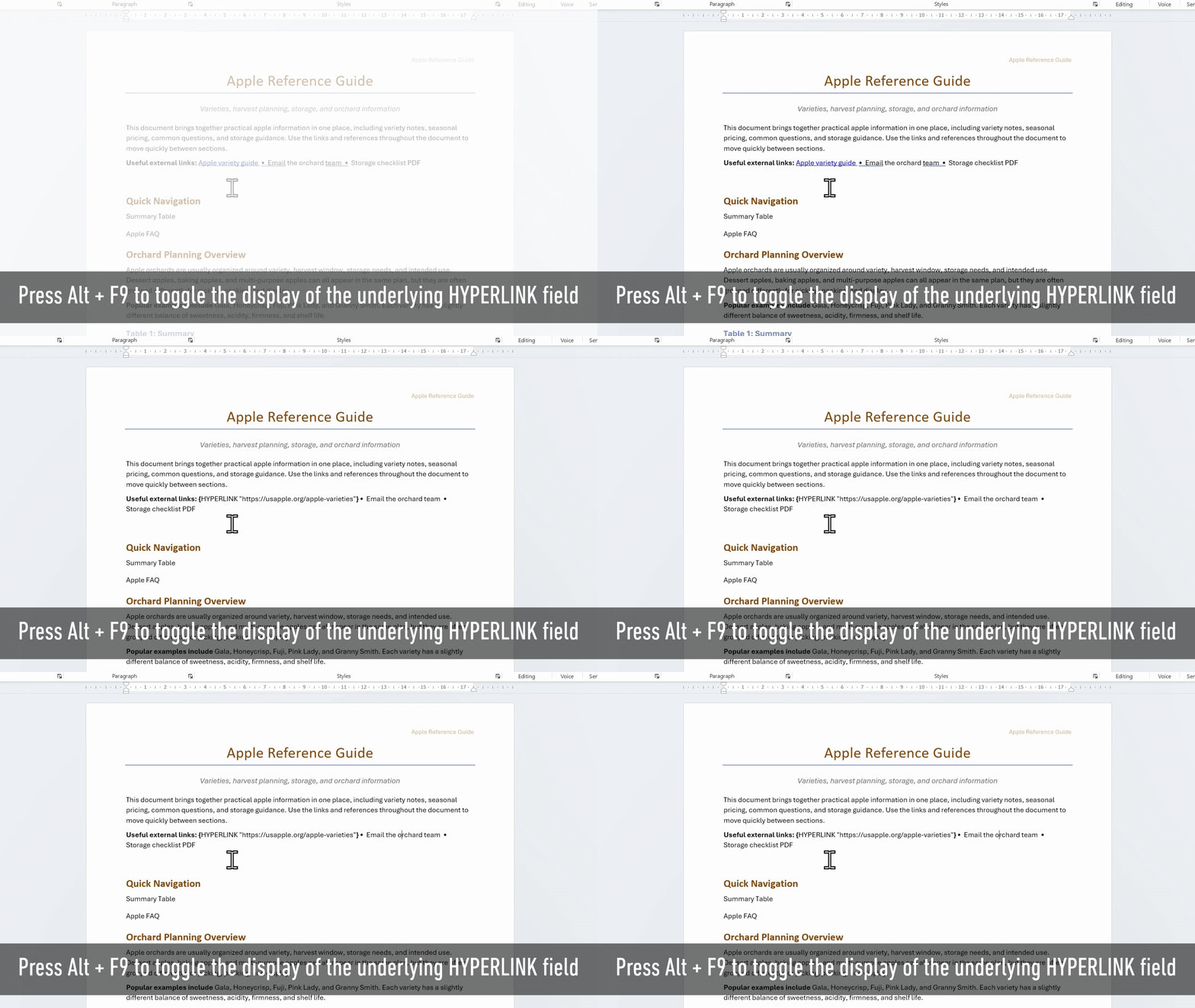
When to Use Internal Links in Microsoft Word
Section titled “When to Use Internal Links in Microsoft Word”Internal hyperlinks are used for navigation within the same document. They are useful in long documents where readers need to move between sections quickly.
Typical examples include proposals with appendices, training manuals, policy documents, FAQ files, and long reports.
In Microsoft Word, internal hyperlinks usually point to either a heading or a bookmark.
How to Link to a Heading in Word Using an Internal Hyperlink
Section titled “How to Link to a Heading in Word Using an Internal Hyperlink”If the destination is a full section, a heading is usually the best target. This approach works best in documents that already use proper built-in heading styles.
How to Create an Internal Link to a Heading in Word
Section titled “How to Create an Internal Link to a Heading in Word”- Place the cursor in the source text or select the text that should become the link.
- Press Ctrl + K to open the Insert Hyperlink dialog box.
- Select “Place in This Document”.
- Select the target headingfrom the list.
- Select OK.
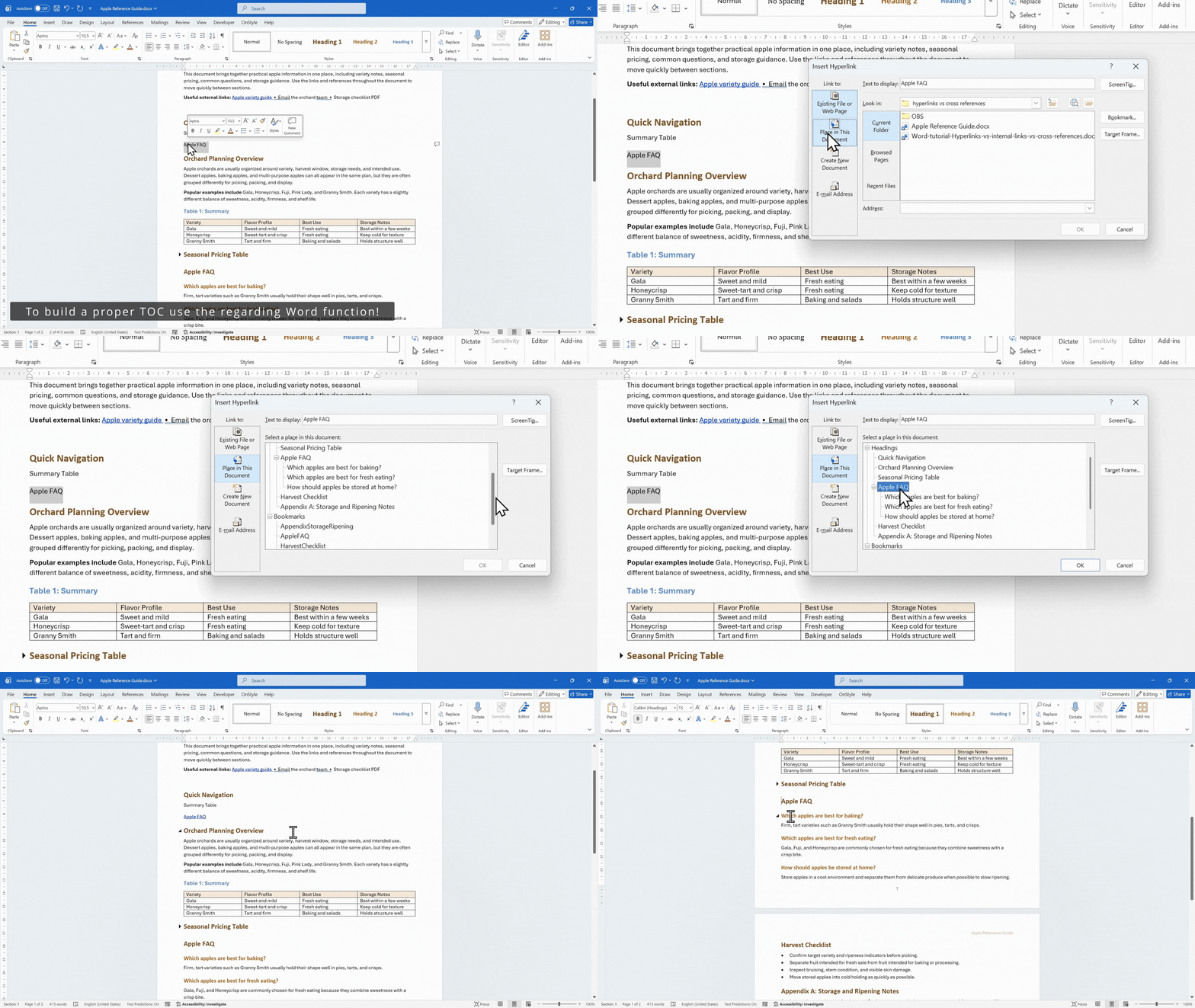
The link now jumps directly to the selected section.
How to Link to a Specific Location in Word Using a Bookmark
Section titled “How to Link to a Specific Location in Word Using a Bookmark”A heading is useful when the destination is a full section. A bookmark is more suitable when the destination is a precise location, such as a table, a checklist item, a paragraph, or another exact point in the document.
Bookmarks make it possible to create internal hyperlinks to locations that do not have a heading.
Step 1: Create a Bookmark
Section titled “Step 1: Create a Bookmark”- Select the target text or place the cursor at the exact target location.
- On the Insert tab of the Ribbon, select Bookmark.
- Enter a bookmark name.
- Select Add.
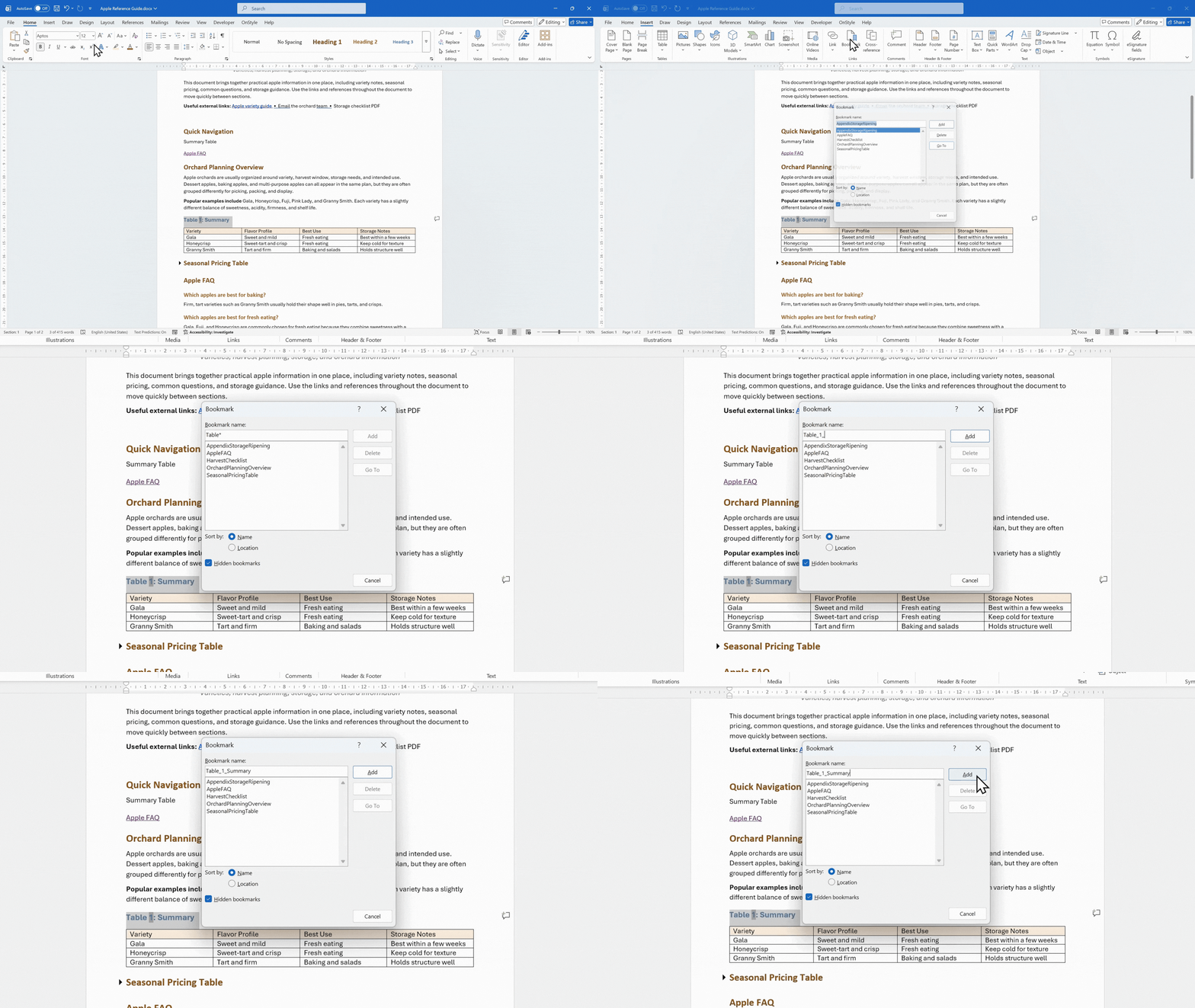
Step 2: Insert an Internal Link to the Bookmark
Section titled “Step 2: Insert an Internal Link to the Bookmark”- Select the source text or place the cursor where the link should be inserted.
- Press Ctrl + K to open the Insert Hyperlink dialog box.
- Select “Place in This Document”.
- Select the bookmark.
- Select OK.
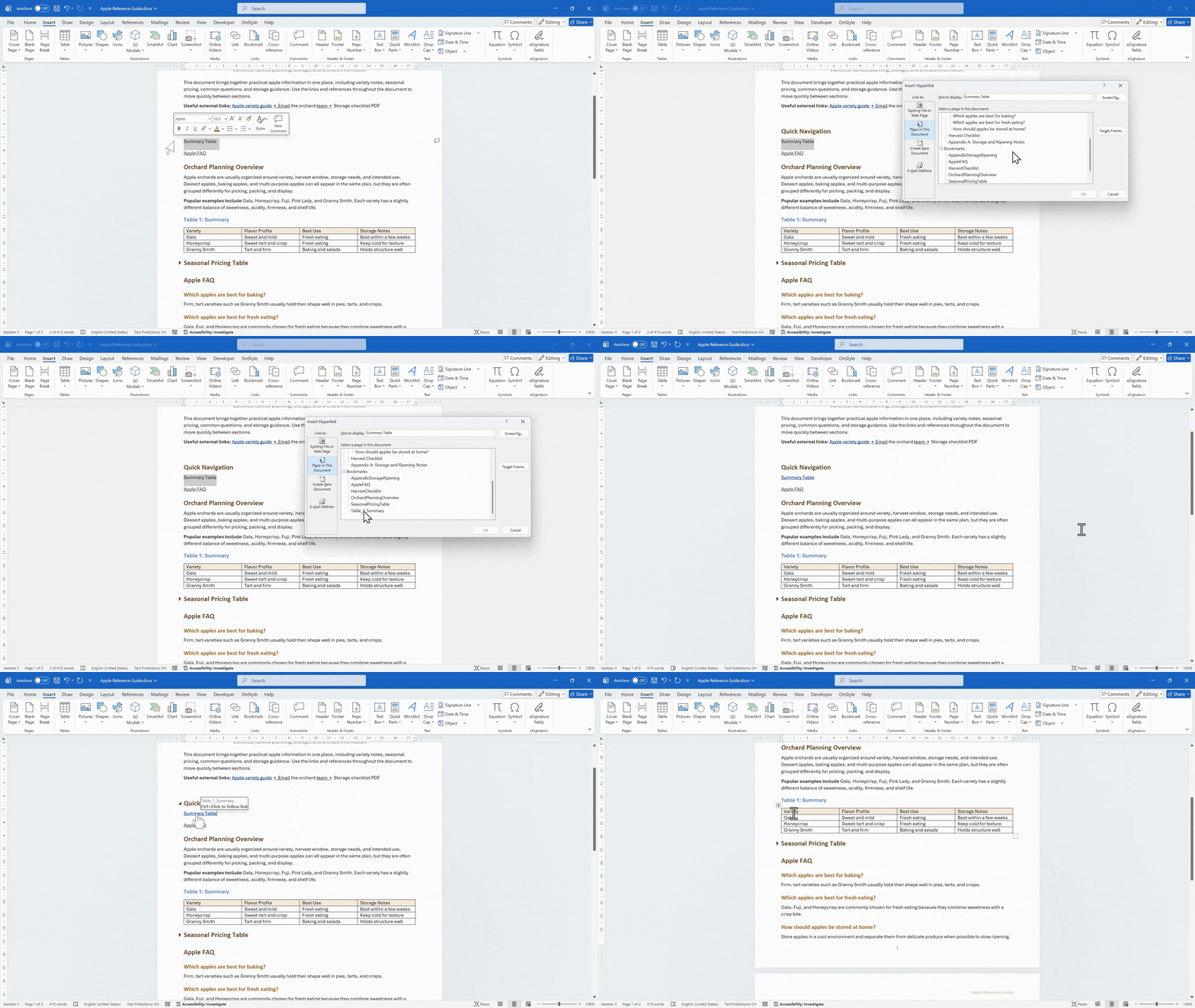
The internal hyperlink now jumps to the exact bookmarked location rather than to an entire section.
Use headings for broader section jumps and bookmarks for precise destinations.
How to Insert a Cross-Reference in Microsoft Word
Section titled “How to Insert a Cross-Reference in Microsoft Word”A cross-reference is used when the reference belongs inside the sentence and should remain connected to a real target in the document.
Typical examples include sentences such as “See Figure 2”, “Refer to Table 1”, or “See page 4”. These references are often typed manually, but manual references do not update when the document changes.
A cross-reference is dynamic and updates with the document structure.
How to Insert a Cross-Reference
Section titled “How to Insert a Cross-Reference”- Place the cursor where the reference should appear in the sentence.
- On the Insert tab of the Ribbon, select Cross-reference.
- Select the reference type, such as heading, numbered item, bookmark, footnote, figure, or table, depending on what is available in the document.
- Under “Insert reference to”, select the information to display, such as heading text or page number.
- Select the target item.
- Select Insert.
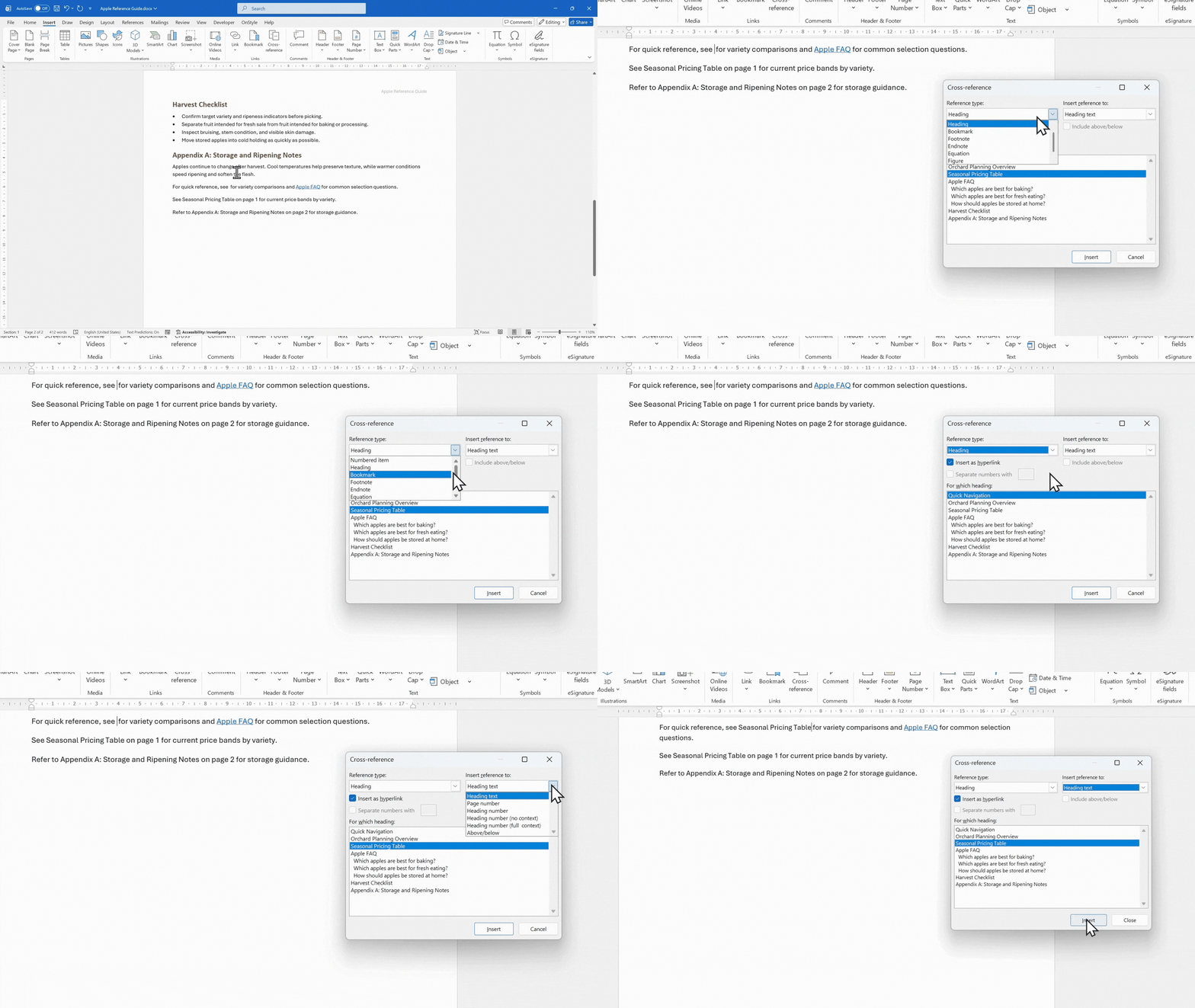
The cross-reference appears in the sentence and remains connected to the selected target.
Cross-references may need additional formatting after insertion because the inserted text may not match the surrounding sentence formatting automatically.
When to Use Cross-References Without Hyperlinks in Word
Section titled “When to Use Cross-References Without Hyperlinks in Word”By default, cross-references are inserted as clickable hyperlinks. This behavior can be turned off during insertion if a clickable link is not required.
This can be useful in documents that will be printed, where hyperlink behavior is unnecessary.
Even when hyperlink behavior is turned off, the cross-reference remains:
- a REF field
- connected to its target
- updateable with F9
Why Cross-References Are Better than Internal Hyperlinks in Some Cases
Section titled “Why Cross-References Are Better than Internal Hyperlinks in Some Cases”An internal hyperlink is primarily a navigation tool. It is used to jump to another location in the document.
A cross-reference is more suitable when the reference is part of the sentence and should remain tied to an actual heading, figure, table, numbered item, or page.
If the purpose is to jump to a place, an internal hyperlink is appropriate. If the purpose is to refer correctly to structured content in writing, a cross-reference is usually the better choice.
Using OnStyle to Insert Links and References in Word
Section titled “Using OnStyle to Insert Links and References in Word”The OnStyle Word Add-in provides an automated method for inserting and managing hyperlinks, internal links, and cross-references.
Instead of inserting links individually through multiple Word dialogs, OnStyle allows links to be created and managed from a centralized, dockable pane. OnStyle can be used to build up document structure first and then insert links based on that structure.
OnStyle can:
- insert hyperlinks to external resources
- insert internal links to headings or bookmarks
- support structured linking workflows within the document
Links are inserted from a centralized interface rather than navigating multiple Ribbon tabs and dialog boxes.
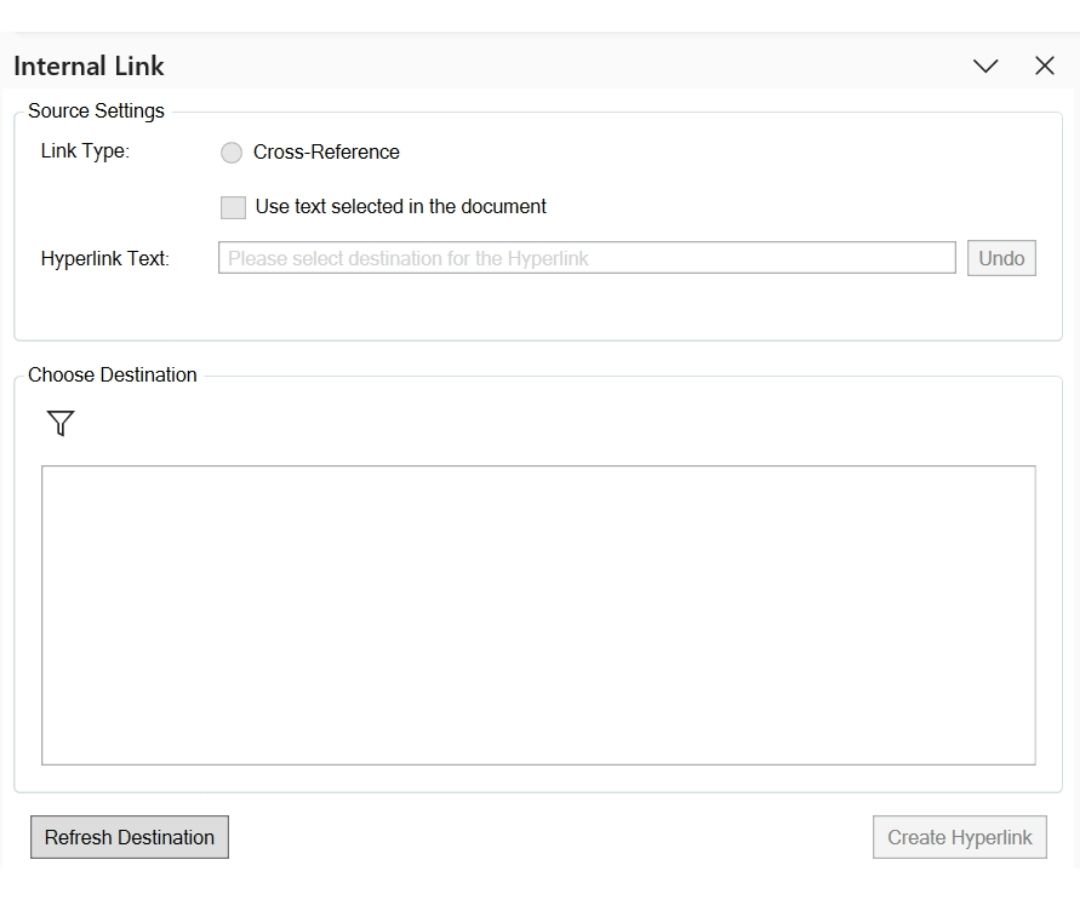
This way, OnStyle supports consistent link management and reduces complexity when working with structured or long documents.
Common Mistakes When Using Hyperlinks, Internal Links, and Cross-References in Word
Section titled “Common Mistakes When Using Hyperlinks, Internal Links, and Cross-References in Word”Using Hyperlinks for Everything
Section titled “Using Hyperlinks for Everything”Not every clickable element should be inserted as a standard hyperlink. If the reference belongs in the sentence as a formal reference, a cross-reference is usually more appropriate.
Typing Page Numbers Manually
Section titled “Typing Page Numbers Manually”Manual page numbers create extra cleanup work after edits. Page numbers should be inserted as cross-references so they update when the document changes.
Not Using Real Heading Styles
Section titled “Not Using Real Heading Styles”If headings do not use built-in Word heading styles, internal hyperlinks to headings and cross-references become more difficult or unreliable.
Using Poor Bookmark Names
Section titled “Using Poor Bookmark Names”Bookmark names should remain short, clear, and specific so the document stays manageable.
Forgetting to Update Fields
Section titled “Forgetting to Update Fields”Cross-references may become outdated after edits if fields are not updated.
How to Update All Fields Before Exporting or Sharing
Section titled “How to Update All Fields Before Exporting or Sharing”- Press Ctrl + A to select the entire document.
- Press F9 to update all fields.
This refreshes cross-references across the document and reduces the risk of outdated references.
Summary: When to Use Hyperlinks, Internal Links, and Cross-References in Word
Section titled “Summary: When to Use Hyperlinks, Internal Links, and Cross-References in Word”Use a hyperlink for destinations outside the document, such as websites, files, and email addresses. Use an internal hyperlink for navigation within the same document, usually through headings or bookmarks. Use a cross-reference when the reference belongs inside the sentence and should remain tied to a structured target.
Using each option for the correct purpose improves readability, navigation, accuracy, and long-term document maintenance.