
How to Insert Citations in Word
Learning how to insert citations in Word helps referencing document sources clearly and consistently. Instead of typing citations, reference lists, or bibliographies manually, Word can insert citations based on the selected citation style.
This guide explains how to choose a citation style, add sources, insert citations, reuse saved sources, manage source details, use placeholders, and create a bibliography, references list, or Works Cited page in Microsoft Word. It also explains how OnStyle can validate links, reference sections, and formatting consistency before finalizing a document.
Why Use Word’s Built-In Citation Tools
Section titled “Why Use Word’s Built-In Citation Tools”Microsoft Word includes citation tools that help manage source information and apply citation formatting automatically. This reduces manual formatting work and helps prevent common citation errors.
Word can be used to:
- Choose a citation style, such as APA, MLA, or Chicago.
- Add source details once and reuse them throughout the document.
- Insert in-text citations.
- Create citation placeholders during drafting.
- Generate a bibliography, references list, or Works Cited section.
Using Word’s citation tools is more reliable than typing citations and reference lists manually, especially in longer documents.
You can also use other popular citation add-ins in Word for referencing, but this article concentrates on the built-in Word functions and OnStyle’s capabilities for checking and fixing related issues.
How to Choose a Citation Style in Microsoft Word
Section titled “How to Choose a Citation Style in Microsoft Word”Before adding citations, choose the citation style for the document. Word uses this setting for both in-text citations and the bibliography.
Step 1: Open the References Tab
Section titled “Step 1: Open the References Tab”- Go to the References tab of the Ribbon.
- Locate the Style drop-down menu.
Step 2: Choose the Citation Style
Section titled “Step 2: Choose the Citation Style”- Open the Style drop-down menu.
- Select the required citation style, such as APA, MLA, or Chicago.
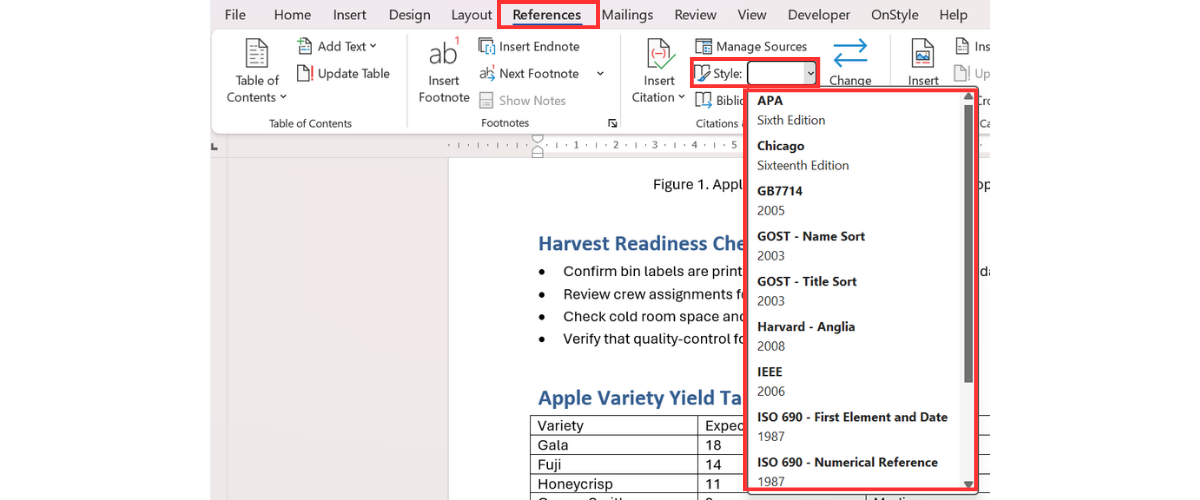
Word applies the selected style to citations and bibliography entries.
How to Add a New Source and Insert the First Citation in Word
Section titled “How to Add a New Source and Insert the First Citation in Word”After selecting a citation style, a new source can be added and inserted as an in-text citation.
Step 1: Choose Where the Source Should Appear
Section titled “Step 1: Choose Where the Source Should Appear”Place the cursor exactly where the citation should appear in the sentence.
Step 2: Add a New Source in Word
Section titled “Step 2: Add a New Source in Word”- On the References tab of the Ribbon, select Insert Citation.
- Select Add New Source.
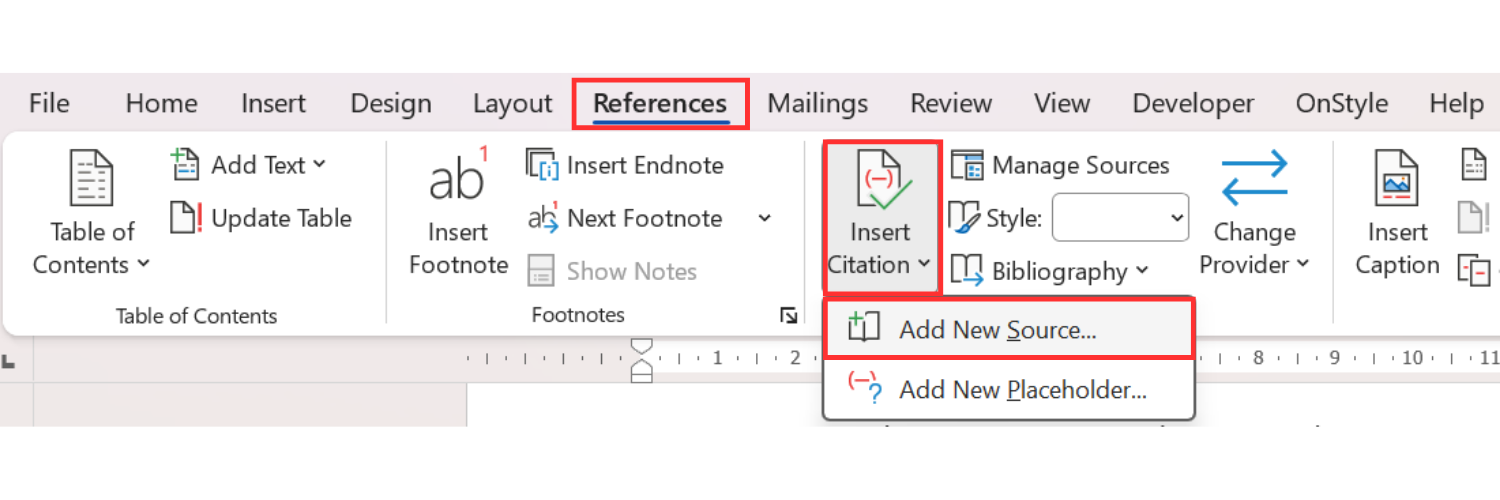
Step 3: Choose the Source Type
Section titled “Step 3: Choose the Source Type”In the Create Source dialog box, choose the correct source type.
Common source types include:
- Book.
- Website.
- Journal article.
- Report.
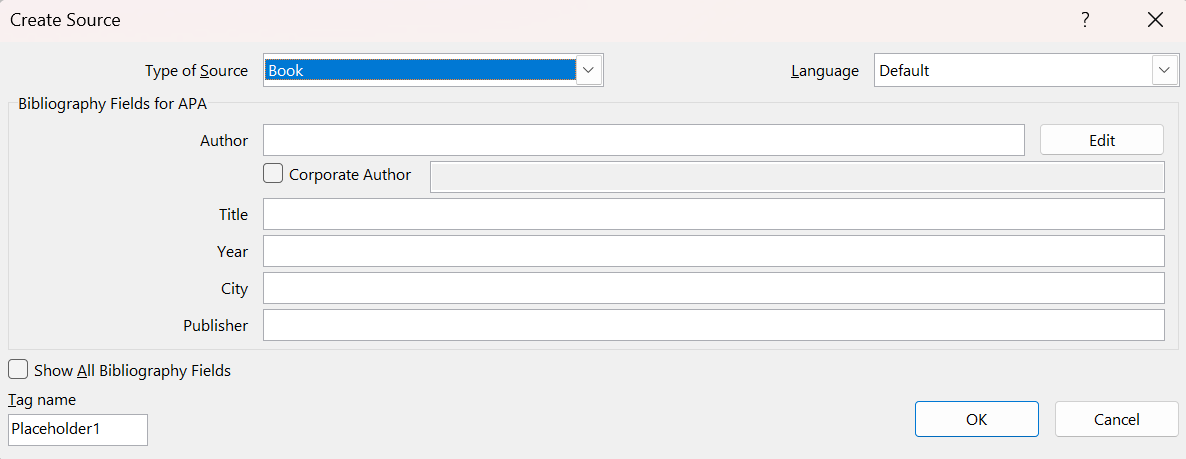
The selected source type determines which fields Word displays.
Step 4: Enter Source Details
Section titled “Step 4: Enter Source Details”Fill in the available fields, such as:
- Author.
- Title.
- Year.
- Publisher.
Step 5: Insert the Citation
Section titled “Step 5: Insert the Citation”Click OK.
Word inserts the citation into the document and stores the source for later use.
How to Reuse Saved Citation Sources in Word
Section titled “How to Reuse Saved Citation Sources in Word”Once a source is added, it can be reused without entering the details again.
Step 1: Choose Where the Source Should Appear
Section titled “Step 1: Choose Where the Source Should Appear”Place the cursor where the citation should appear.
Step 2: Insert an Existing Citation
Section titled “Step 2: Insert an Existing Citation”- On the References tab of the Ribbon, select Insert Citation.
- Select the saved source from the list.
Word inserts the citation immediately using the selected citation style. This saves time and prevents repeated manual entry of the same source information.
How to Manage and Edit Citation Sources in Word
Section titled “How to Manage and Edit Citation Sources in Word”Source details can be reviewed and corrected using the Source Manager.
Step 1: Open Manage Sources
Section titled “Step 1: Open Manage Sources”On the References tab of the Ribbon, select Manage Sources.
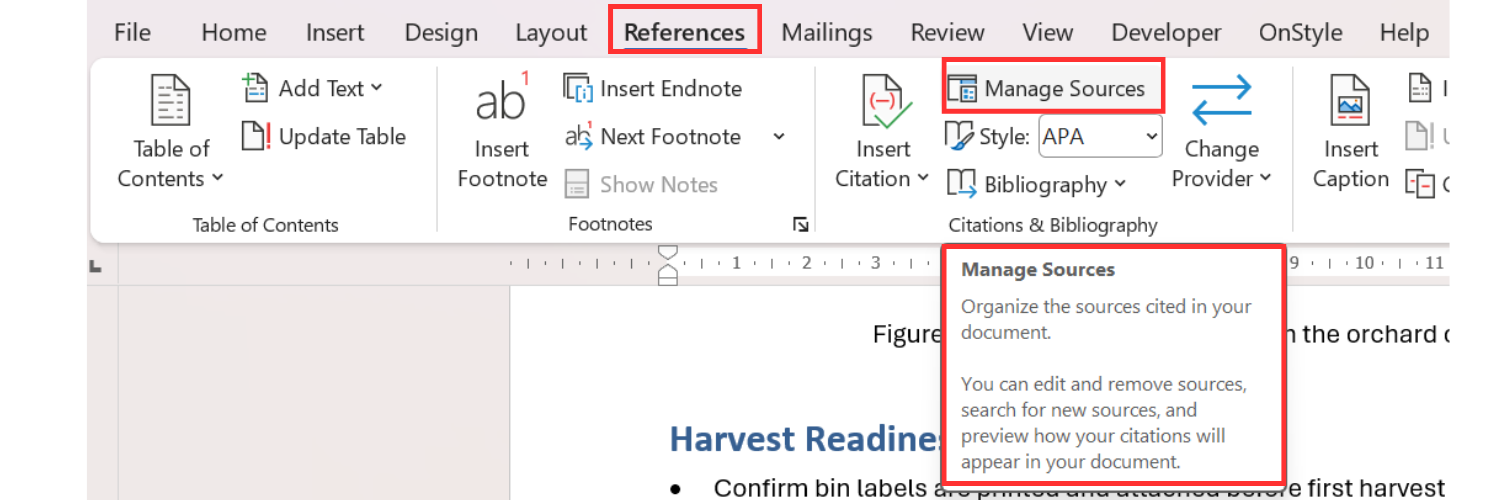
The Source Manager dialog box opens.
Step 2: Edit a Saved Source
Section titled “Step 2: Edit a Saved Source”- Select the source that needs correction.
- Edit.
- Update the source details.
- OK.
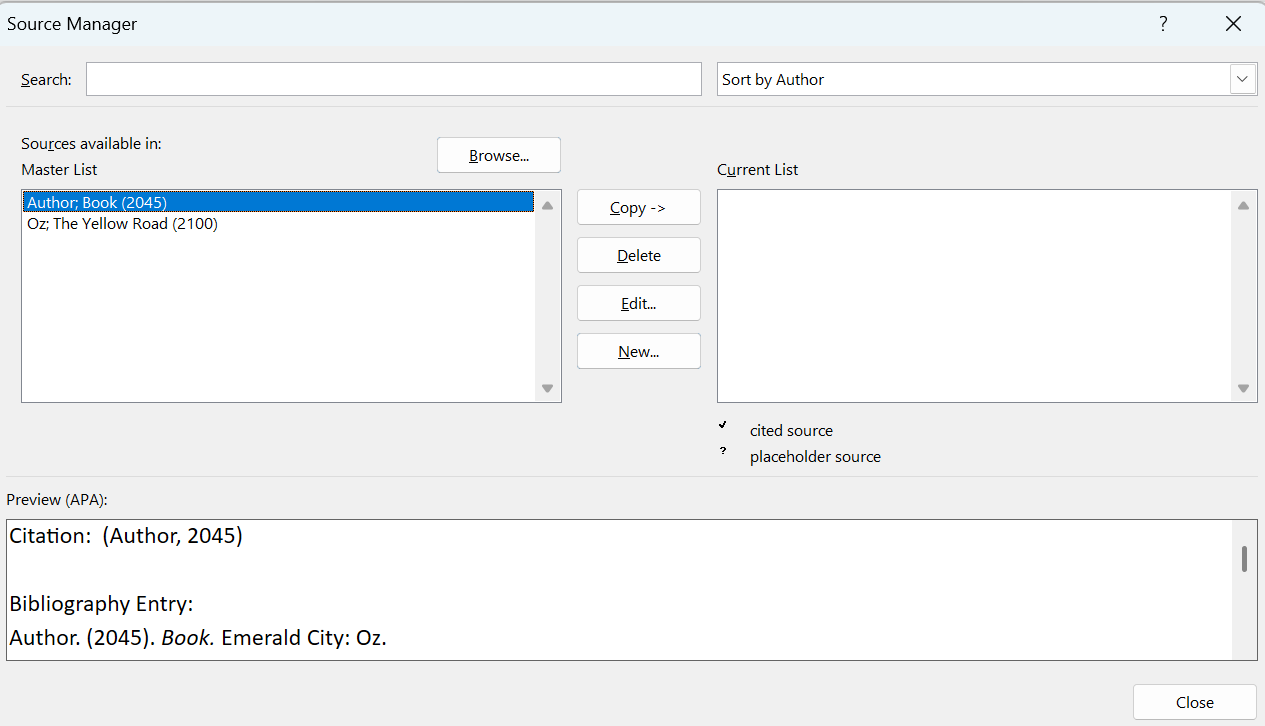
Use this method when an author name is misspelled, a year is incorrect, or a title needs to be updated. This is more reliable than manually editing every citation in the document.
How to Use Citation Placeholders in Word
Section titled “How to Use Citation Placeholders in Word”Citation placeholders are useful during drafting when a source is needed but the full source details are not yet available.
Step 1: Insert a Placeholder
Section titled “Step 1: Insert a Placeholder”- Place the cursor where the citation will be needed.
- On the References tab of the Ribbon, select Insert Citation.
- Add New Placeholder.
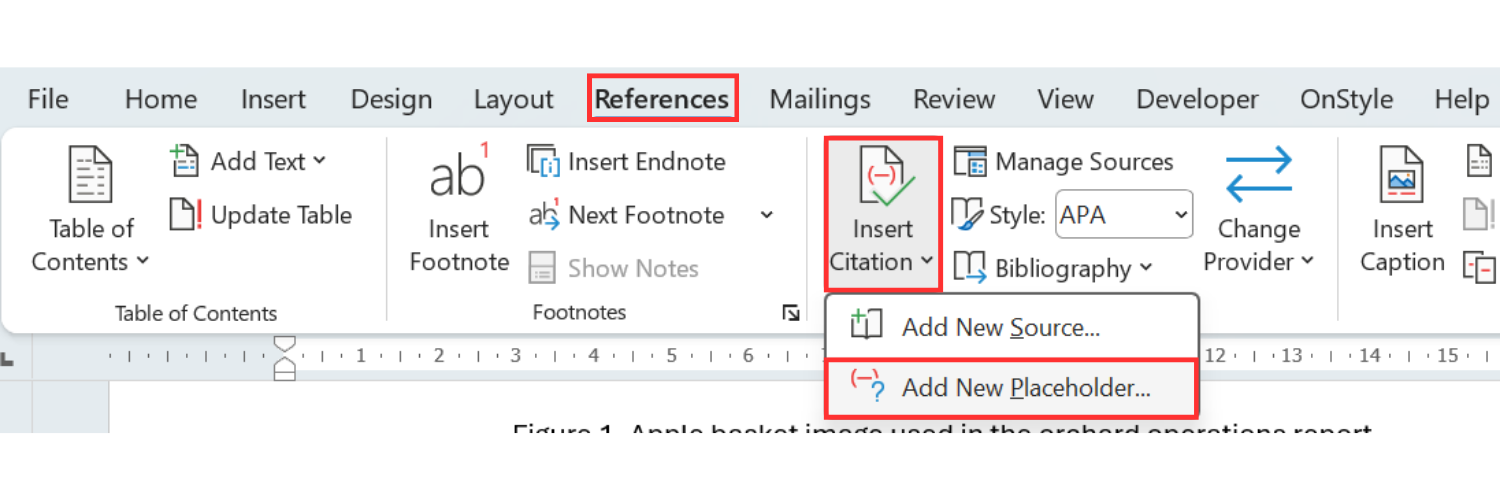
Step 2: Name the Placeholder
Section titled “Step 2: Name the Placeholder”- Enter a simple placeholder name.
- Click OK.
The placeholder is inserted into the document and can be replaced later with complete source details. Citation placeholders are useful for rough drafts because writing can continue before all source information is finalized.
How to Create a Bibliography, References List, or Works Cited in Word
Section titled “How to Create a Bibliography, References List, or Works Cited in Word”After sources are added, Word can generate a bibliography or reference list automatically.
Step 1: Choose the Placement
Section titled “Step 1: Choose the Placement”- Scroll to the location where the bibliography, references list, or Works Cited section should appear.
- Place the cursor below the relevant heading.
Step 2: Insert the Bibliography
Section titled “Step 2: Insert the Bibliography”- On the References tab of the Ribbon, select Bibliography.
- Choose Bibliography, References, or Works Cited.
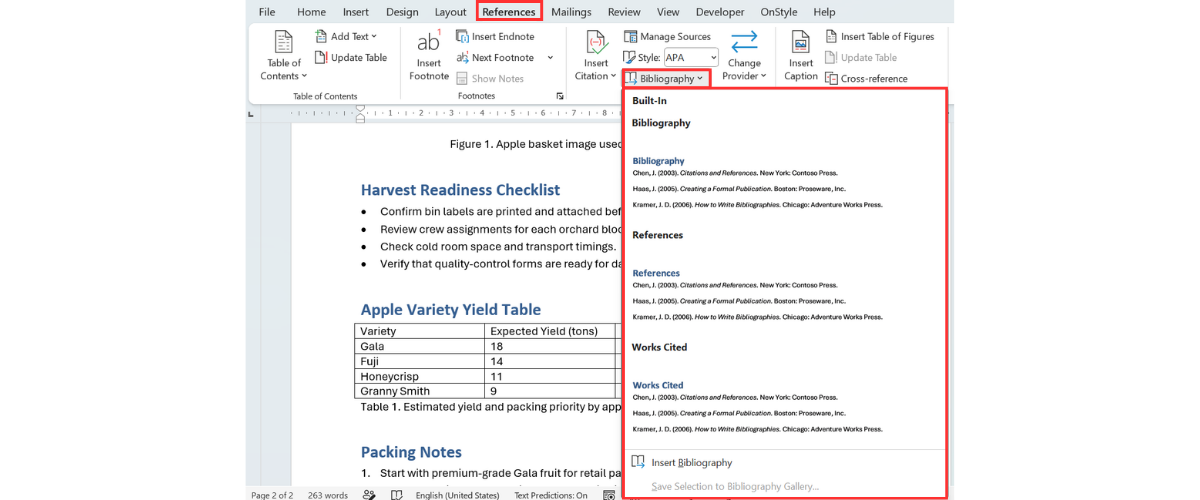
Word builds the list automatically from the sources used in the document. If sources change later, the bibliography can be updated instead of retyped manually.
Common Citation Mistakes in Microsoft Word
Section titled “Common Citation Mistakes in Microsoft Word”Citation issues often occur when citations are typed or edited manually instead of being managed through Word’s built-in tools. Common mistakes include:
- Choosing the citation style too late.
- Selecting the wrong source type.
- Editing citations manually instead of using Manage Sources.
- Forgetting to replace placeholders before finalizing the document.
- Typing the bibliography manually instead of using Bibliography.
- Leaving incomplete source details in the reference list.
Best Practices for Citations in Word
Section titled “Best Practices for Citations in Word”Use these practices to keep citations and references consistent:
- Choose the citation style before inserting sources.
- Use the correct source type for each reference.
- Store and reuse sources through Insert Citation.
- Edit source details through Manage Sources.
- Use placeholders only during drafting.
- Replace placeholders before final delivery.
- Let Word generate the bibliography automatically.
How to Check and Fix Citations Automatically with OnStyle
Section titled “How to Check and Fix Citations Automatically with OnStyle”After Word or a popular citation add-in is used to create citations and a bibliography, OnStyle can help validate whether citations, links, references, and bibliography entries are complete and consistent.
Word helps create citations. OnStyle helps validate and correct citation-related issues at scale.
Step 1: Run a Citation Validation Check in OnStyle
Section titled “Step 1: Run a Citation Validation Check in OnStyle”- Go to the OnStyle tab of the Ribbon.
- Validation.
- Choose an inspection group.
For citation review, a custom citation inspection group can be created based on document requirements and user preferences.
- Select Execute Inspection Set or Execute Inspection Group, depending on the available setup.
OnStyle scans the document and lists issues in the Inspection Results pane.
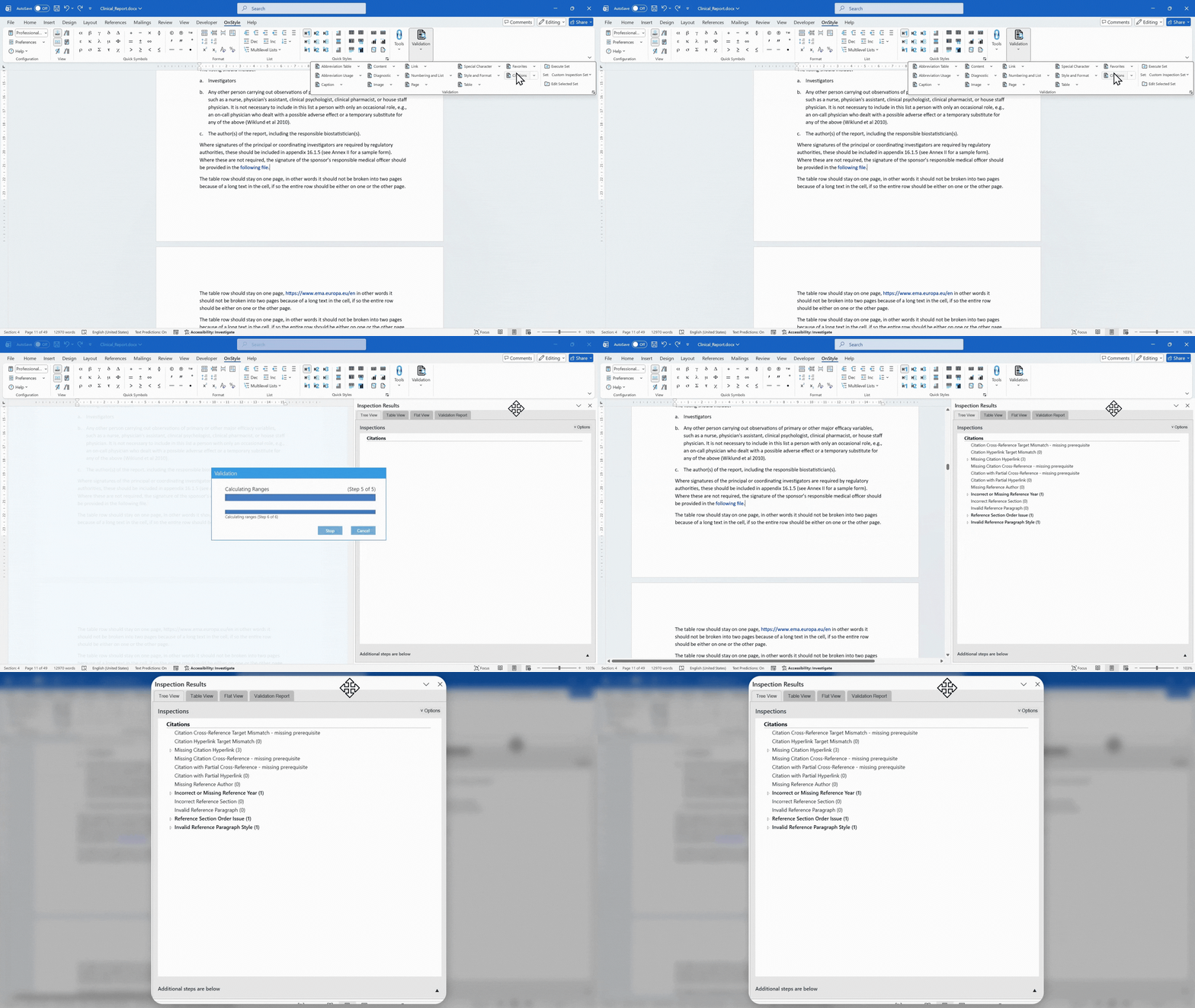
Citation Linking Issues Detected by OnStyle
Section titled “Citation Linking Issues Detected by OnStyle”Citation linking checks help ensure that citations point to the correct references and that clickable links behave as expected.
OnStyle can detect issues such as:
- Citation Cross-Reference Target Mismatch.
- Citation Hyperlink Target Mismatch.
- Missing Citation Hyperlink.
- Missing Citation Cross-Reference.
- Citation with Partial Cross-Reference.
- Citation with Partial Hyperlink.
These checks identify situations where a citation points to the wrong reference, where a citation has no link, or where only part of a citation is clickable. This helps readers navigate from a citation to the correct reference.
Reference and Bibliography Issues Detected by OnStyle
Section titled “Reference and Bibliography Issues Detected by OnStyle”OnStyle can also check whether reference entries are complete, correctly placed, and consistently structured.
OnStyle can detect issues such as:
- Missing Reference Author.
- Incorrect or Missing Reference Year.
- Incorrect Reference Section.
- Invalid Reference Paragraph.
- Reference Section Order Issue.
- Invalid Reference Paragraph Style.
These checks help identify incomplete entries, incorrect reference sections, ordering issues, and paragraph formatting problems. This helps keep the reference list complete and consistent.
How to Fix Citation Issues with OnStyle
Section titled “How to Fix Citation Issues with OnStyle”After OnStyle identifies citation-related issues, corrections can be applied directly from the results pane. Depending on the issue, OnStyle may provide options to:
- Apply suggested fixes.
- Update formatting.
- Correct citation links.
- Correct reference links.
- Fix reference paragraph formatting.
This reduces the need to inspect and correct every citation manually.
Why Use OnStyle with Word Citations
Section titled “Why Use OnStyle with Word Citations”Microsoft Word supports citation creation and bibliography generation, but it does not provide the same level of structural validation as OnStyle does.
Word helps with:
- Citation creation.
- Source storage.
- Bibliography generation.
OnStyle helps with:
- Citation link validation.
- Reference completeness checks.
- Reference section structure.
- Formatting consistency.
- Correction workflows.
Together, Word and OnStyle provide both speed during writing and accuracy before finalizing the document.
Summary
Section titled “Summary”Microsoft Word can insert citations, store sources, manage citation details, create placeholders, and generate bibliographies automatically. Choosing the citation style first, entering sources correctly, and using Manage Sources helps prevent manual formatting errors.
For longer or more controlled documents, OnStyle can validate citation links, detect missing or incomplete references, check bibliography structure, and support correction workflows. This helps ensure that citations are not only present, but also complete, linked, consistent, and ready for final delivery.