
Activating Your License
Prerequisites
Section titled “Prerequisites”Before activating your license, make sure:
- OnStyle is installed
- You have a valid license key (required only if you are activating the full version - not needed for starting a free trial)
- Your computer is connected to the internet
Activation Steps
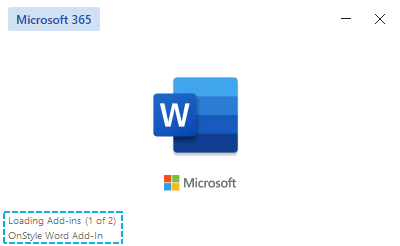
Section titled “Activation Steps”Step 1 – After the installation, start the Word application.
Section titled “Step 1 – After the installation, start the Word application.”Once you click on the OnStyle tab from the ribbon, the application’s start screen shows that OnStyle is loading.
Step 2 – Open Microsoft Word and Go to the OnStyle Tab
Section titled “Step 2 – Open Microsoft Word and Go to the OnStyle Tab”Click the OnStyle tab in the Word ribbon. If this is your first time launching OnStyle, an activation window will appear.
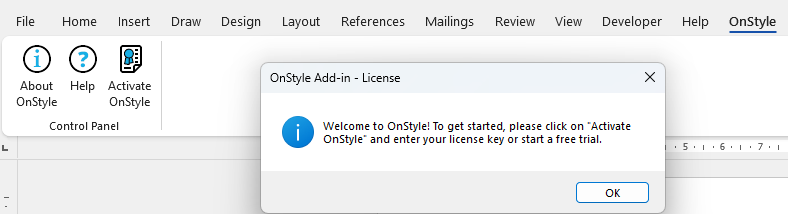
Step 3 – Start Trial or Activate with a License Key
Section titled “Step 3 – Start Trial or Activate with a License Key”Choose one of the following options:
- To start a trial:
- Click Activate OnStyle.
- Select the Free trial without key option from the Type of activation section.
- Enter your Name and Email address, then click the Activate button.
- To activate a full license:
- Click Activate OnStyle.
- Select the Activate license option from the Type of activation section.
- Enter your Name, Email address, and the License key, then click the Activate button.
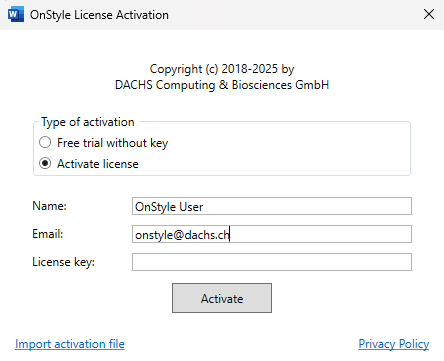
On successful activation, OnStyle will restart. Microsoft Word will remain open.