
How to Change Letter Spacing in Word
Text in Microsoft Word can sometimes look too tight, too wide, or less polished than the rest of the document. The fix is letter spacing, also called character spacing. Learning how to change letter spacing in Wordhelps you adjust the distance between letters without typing extra spaces or rebuilding the text manually.
Letter spacing is most useful for headings, titles, short labels, invitations, cover pages, and other design-focused text. It should be used carefully in body paragraphs because too much spacing can make longer text harder to read.
What Letter Spacing Means in Word
Section titled “What Letter Spacing Means in Word”Letter spacing controls the space between characters in selected text. In Word, this setting is managed from the Font dialog box. To open it, select the text, go to the Home tab, and click the small dialog box launcher in the bottom-right corner of the Font group. You can also press Ctrl + D on Windows.

Then open the Advanced tab. The feature is sometimes called character spacing because it changes how close or far apart the characters appear.
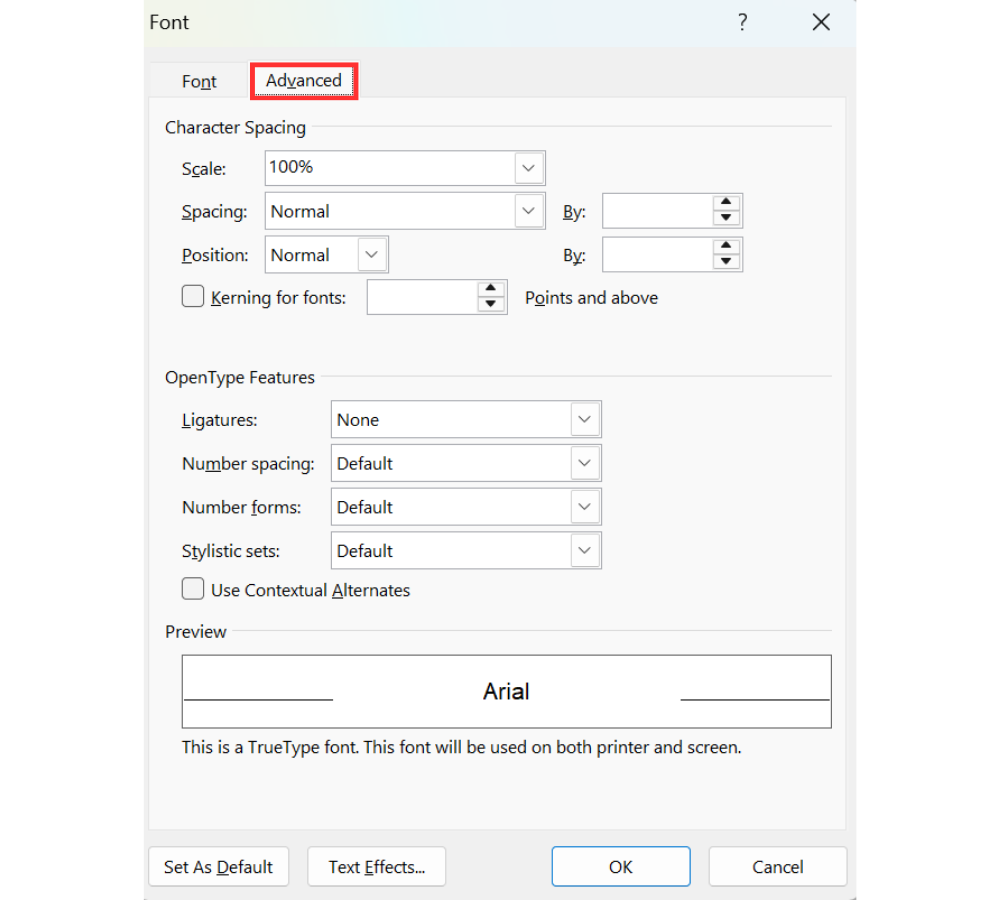
There are three main Spacing options in Word:
- Normal keeps the default character spacing.
- Expanded spreads letters farther apart.
- Condensed brings letters closer together.
The key advantage is that the text remains real editable text. You are not adding manual spaces between letters, so the text can still wrap, copy, search, and edit properly.
How to Change Letter Spacing in Word
Section titled “How to Change Letter Spacing in Word”Use this method when a heading looks cramped, when a title needs more breathing room, or when a short line of text needs a more polished design.
Step 1: Select the text. First, select the text you want to change. Letter spacing only applies to the selected text, so make sure the exact heading, word, phrase, or line is highlighted before opening the settings.
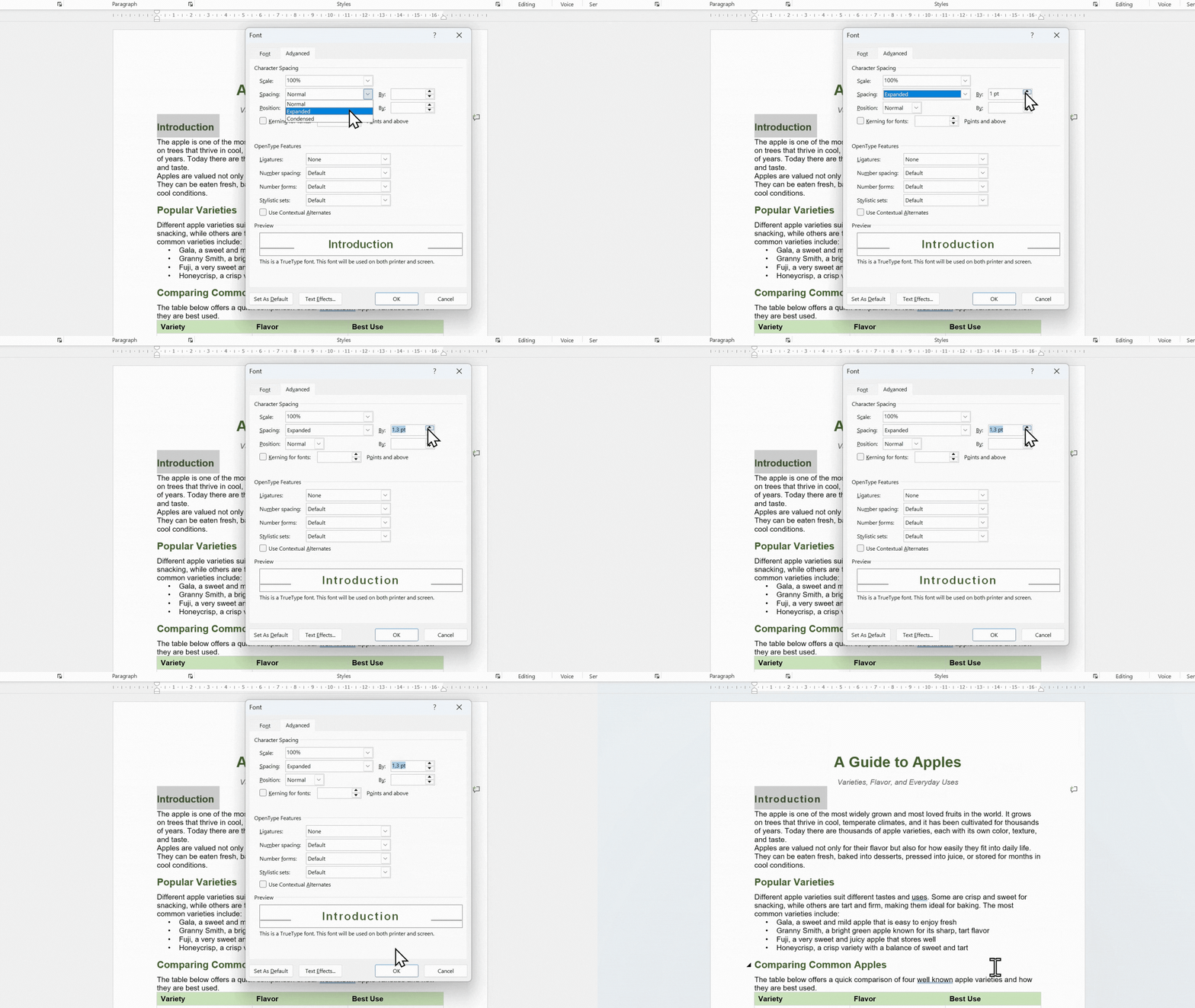
Step 2: Open the Font dialog box. With the text selected, go to the Home tab and in the Font dialog box, open the Advanced tab.
Step 3: Choose a spacing option. Find the Spacing drop-down menu. Choose Expanded to spread letters farther apart, Condensed to bring letters closer together, or Normal to keep Word’s default spacing.
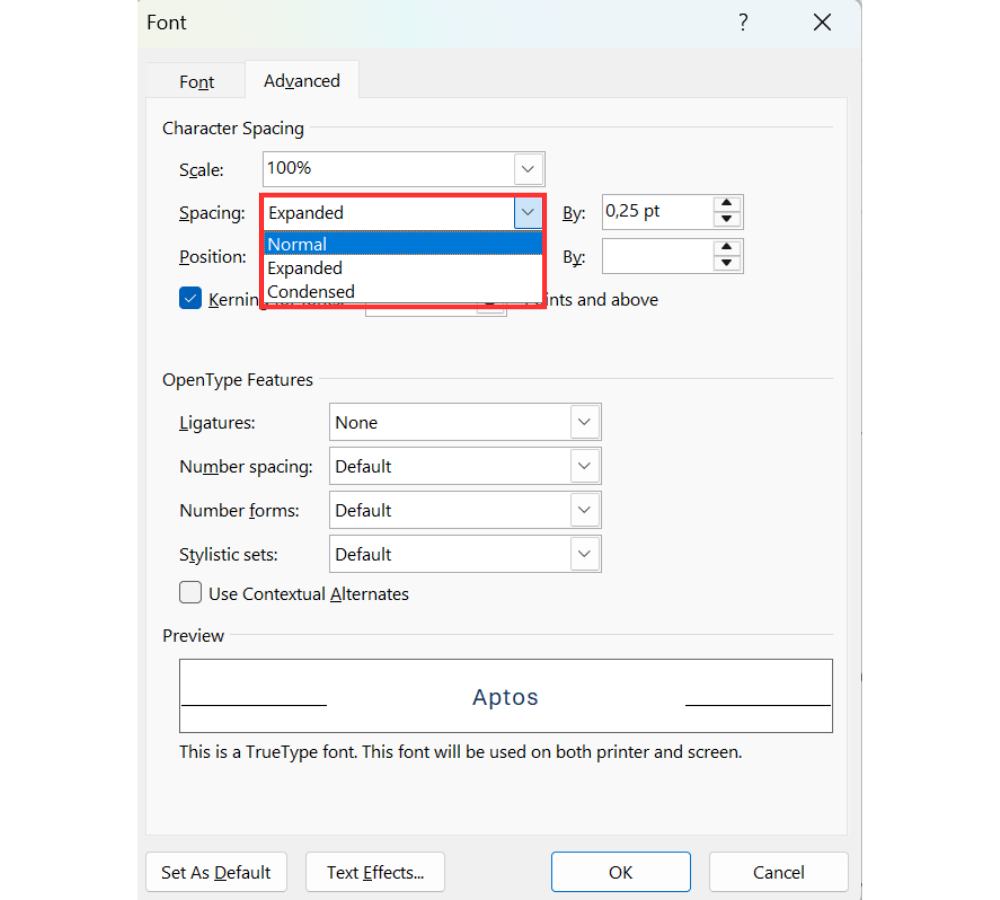
Step 4: Enter a spacing value. After choosing Expanded or Condensed, enter a small value in the field to the right. For a heading, start with 1 pt or 1.3 pt. The preview shows how the text will look before you apply the change.
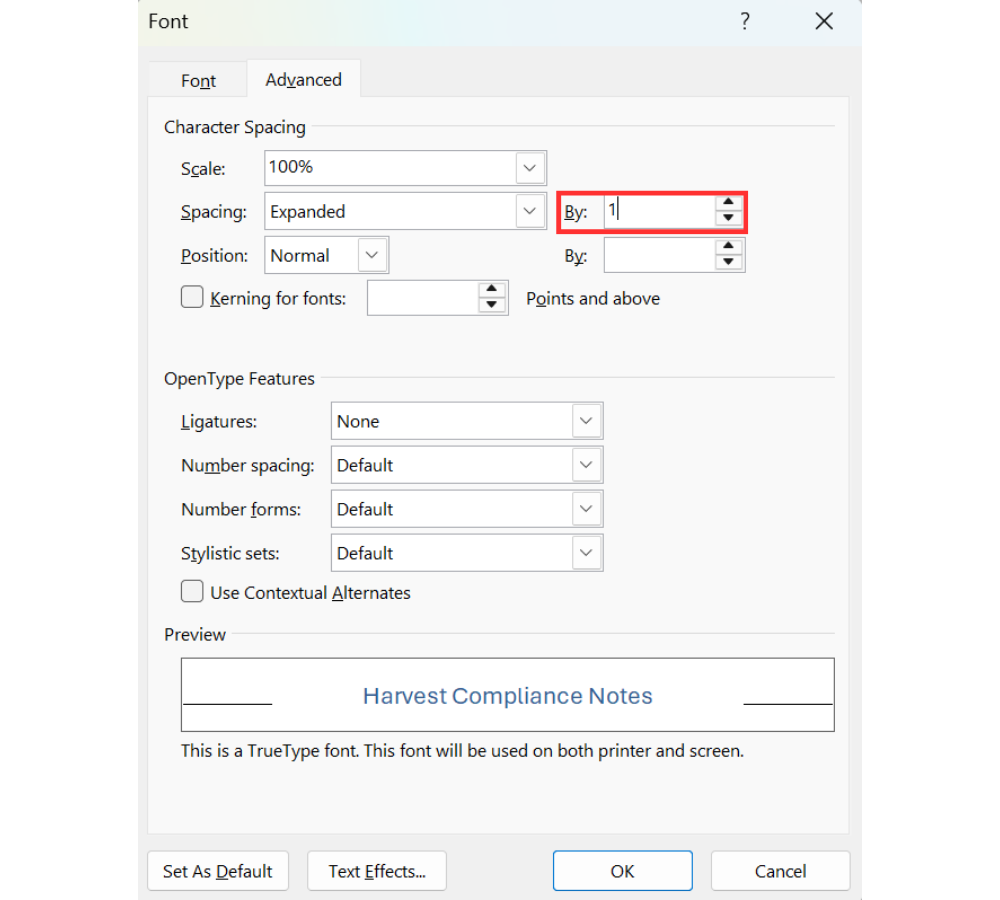
Step 6: Apply the change. Select OK. Word applies the new letter spacing to the selected text.
How to Expand Letter Spacing in Word
Section titled “How to Expand Letter Spacing in Word”To make text look more open, use Expanded spacing. This is useful when a heading, title, or short design element needs more visual space between letters.
- Select the text you want to adjust.
- Go to the Home tab.
- In the Font group, click the dialog box launcher, or press Ctrl + D.
- Open the Advanced tab.
- In the Spacing drop-down menu, choose Expanded.
- Enter a small value, such as 1 pt or 1.3 pt.
- Check the preview, then select OK.
After applying the setting, the selected text has more breathing room and may look cleaner or more polished, especially in headings.
How to Condense Letter Spacing in Word
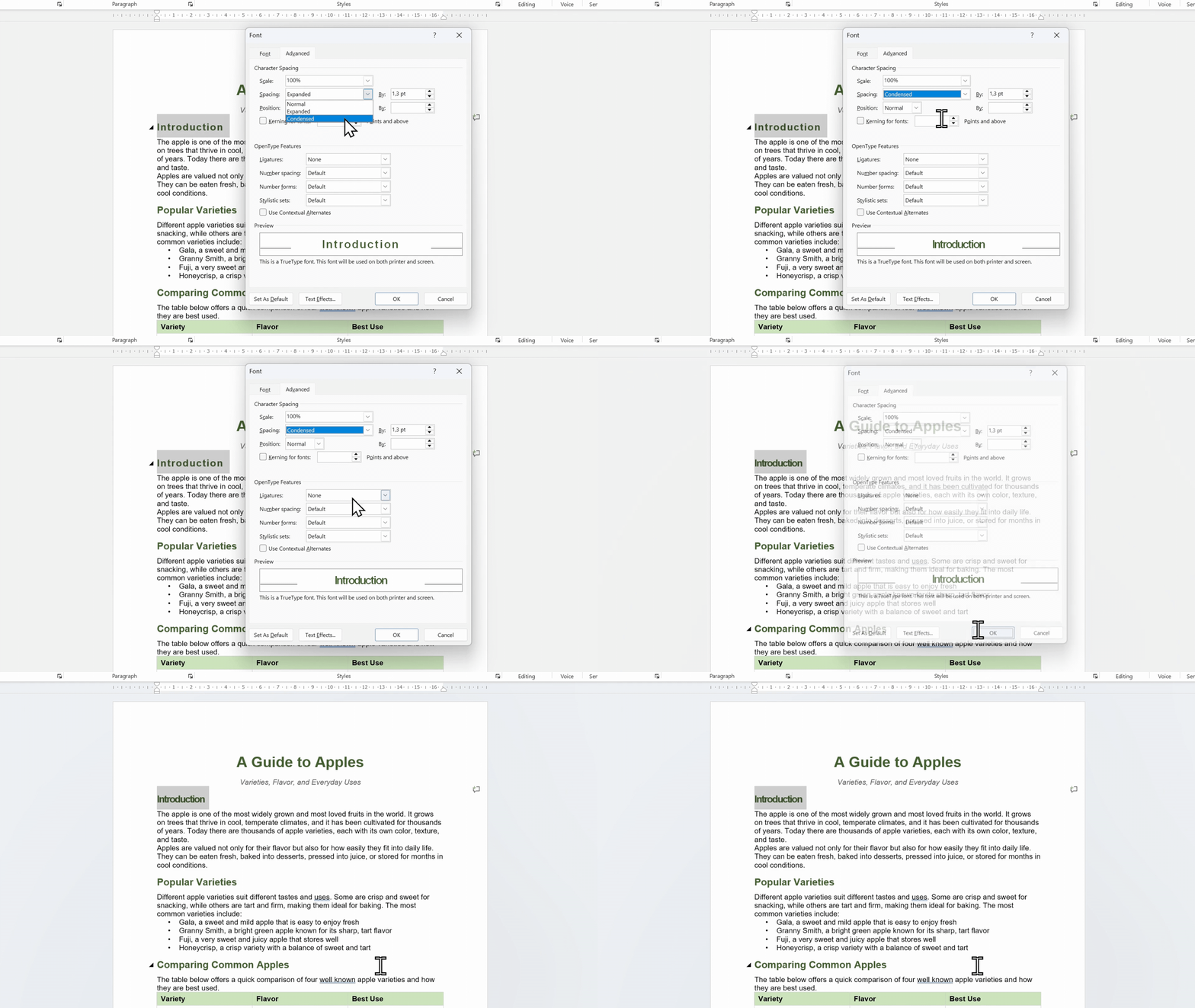
Section titled “How to Condense Letter Spacing in Word”To make text tighter, use Condensed spacing. This can help when a heading is slightly too wide, but it should be used carefully. If the letters start touching, the text becomes harder to read.
- Select the text again.
- Open the Font dialog box with Ctrl + D, or use the launcher in the Font group on the Home tab.
- Go to the Advanced tab.
- Set Spacing to Condensed.
- Enter the value you want to use.
- Select OK.
Condensed spacing works best for small layout corrections, not for forcing long paragraphs into a smaller space. If the text becomes crowded, reduce the value or use a different layout option instead.
How to Remove Letter Spacing in Word
Section titled “How to Remove Letter Spacing in Word”If the spacing change does not look right, you can remove it and return the text to Word’s default character spacing.
- Select the text that has custom letter spacing.
- Open the Font dialog box again.
- Go to the Advanced tab.
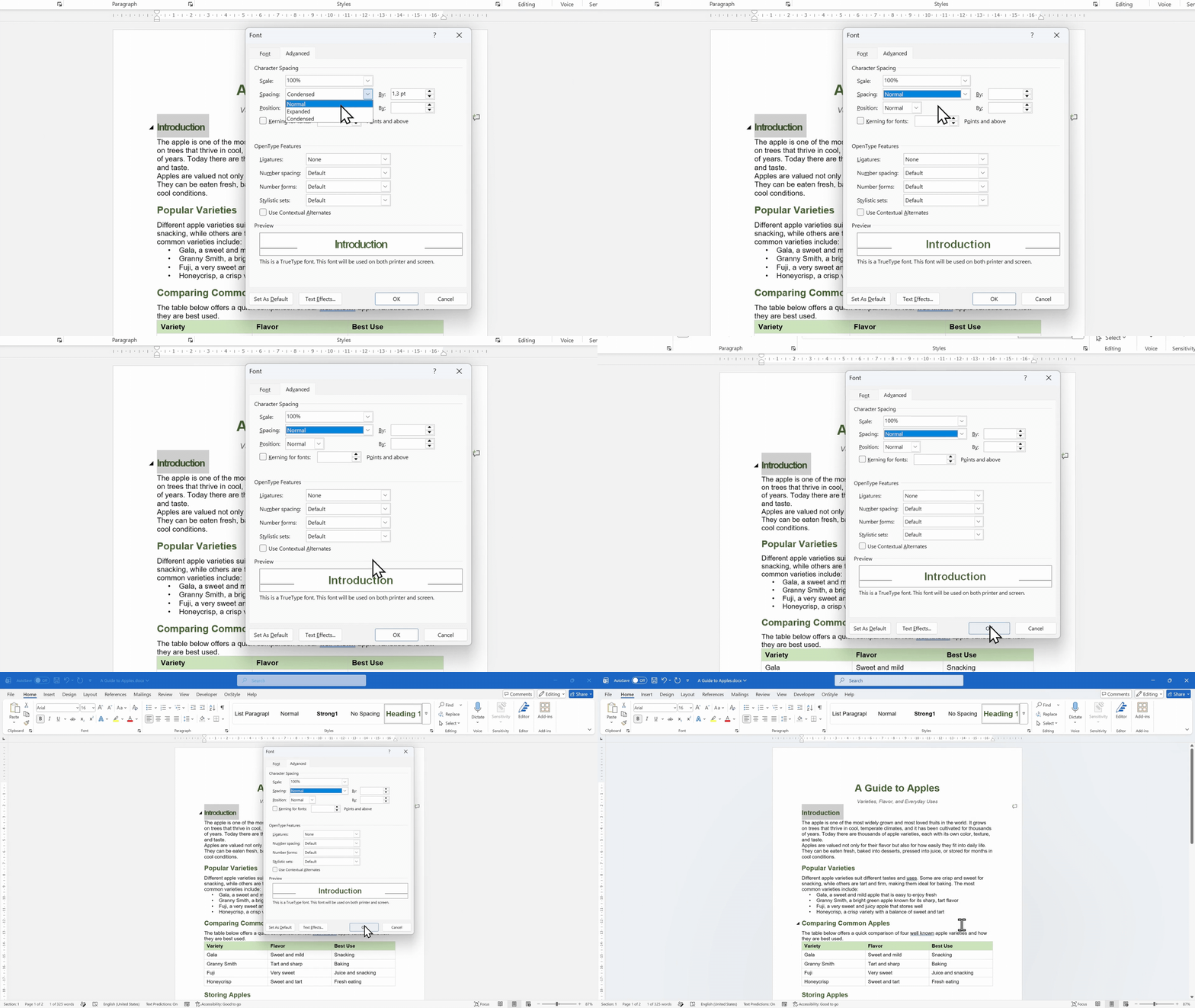
- Change Spacing back to Normal.
- Select OK.
The selected text returns to the default spacing used by Word.
When to Use Letter Spacing in Word
Section titled “When to Use Letter Spacing in Word”Knowing how to change letter spacing in Word is helpful, but the setting is not meant for every type of text. It works best when the text is short and design-focused.
- Use letter spacing for headings, titles, labels, invitations, certificates, cover pages, and short display text.
- Use Expanded spacing when text looks cramped or needs a more polished visual style.
- Use Condensed spacing when a short heading is slightly too wide.
- Avoid heavy letter spacing in long paragraphs because it can reduce readability.
For body paragraphs, it is usually better to adjust paragraph formatting instead of character spacing.
Common Mistakes to Avoid
Section titled “Common Mistakes to Avoid”Letter spacing is simple, but a few common mistakes can make the document harder to edit or read.
- Do not type spaces between every letter. That may look acceptable at first, but it is difficult to edit and can break when the text wraps.
- Do not use too much spacing. For most headings, a small amount is enough.
- Do not use letter spacing to fix paragraph layout. For paragraphs, use alignment, margins, line spacing, and paragraph spacing instead.
- Do not condense text until letters touch. If the characters become too close, the text becomes harder to read.
Letter Spacing vs Paragraph Layout
Section titled “Letter Spacing vs Paragraph Layout”Letter spacing changes the space between characters inside selected text. It does not fix page layout, paragraph spacing, margins, or alignment problems.
If an entire paragraph looks crowded, adjust paragraph-level settings instead. Use alignment, margins, line spacing, and paragraph spacing to improve paragraph layout. Use letter spacing only when the characters themselves need to be closer together or farther apart.
Use OnStyle to Keep Word Formatting Consistent
Section titled “Use OnStyle to Keep Word Formatting Consistent”Manual formatting can slow down document work, especially when styles, references, tables, and repeated corrections are involved. OnStyleis a Microsoft Word add-in that automatically identifies and corrects issues in Word documents.
When creating new documents, OnStyle helps by applying standard styles and formatting rules. It can support document cleanup tasks related to cross-referencing, linking, instructional or hidden text, heading numbering, table formatting, and other structure or formatting issues.
For professional documents, this helps reduce manual fixes and keeps formatting more consistent across the file.
Summary: How to Change Letter Spacing in Word
Section titled “Summary: How to Change Letter Spacing in Word”How to change letter spacing in Word comes down to selecting the text, opening the Font dialog box, going to the Advanced tab, and choosing Expanded, Condensed, or Normal from the Spacing menu. Use Expanded to spread letters apart, Condensed to tighten them, and Normal to remove custom spacing.
For polished headings, small values work best. Avoid typing spaces between letters, avoid excessive spacing, and use paragraph settings instead when the problem is paragraph layout rather than character spacing.