
How to Check Word Count in Word
Knowing how to check word count in Word is useful when a document has a word limit, a character limit, or a specific editing requirement. Word can show the total number of words in the document, count only selected text, and display the number of characters, paragraphs, lines, pages, footnotes, endnotes, and text boxes from the Word Count dialog box.
This guide explains how to check word count in Word from the status bar, how to turn the word count display back on if it is missing, how to count one paragraph or selected sections, and how to open the detailed Word Count dialog box when you need more than the total word count.
Why Word Count Matters in Microsoft Word
Section titled “Why Word Count Matters in Microsoft Word”The word count at the bottom of the Word window is the number most people use for essays, reports, articles, school assignments, publisher requirements, and any document with a strict word limit. If you only need the total number of words in the full document, the status bar is usually the fastest place to look.
However, Word can do more than show the total word count. It can also count selected text, multiple separate selections, characters with spaces, characters without spaces, paragraphs, lines, and content in notes or text boxes. That is why understanding how to check word count in Word can save time during writing, editing, and final review.
How to Check Word Count in Word from the Status Bar
Section titled “How to Check Word Count in Word from the Status Bar”Step 1: Look at the status bar. The fastest way to check word count in Microsoft Word is to look at the status bar at the bottom of the Word window. On the left side, Word usually shows the total number of words in the document.
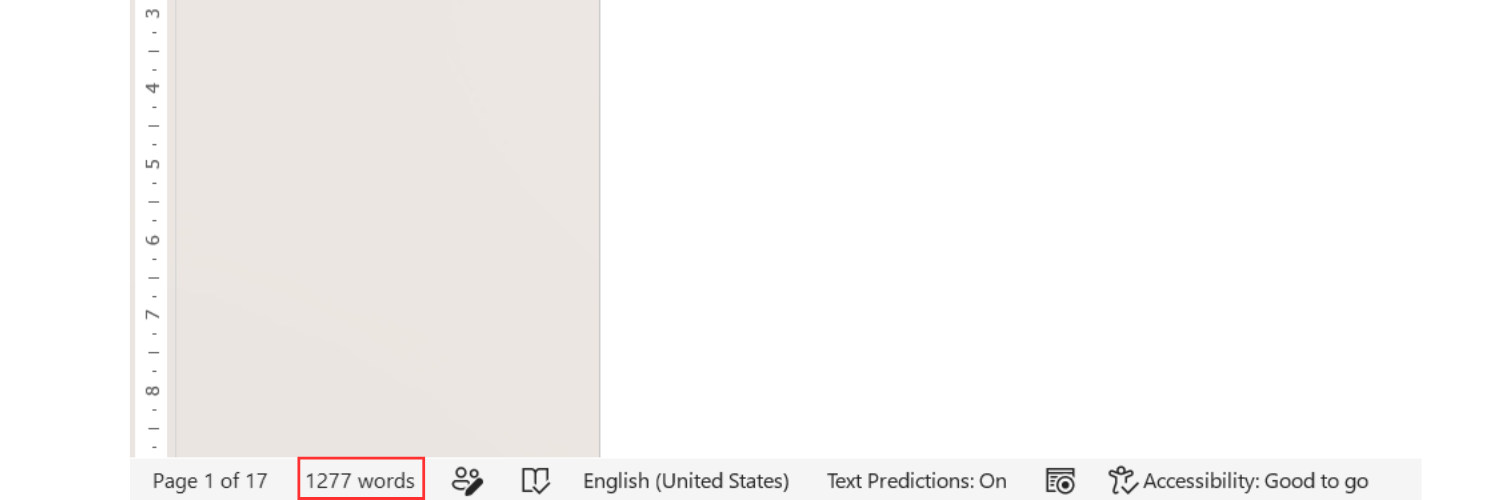
Step 2: Use the number for the full document. This total count is usually the number needed for essays, reports, articles, assignments, and other documents with a word limit. If no text is selected, the status bar shows the word count for the entire document.
How to Show Word Count on Word If It Is Missing from the Status Bar
Section titled “How to Show Word Count on Word If It Is Missing from the Status Bar”Sometimes the word count is not visible at the bottom of the screen. This does not mean Word cannot count the document. It usually means the Word Count item is hidden from the status bar.
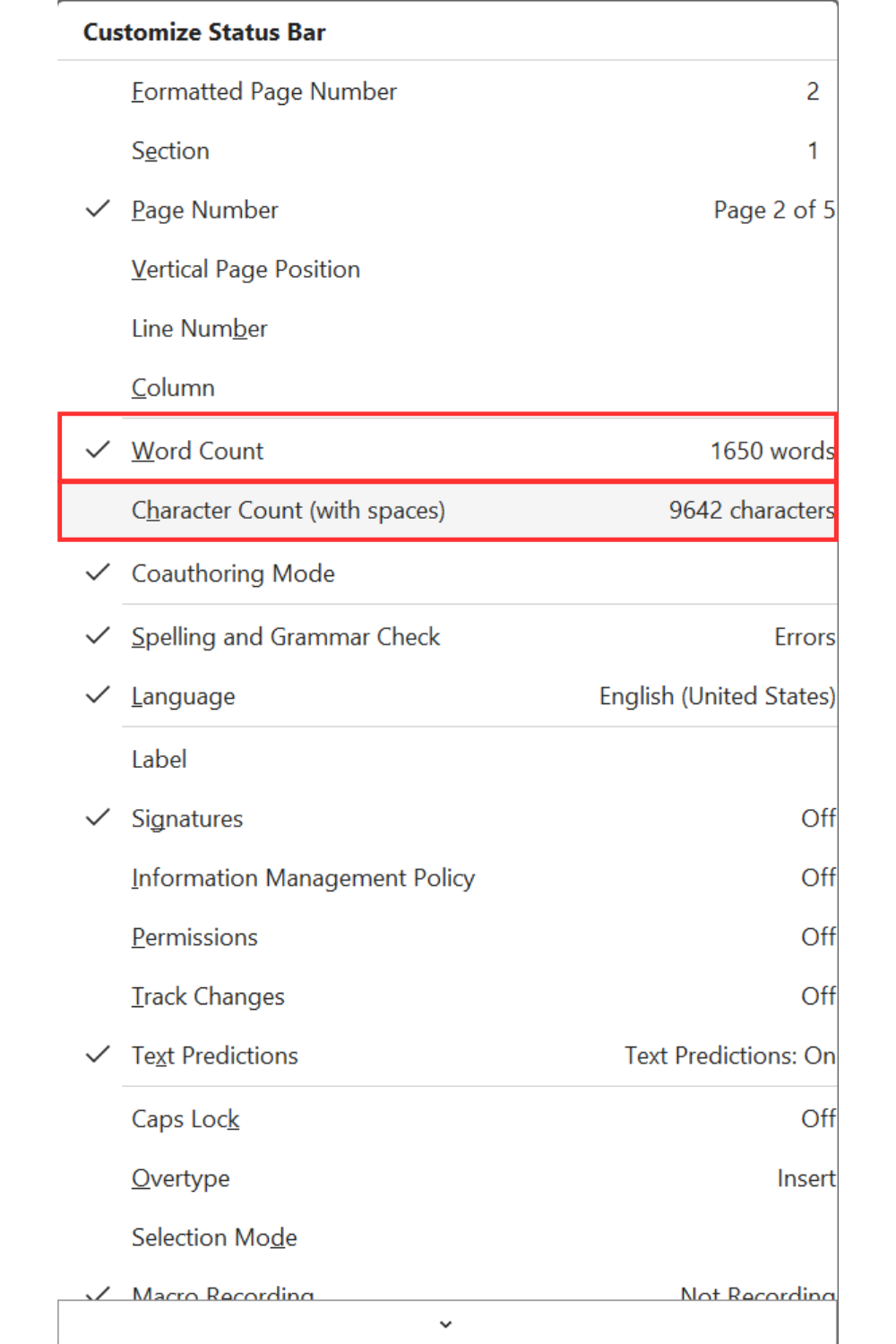
Step 1: Right-click the status bar. Right-click anywhere on the status bar at the bottom of the Word window.
Step 2: Turn on Word Count. In the menu that appears, find Word Count and make sure it has a check mark next to it. Once Word Count is turned on, the number appears in the status bar.
Step 3: Turn on Character Count with Spaces if needed. If you often need a character count, you can also turn on Character Count with Spaces from the same status bar menu. This is useful for forms, summaries, social posts, abstracts, and other content with character limits.
How to Check Word Count for Selected Text in Word
Section titled “How to Check Word Count for Selected Text in Word”You do not always need to count the whole document. You may need the word count for one paragraph, one section, one page, or a specific part of a longer file.
Step 1: Select the text you want to count. Click and drag with the mouse to highlight the paragraph, section, page, or passage you want to count.
Step 2: Read the selected word count in the status bar. After text is selected, the status bar updates automatically. Instead of showing only the total word count, Word may show something like 86 of 325 words.
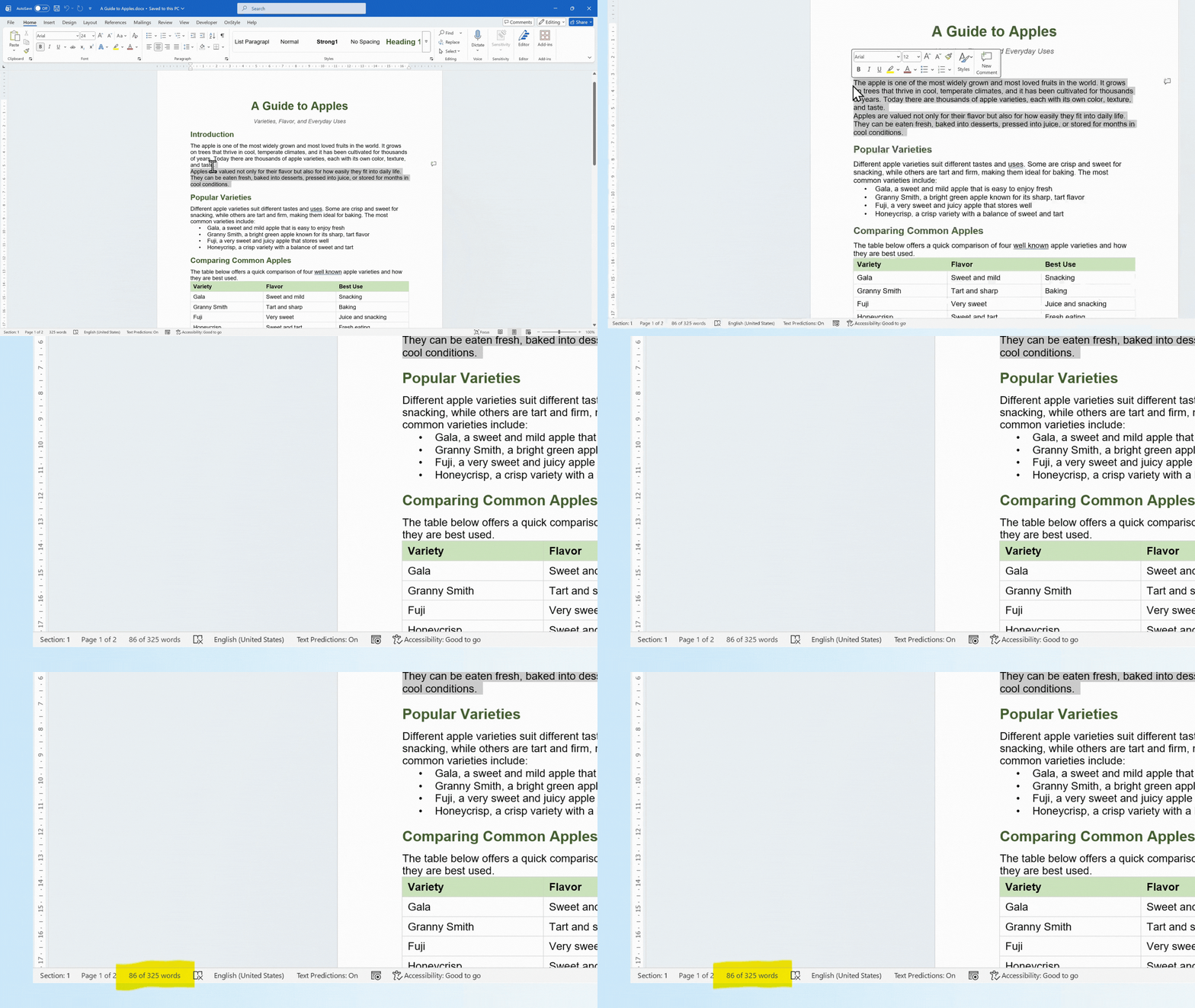
Step 3: Discover what the selected count means. In this example, 86 of 325 words means the selected text contains 86 words, while the whole document contains 325 words. When you click away and remove the selection, Word returns to the total document word count.
How to Count Multiple Separate Sections in Word
Section titled “How to Count Multiple Separate Sections in Word”Word can also count multiple separate selections. This is useful when you need to count only certain parts of a document without including the text between them.
Step 1: Select the first section. Highlight the first paragraph, sentence, or section you want to include in the count.
Step 2: Add another separate selection. On Windows, hold Ctrl while selecting another section. On Mac, hold Command while selecting another section.
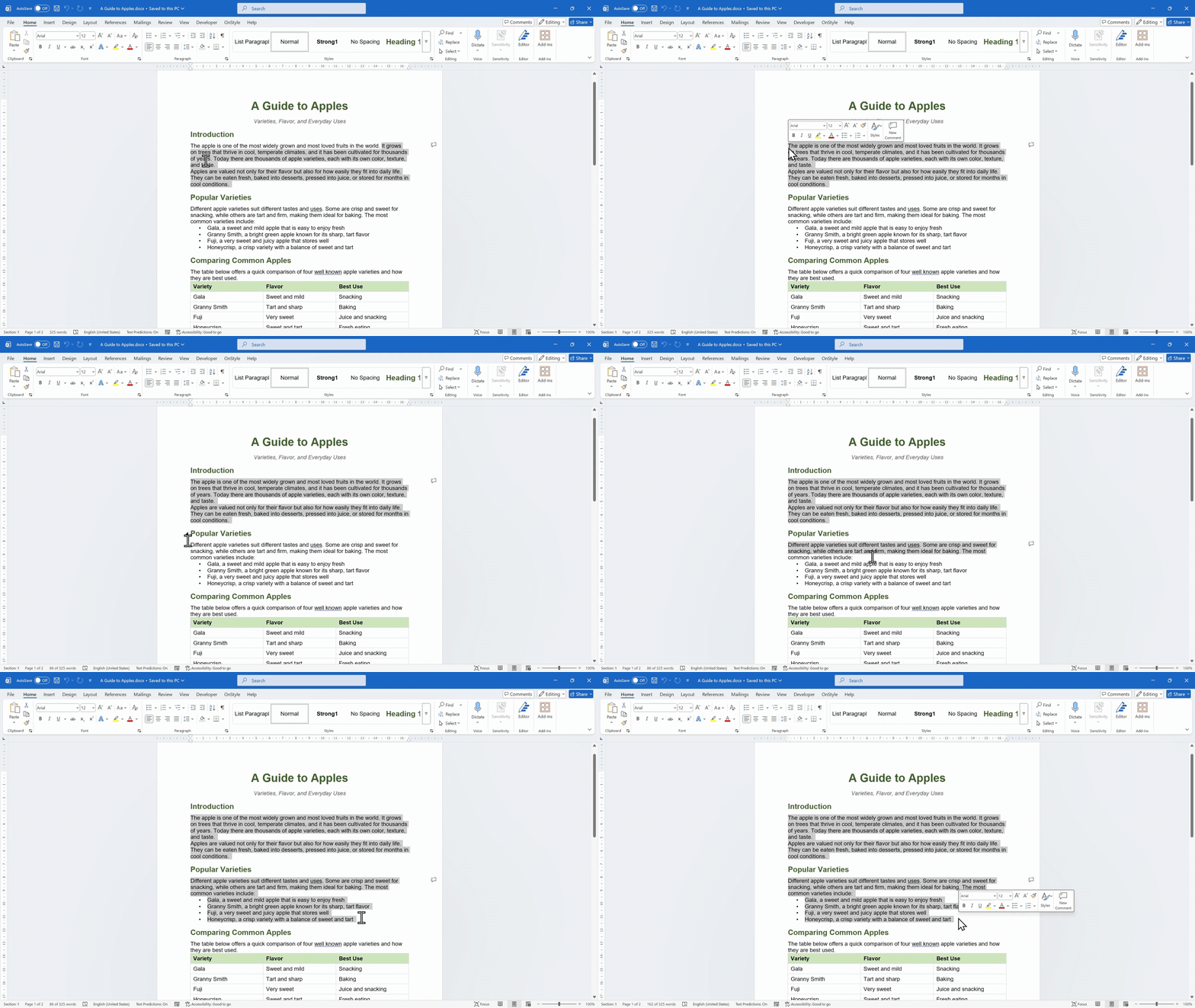
Step 3: Check the updated selected count. Word updates the selected word count based only on the highlighted text. Text between the separate selections is not included.
How to Open the Word Count Dialog Box
Section titled “How to Open the Word Count Dialog Box”The status bar is fast, but it does not show every count available in Word. For more details, open the Word Count dialog box.
Step 1: Click the word count on the status bar. Click the word count number shown at the bottom of the Word window. This opens the Word Count dialog box.
Step 2: Use the keyboard shortcut on Windows. On Windows, you can also press Ctrl + Shift + G to open the Word Count dialog box faster.
Step 3: Review the detailed counts. In the Word Count dialog box, Word shows the number of pages, words, characters without spaces, characters with spaces, paragraphs, and lines.
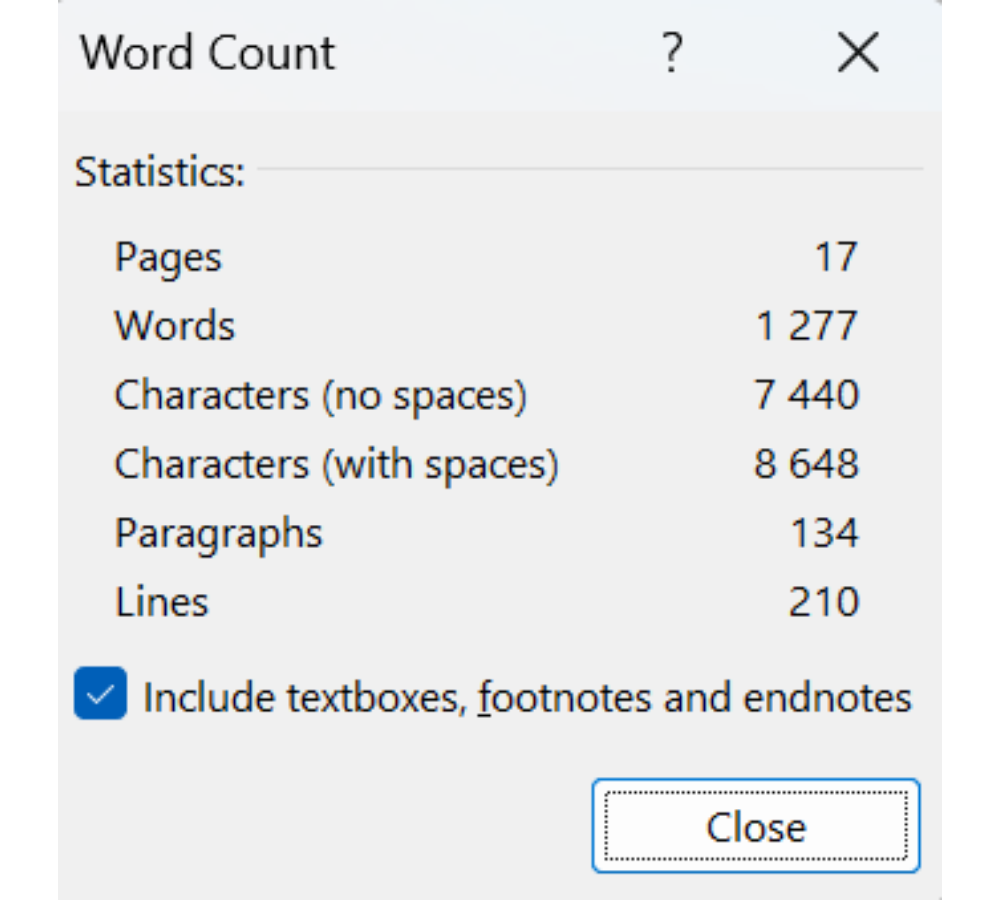
What the Word Count Dialog Box Shows
Section titled “What the Word Count Dialog Box Shows”The detailed Word Count dialog box is useful when a requirement asks for more than words. For example, a form may require a character count, an editor may ask for a line count, or a reviewer may need a paragraph count during cleanup.
| Count type | What it means |
|---|---|
| Pages | Shows how many pages are in the document or selected content. |
| Words | Shows the number of words in the document or selected text. |
| Characters without spaces | Counts letters, numbers, and punctuation without counting spaces. |
| Characters with spaces | Counts characters and includes spaces between words. |
| Paragraphs | Shows how many paragraphs are included in the count. |
| Lines | Shows how many lines Word detects in the counted content. |
How to Include or Exclude Text Boxes, Footnotes, and Endnotes
Section titled “How to Include or Exclude Text Boxes, Footnotes, and Endnotes”At the bottom of the Word Count dialog box, Word includes an option for text boxes, footnotes, and endnotes. This setting matters because different assignments, publishers, and document requirements may count these areas differently.
- If the option is checked, Word includes text boxes, footnotes, and endnotes in the count.
- If the option is unchecked, Word excludes text boxes, footnotes, and endnotes from the count.
OnStyle and Word Document Cleanup
Section titled “OnStyle and Word Document Cleanup”Checking the word count in Word is useful for meeting length requirements, but it doesn’t reveal whether your document is properly formatted or ready for review. Large Word documents often contain inconsistent styles, broken cross-references, incorrect heading structures, table formatting issues, hidden or instructional text, tracked changes, comments, and other formatting inconsistencies that can slow down editing and approval.
OnStyleis a Microsoft Word add-in designed to help authors create, validate, and maintain documents that follow predefined company or industry formatting standards. It supports both document creation and document cleanup by combining authoring tools with automated validationand correction capabilities.
When starting a new document, OnStyle lets you apply a DocConfig, which imports the required styles, page layout, language settings, and formatting rules from your document standards or style guides. It also provides authoring tools for applying standardheadings, tables, figures, lists, references, and other document elements, making documents easier to manage throughout the writing process.
After running a validation, OnStyle displays all detected issues in the Inspection Results pane. For many issue types, it offers built-in correction options that allow users to fix individual issues or apply corrections to multiple issues where supported. OnStyle also navigates directly to each detected issue, making document cleanup faster than locating problems manually.
Common Problems When Checking Word Count in Word
Section titled “Common Problems When Checking Word Count in Word”- The word count is missing from the bottom of Word. Right-click the status bar and turn on Word Count.
- The selected count looks different from the total count. If text is selected, Word shows the selected word count and the total document word count at the same time.
- The count includes text you did not expect. Open the Word Count dialog box and check whether text boxes, footnotes, and endnotes are included.
- The character count is not visible on the status bar. Right-click the status bar and turn on Character Count with Spaces if you need to see it often.
- Only part of the document should be counted. Select the required text before checking the status bar or opening the Word Count dialog box.
Summary: How to Check Word Count in Word
Section titled “Summary: How to Check Word Count in Word”To check word count in Microsoft Word, look at the status bar at the bottom of the Word window. If the count is missing, right-click the status bar and turn on Word Count. To count only part of the document, select the text and read the updated count. To see detailed information, click the word count or press Ctrl + Shift + G on Windows to open the Word Count dialog box.
The Word Count dialog box shows the number of pages, words, characters without spaces, characters with spaces, paragraphs, and lines. Use the option at the bottom of the dialog box to decide whether text boxes, footnotes, and endnotes are included in the count. While these statistics help measure document length, tools such as OnStyle can help verify document formatting, structure, and compliance with predefined document standards before review.