
How to Find and Remove Hidden Text in Word Using OnStyle
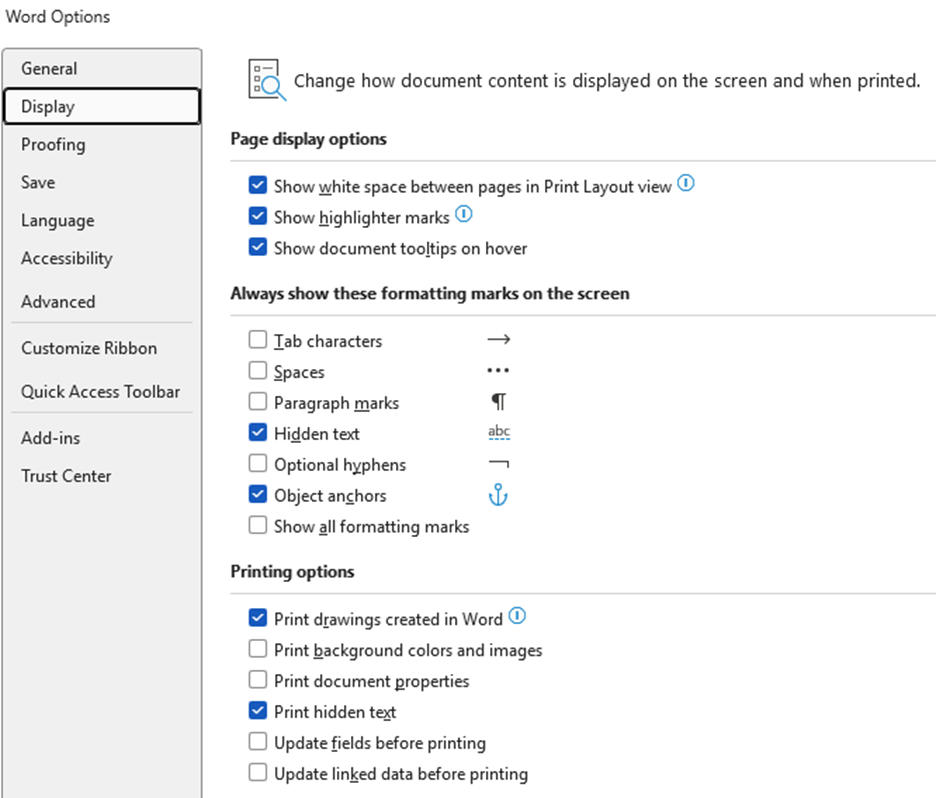
Hidden text in Microsoft Word is not visible on screen but remains in the document. It can appear when you print a document, export to PDF, or share the file. This can expose confidential or outdated content.
Use OnStyle to find hidden text in Word and remove it before publishing or sharing your document.
Prerequisites
Section titled “Prerequisites”- Microsoft Word is open
- The OnStyle Ribbon is available
Find Hidden Text in Word Using OnStyle Validation
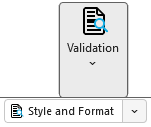
Section titled “Find Hidden Text in Word Using OnStyle Validation”- Click the OnStyle tab.
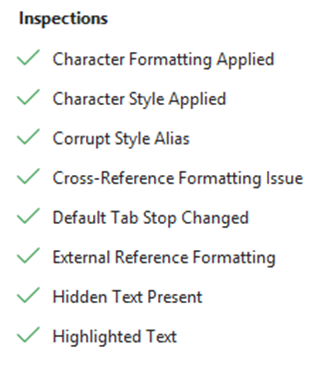
- Navigate to Hidden Text Present Validation. By default, it is in the Style and Format Inspection group.
- Run Hidden Text Present inspection.
- In the Validation Results pane, locate issues listed by the Hidden Text Present inspection.
- Review the found issues and apply corrections.
Hidden text is identified automatically across the document.
Review and Remove Hidden Text or Hidden Formatting
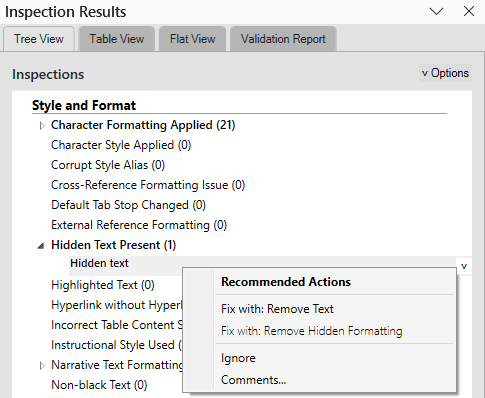
Section titled “Review and Remove Hidden Text or Hidden Formatting”In the Validation Results pane, the Hidden Text Present inspection lists all issues of hidden text found in the document. You can review all instances if you want and when you click on an issue in the list OnStyle navigates you to the found issue in the document. You can choose to fix all issues at once or select which issues to fix automatically.
There are two automatic fixes available:
Remove Text
Section titled “Remove Text”The correction module automatically removes hidden text identified by the Hidden Text Present inspection module.
Remove Hidden Formatting
Section titled “Remove Hidden Formatting”The correction module automatically removes the hidden character formatting from the text, leaving the text in the document. The text will no longer be hidden.
Remove Text Correction
Section titled “Remove Text Correction”The Remove Text correction module automatically removes hidden text identified by the Hidden Text Present inspection module.
- Run Hidden Text Present inspection.
- In the Validation Results pane, locate issues listed by the Hidden Text Present inspection.
- Review the listed findings if needed. When you click on a finding, OnStyle navigates you to the found issue in the document.
- Apply the automatic Remove Text correction for selected findings or to all findings at once.
Use this method when reviewing hidden text before removal is required.
Remove Hidden Formatting Correction
Section titled “Remove Hidden Formatting Correction”The Remove Hidden Formatting correction module automatically removes the hidden character formatting from the text.
- Run Hidden Text Present inspection.
- In the Validation Results pane, locate issues listed by the Hidden Text Present inspection.
- Review the listed findings if needed. When you click on a finding, OnStyle navigates you to the found issue in the document.
- Apply the automatic Remove Hidden Formatting correction for selected findings or to all findings at once.
Remove Hidden Text in Word Using OnStyle Cleanup Tool
Section titled “Remove Hidden Text in Word Using OnStyle Cleanup Tool”- Click the OnStyle tab.
- Navigate to the Tools group.
- Open the Cleanup drop-down menu.
- Click Remove Hidden Text.
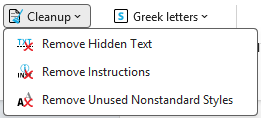
This removes all hidden text from the document in one step.
When to Use Each Method
Section titled “When to Use Each Method”- Use Cleanup > Remove Hidden Text to remove all hidden text at once
- Use Validation and Correction modules to review and select hidden text before deleting or unhiding it
Troubleshooting
Section titled “Troubleshooting”- If no hidden text is found, check that the inspection set includes the hidden text inspection module
- If Cleanup tools are missing, assign a DocConfig. Some tools are hidden without it
- If the Remove Hidden Formatting correction module returns with a “Could not fix” state, check the style of the hidden text, as in this case, the hidden text is formatted by a style. In this case you need to either change the style of the text for a non-hidden style or modify the style not to use hidden formatting.
Glossary
Section titled “Glossary”DocConfig – A configuration file that defines the formatting and validation rules applied by OnStyle.
Inspection Set – A predefined group of inspection modules used during validation.
Hidden Text Present – An inspection issue indicating that hidden text exists in the document.
Cleanup – A group of OnStyle tools used to remove unwanted elements such as hidden text.