
How to Use Find and Replace in Word
Knowing how to use Find and Replacein Word helps update repeated text, correct recurring mistakes, and clean up formatting across a document without editing each instance manually. It is one of the fastest tools for editing long Word documents, especially when the same word, phrase, or formatting appears many times.
This guide explains how to open Find and Replace, replace repeated text, use advanced search settings, replace formatting, combine text and formatting, and avoid common replacement mistakes in Microsoft Word.
How to Open Find and Replace in Microsoft Word
Section titled “How to Open Find and Replace in Microsoft Word”Before learning how to use Find and Replace in Word, it helps to understand that the tool can replace both text and formatting.
Find and Replace is available from the Ribbon, but the keyboard shortcut is usually faster.
- Step 1: Open the Document
Open the Word document that contains the text or formatting to be changed.
- Step 2: Open Find and Replace
On the Home tab of the Ribbon, in the Editing group, select Replace.
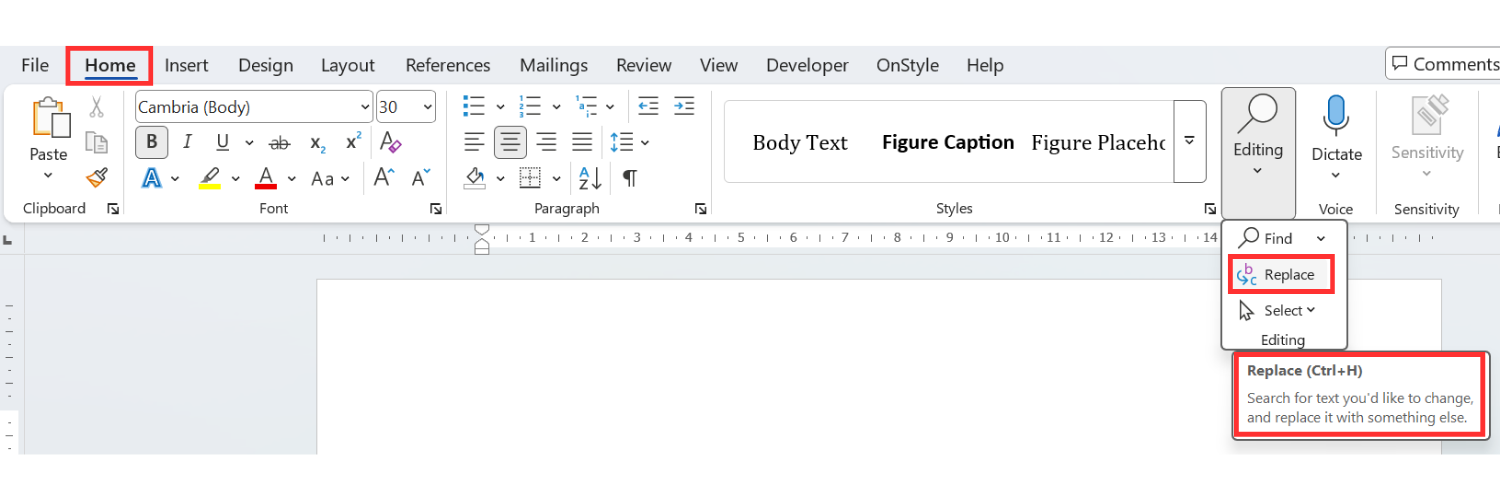
Or use the keyboard shortcut: Ctrl + H
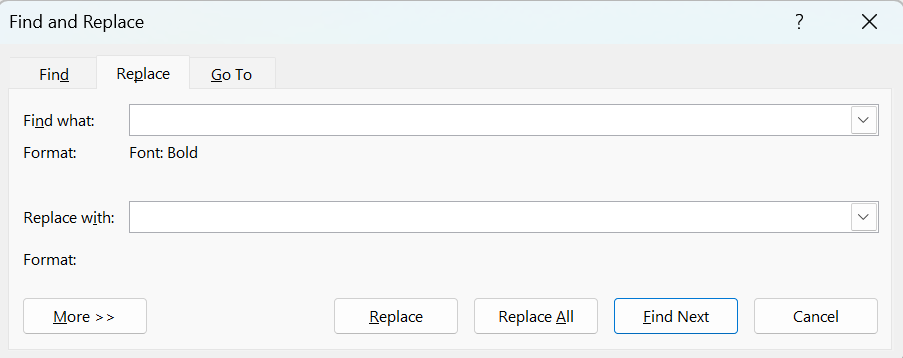
The Find and Replace dialog box opens.
- Step 3: Understand the Main Fields
The Find and Replace dialog box contains two main fields:
- Find what is the text Word should look for.
- Replace with is the new text Word should use instead.
How to Use Find and Replace in Word to Replace Repeated Text in Word
Section titled “How to Use Find and Replace in Word to Replace Repeated Text in Word”Find and Replace is useful when the same word or phrase appears many times and needs to be changed consistently. This is the most common example of how to use Find and Replace in Word because the same phrase can be updated throughout the document in one action.
- Step 1: Enter the Text to Find
In the Find what field, enter the repeated text.
- Step 2: Enter the Replacement Text
In the Replace with field, enter the new text.
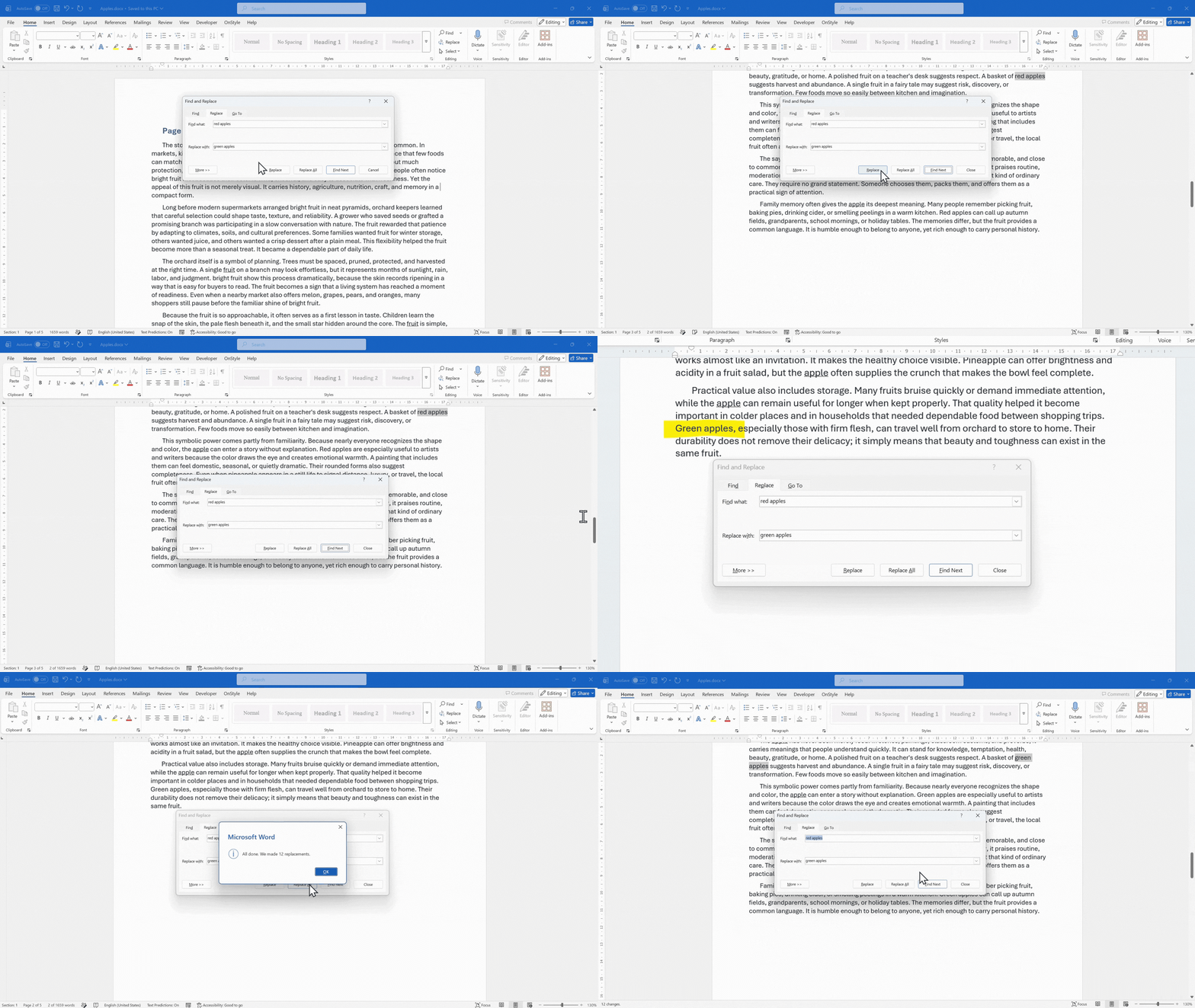
- Step 3: Choose How to Replace the Text
Use one of the following options:
- Find Next moves to the next match without replacing it.
- Replace replaces the current match only.
- Replace All replaces every match in the document.
Use Replace for controlled review. Use Replace All only when the search is correct and the replacement should apply everywhere.
After Replace All is selected, Word displays how many replacements were made.
How to Use Find and Replace in Word with Advanced Search Settings
Section titled “How to Use Find and Replace in Word with Advanced Search Settings”Advanced settings help prevent unwanted replacements. These options are especially important when the search text may appear inside other words or when capitalization matters. Learning how to use Find and Replace in Word with options such as Find whole words only and Match case helps prevent unwanted replacements.
- Step 1: Open More Options
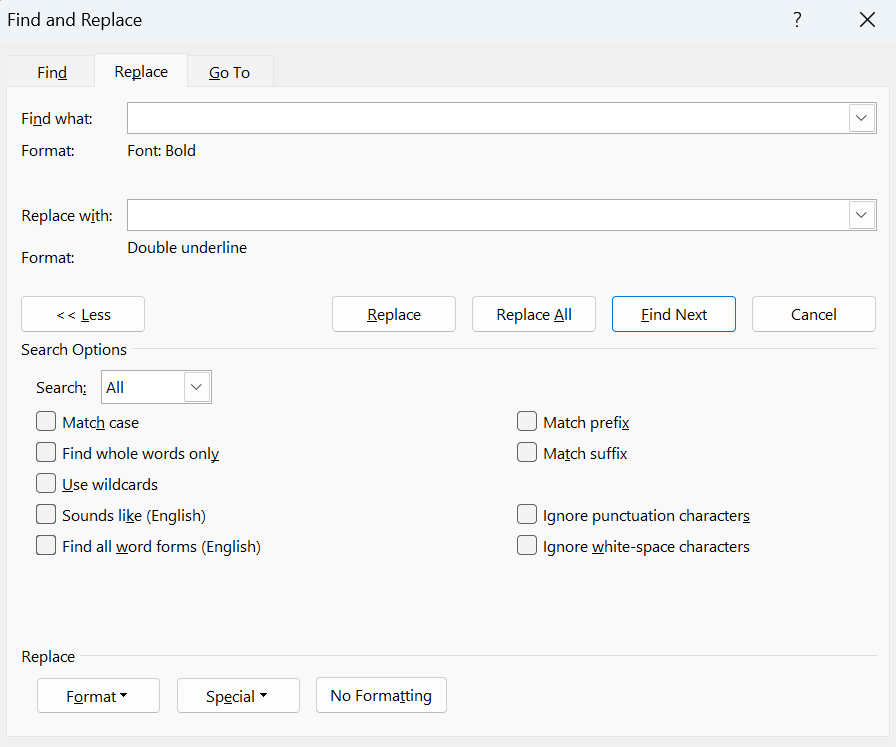
In the Find and Replace dialog box, select More >>.
Additional search settings appear.
- Step 2: Use Find Whole Words Only
The Find whole words only option tells Word to match only complete words.
This is useful when the search term may appear inside longer words.
- Step 3: Use Match Case
The Match case option tells Word to treat uppercase and lowercase letters differently.
This is useful when only some capitalization forms should be changed.
With Match case enabled, Word treats these as different matches.
Other Advanced Search Options in Word
Section titled “Other Advanced Search Options in Word”The expanded Find and Replace dialog box includes additional search options that can make searching more precise.
Use Wildcards
Section titled “Use Wildcards”The Use wildcards option allows Word to search for patterns instead of exact text only. Wildcards are special characters that can find variable text patterns and strings.
This is useful for advanced searches where the text changes but follows a recognizable pattern.
Sounds Like
Section titled “Sounds Like”The Sounds like option finds words that sound similar to the search term.
This can help locate possible spelling variations or phonetic matches.
Find All Word Forms
Section titled “Find All Word Forms”The Find all word forms option finds different forms of a base word.
For example, it can help locate related word forms instead of only the exact word entered.
Match Prefix
Section titled “Match Prefix”The Match prefix option finds words that begin with the search string.
Match Suffix
Section titled “Match Suffix”The Match suffix option finds words that end with the search string.
Ignore Punctuation Characters
Section titled “Ignore Punctuation Characters”The Ignore punctuation characters option allows Word to ignore punctuation, such as commas, during the search.
Ignore White-Space Characters
Section titled “Ignore White-Space Characters”The Ignore white-space characters option allows Word to ignore spaces, tabs, and other white-space characters between words.
How to Replace Formatting in Word
Section titled “How to Replace Formatting in Word”Find and Replace can also search for formatting and replace it with different formatting. This is useful when a document contains inconsistent manual formatting.
For example, if underline was used as a highlight but the organization standard requires bold text instead, Find and Replace can locate underlined text and replace the formatting.
- Step 1: Open Find and Replace
- Press Ctrl + H to open the Find and Replace dialog box.
- Select More >> if the expanded options are not visible.
- Step 2: Set the Formatting to Find
- Place the cursor in the Find what field.
- Select Format.
- Select Font.
- In the Find Font dialog box, choose the formatting to find.
- Select OK.
Word now searches for text with that formatting.
- Step 3: Set the Replacement Formatting
- Place the cursor in the Replace with field.
- Select Format.
- Select Font.
- Choose the replacement formatting.
- Select OK.
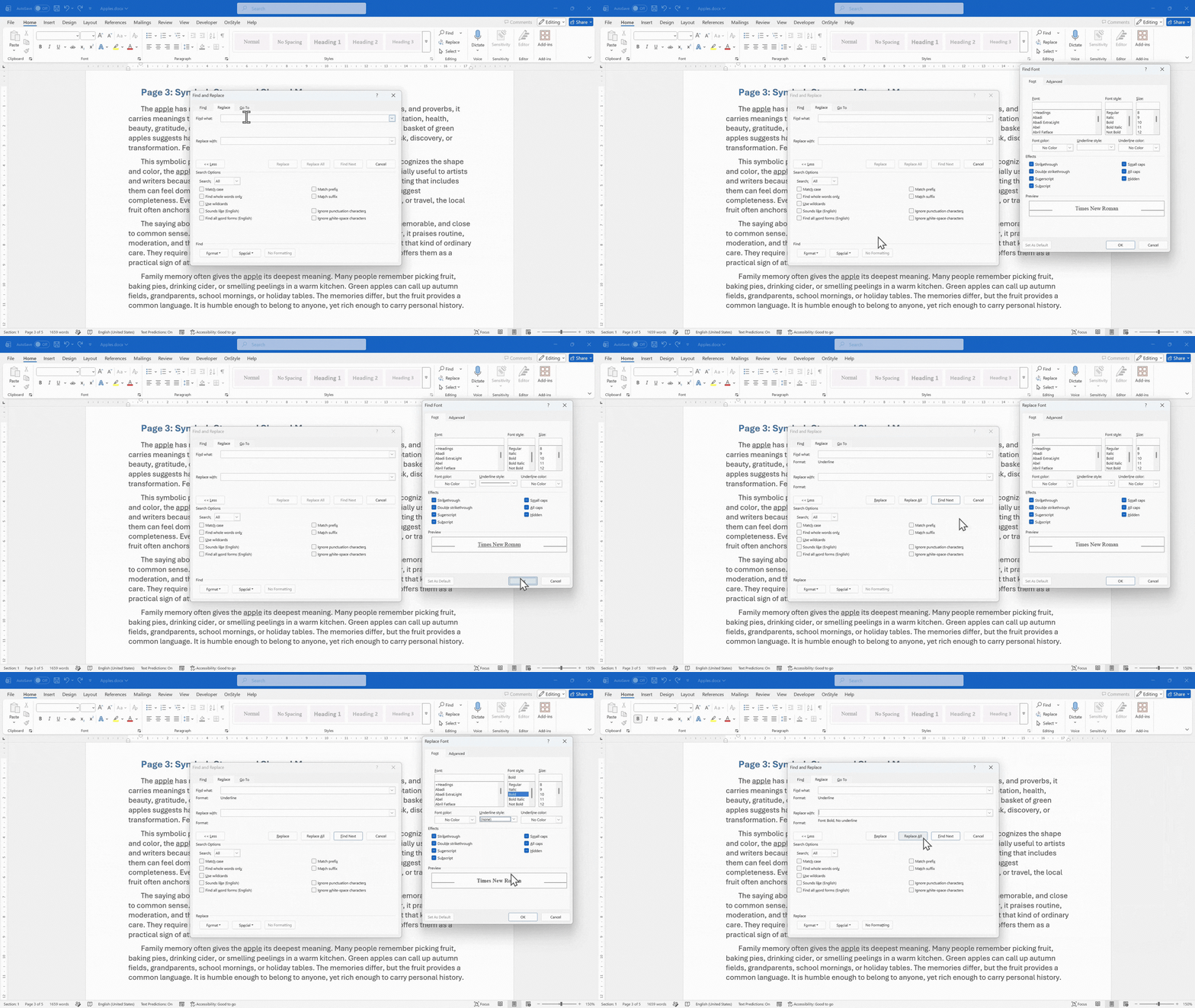
- Step 4: Apply the Formatting Replacement
Use one of the following options:
- Find Next to review each match.
- Replace to change one match at a time.
- Replace All to change all matches at once.
How to Combine Text and Formatting in Find and Replace
Section titled “How to Combine Text and Formatting in Find and Replace”Find and Replace can search for both text and formatting at the same time.
This means Word can find a specific phrase only when it has certain formatting, such as bold, italic, underline, color, or another font setting.
This is useful when the same text appears in multiple contexts but only some instances should be changed.
How to Combine Text and Formatting
Section titled “How to Combine Text and Formatting”- Open the Find and Replace dialog box.
- Enter the text in the Find what field.
- Select Format.
- Choose the formatting that should be part of the search.
- Enter replacement text or replacement formatting in the Replace with field.
- Use Find Next, Replace, or Replace All.
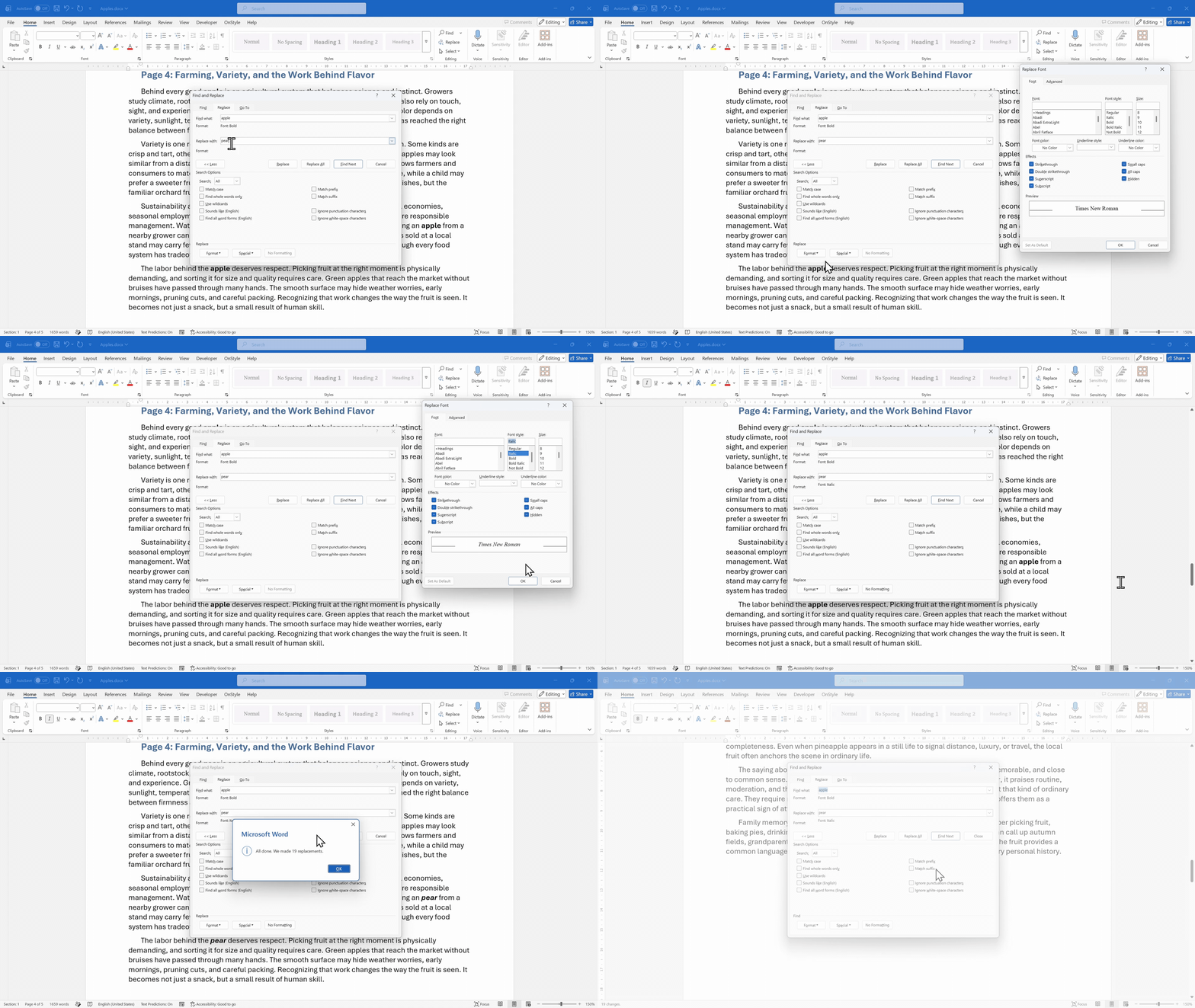
Use the Special Menu
Section titled “Use the Special Menu”The Special menu contains characters and elements that cannot easily be typed from the keyboard.
This can be useful for finding items such as paragraph marks, tabs, manual line breaks, or other special characters.
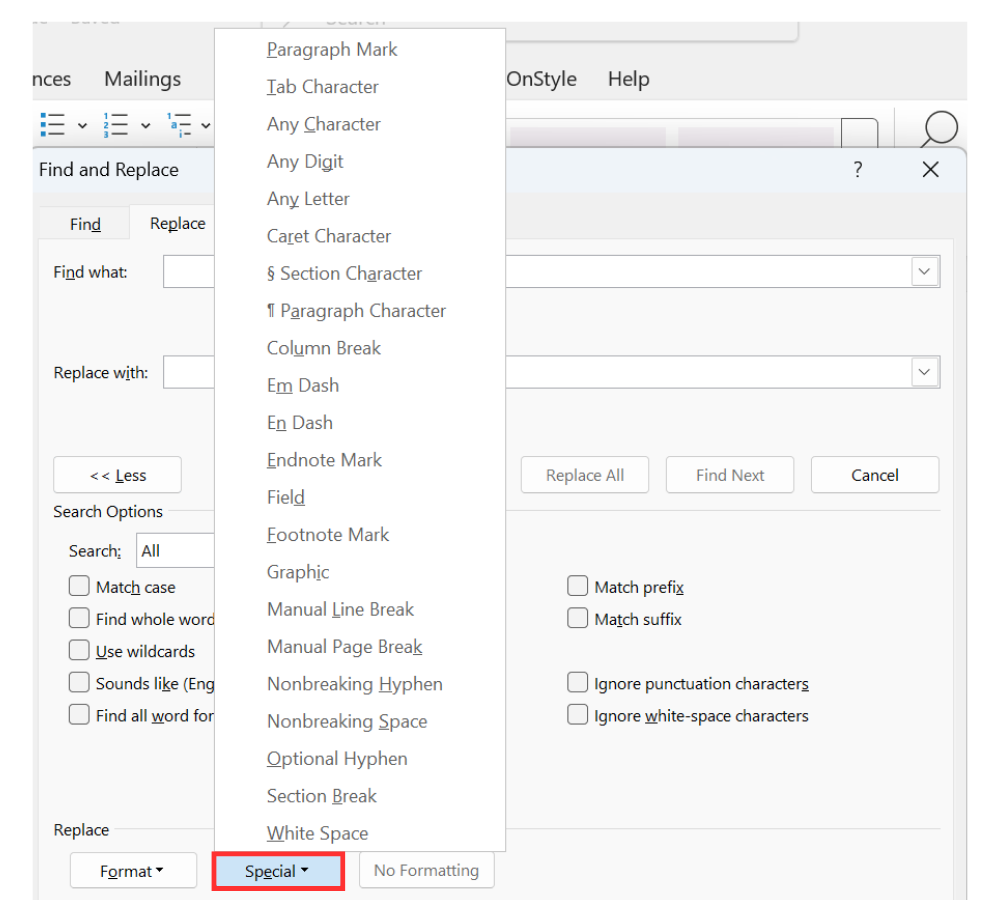
Clear Formatting from the Dialog Box
Section titled “Clear Formatting from the Dialog Box”After a formatting search or replacement is finished, select No Formatting to clear formatting from the Find and Replace dialog box.
This prevents old formatting settings from affecting the next search.
Common Mistakes with Find and Replace in Word
Section titled “Common Mistakes with Find and Replace in Word”Find and Replace is powerful, but incorrect settings can cause large-scale mistakes.
Common mistakes include:
- Selecting Replace All too quickly.
- Forgetting to use Find Next before replacing many matches.
- Replacing text that appears inside longer words.
- Forgetting to enable Find whole words only when needed.
- Forgetting to enable Match case when capitalization matters.
- Leaving old formatting settings in the dialog box.
- Not saving the document before a major replacement.
- Using formatting replacement without checking the result.
Tips for Using Find and Replace in Word Efficiently
Section titled “Tips for Using Find and Replace in Word Efficiently”Use these habits to work faster and reduce replacement errors:
- Use Ctrl + H instead of navigating through the Ribbon every time.
- Test the search with Find Next before using Replace All.
- Enable Find whole words only if Word is matching parts of longer words.
- Enable Match case when only some capitalized versions should change.
- Use More >> and Format when replacing formatting.
- Use No Formatting after a formatting-based replacement.
- Save the document before running a large replacement.
When to Use Find and Replace in Microsoft Word
Section titled “When to Use Find and Replace in Microsoft Word”Find and Replace is useful for many common editing tasks, including:
- Updating repeated words or phrases.
- Changing names, dates, product names, or labels.
- Correcting repeated typos.
- Cleaning up inconsistent formatting.
- Replacing underline with bold or another approved style.
- Updating repeated terminology in long documents.
- Finding special characters such as tabs or paragraph marks.
- Applying consistent formatting across a document.
Summary
Section titled “Summary”Find and Replace in Microsoft Word helps update repeated text and formatting quickly. The basic workflow is simple: enter the text to find, enter the replacement text, and choose Find Next, Replace, or Replace All.
Advanced options such as Find whole words only, Match case, Use wildcards, and formatting replacement make the tool more precise. For important documents, always test the search first, save the file before major changes, and use Replace All only when the search settings are correct.