
Creating an Abbreviation Table
Create an abbreviation table based on abbreviations detected in your document using the Create Abbreviation Table tool. The tool scans the document, identifies abbreviations, and inserts a formatted table at the selected location.
Prerequisites
Section titled “Prerequisites”- A DocConfig is assigned to the document.
- Abbreviations appear at least twice in the document.
Create an abbreviation table
Section titled “Create an abbreviation table”- Place the cursor in the document where the table should be inserted.
- Go to the OnStyle tab.
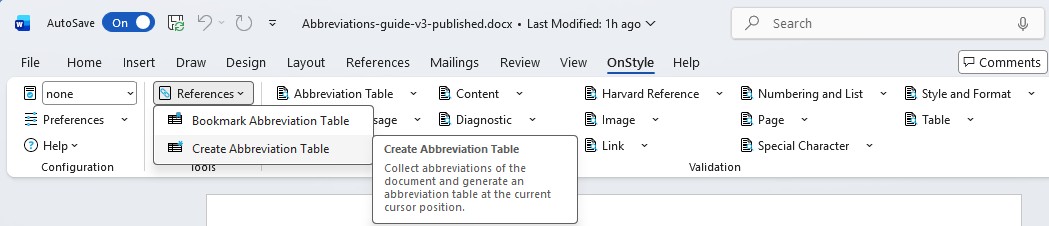
- In References (under Tools), click Create Abbreviation Table.
OnStyle scans the document and inserts the abbreviation table at the cursor position.
Click to enlarge
How the table is generated
Section titled “How the table is generated”- Abbreviations with three or more uppercase letters that appear at least twice are included.
- Entries from the frequently used abbreviations list are added with predefined descriptions.
- Abbreviations are sorted alphabetically.
- Abbreviations marked as trivial are excluded.
If an abbreviation is not in the predefined list, it is inserted without a description.
Update an existing abbreviation table
Section titled “Update an existing abbreviation table”- Go to the OnStyle tab.
- Click Create Abbreviation Table again.
OnStyle updates the existing table instead of creating a duplicate.
Troubleshooting
Section titled “Troubleshooting”Abbreviation is missing from the table
Section titled “Abbreviation is missing from the table”- Ensure the abbreviation appears at least twice in the document.
- Check that it meets the recognition rules or is included in the frequently used abbreviations list.
Description is incorrect
Section titled “Description is incorrect”- Update the description directly in the table.
- The updated value is used in future validation and corrections.
Table contains unwanted entries
Section titled “Table contains unwanted entries”- Check the Trivial Abbreviations settings in Preferences.
- Remove or adjust entries as needed.