
How to Remove Comment Names in Word
How to remove comment names in Word before sharing a document is an important privacy step when comments or tracked changes include internal reviewer names. Every comment in a Word document carries the name of the person who wrote it, and tracked changes carry similar author metadata for each edit. If the file is sent to partners, agencies, or client companies, those names can leave the organization with the document.
For a quick one-off cleanup, Microsoft Word includes Document Inspector. For controlled documents, regulated submissions, or files that still need internal review history, OnStyle provides a more structured anonymization workflow.
Why Comment Names and Tracked Changes Can Be a Privacy Risk
Section titled “Why Comment Names and Tracked Changes Can Be a Privacy Risk”Word commentsare useful during internal review, but the author name inside each comment is part of the document information. That means the name does not disappear just because the document is emailed, uploaded, or saved under a new file name.
Tracked changes create the same problem. Each insertion, deletion, or formatting change can carry reviewer metadata. In a document that has passed through several internal reviewers, this can expose names that were never meant for outside readers.
This matters most when a document leaves the organization. Internal names in a comment thread may reveal reviewer identities, teams, legal reviewers, project roles, or approval history. For client-facing, agency-facing, partner-facing, or regulatory documents, those details may need to stay internal.
How to Remove Comment Names in Word with Document Inspector
Section titled “How to Remove Comment Names in Word with Document Inspector”The built-in method for how to remove comment names in Word before sharing a document is Document Inspector.
Step 1: Create a safe copy. Save a separate copy of the Word document before removing personal information. This keeps the internal version available if your team still needs to resolve comments or review tracked changes.
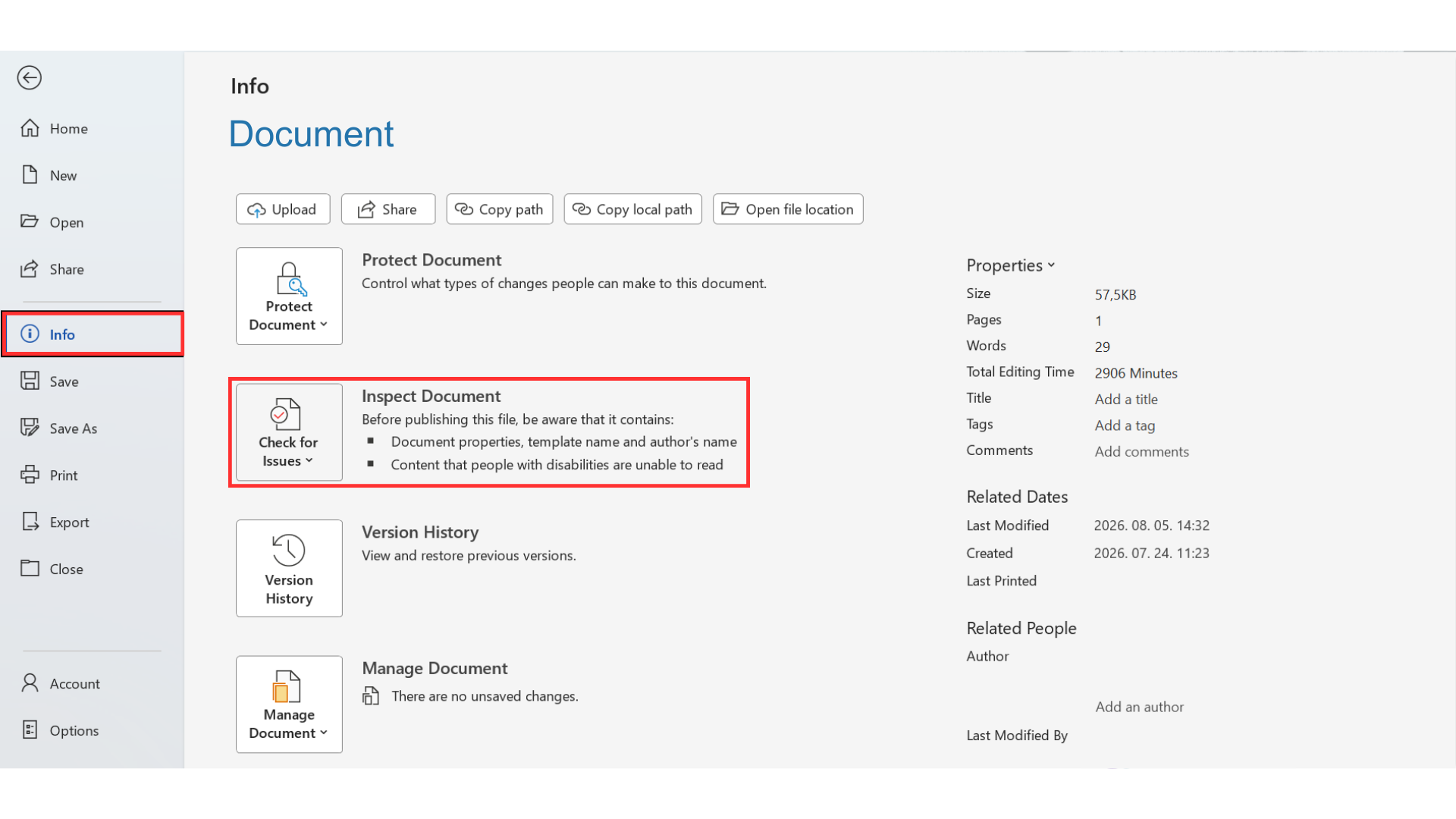
Step 2: Open Document Inspector. Go to File > Info > Check for Issues > Inspect Document.
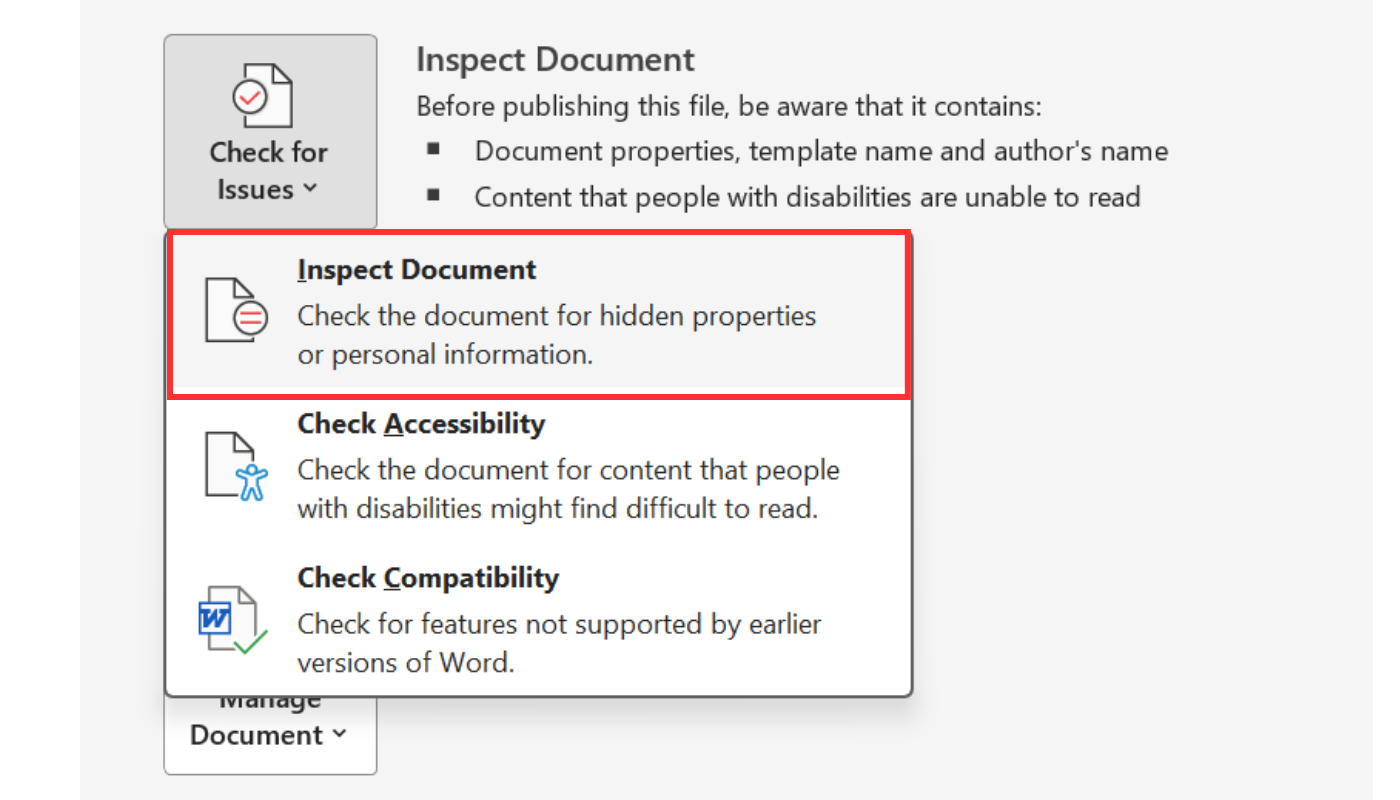
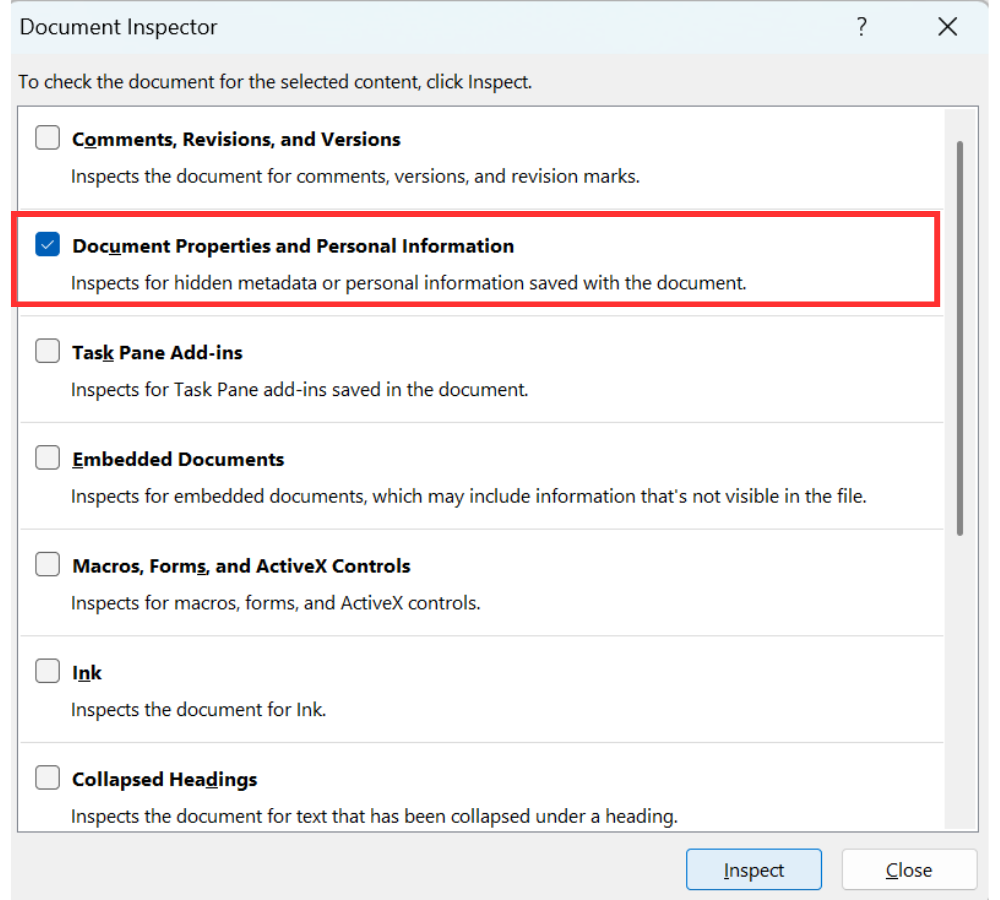
Step 3: Inspect personal information. In the Document Inspector dialog box, select Document Properties and Personal Information, then select Inspect.
Step 4: Remove the information. When Word finds personal information, select Remove All. Then select Save in the left pane to save the cleaned copy.
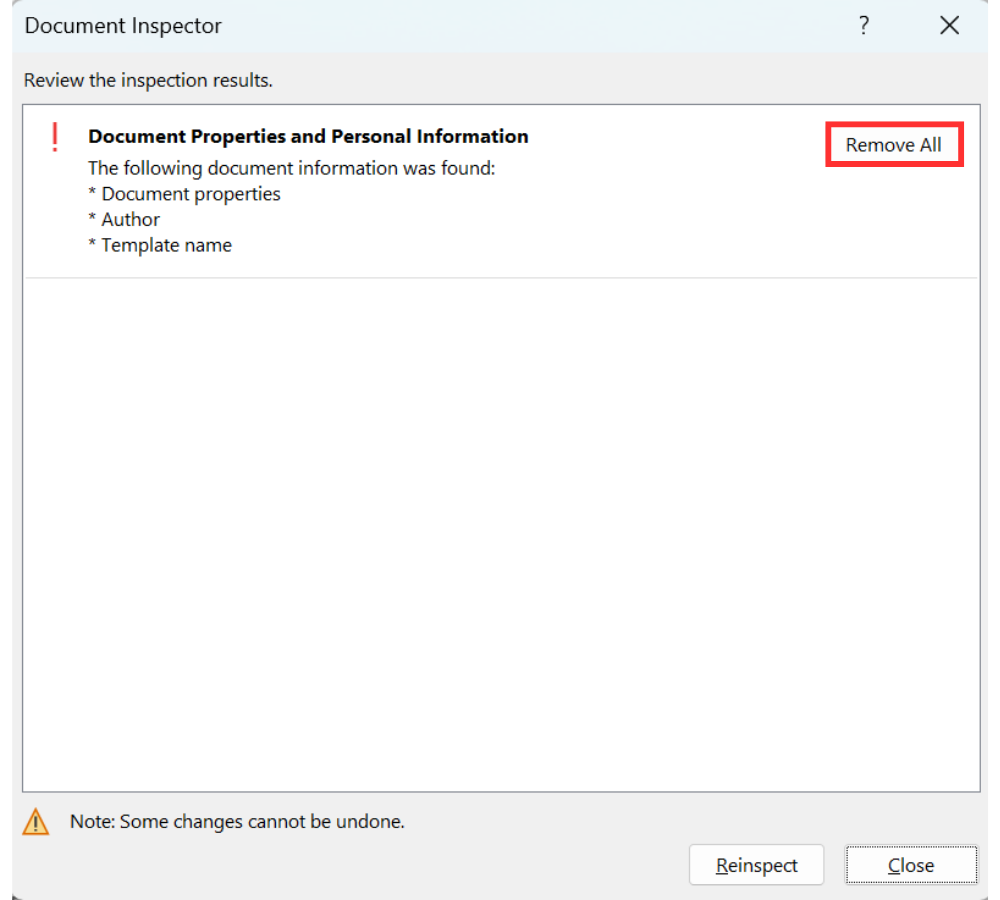
After this cleanup, comment authors normally appear as Author, and tracked changes are anonymized in the same way. This is why Document Inspector is useful when every reviewer name should be removed from the shared copy.
Problems to Watch for When You Remove Comment Names in Word with Document Inspector
Section titled “Problems to Watch for When You Remove Comment Names in Word with Document Inspector”The built-in method is fast, but it has two important limitations.
Problem 1: Document Inspector is all or nothing. It removes every detected personal name from the selected metadata category. That is helpful for a final external copy, but it is not ideal if you still need to preserve some reviewer names for internal comment resolution.
Problem 2: Word may keep stripping personal information after you save. After Remove All, Word can enable a privacy setting that removes personal information from file properties on future saves. New comments may also appear as Author, which can confuse a team that still expects reviewer names during internal review. This setting can be changed later, but it is hidden in Word’s Trust Center privacy options.
How OnStyle Checks Comments and Track Changes for Author Names
Section titled “How OnStyle Checks Comments and Track Changes for Author Names”Document Inspector is useful for a one-off cleanup when all personal information can be removed from the copy you plan to share. OnStyle is better for controlled documents because it can validate comment and tracked-change author names first, keep the internal version unchanged, and create a separate anonymized export for external sharing.
OnStyle is a Microsoft Word add-in built for professional and regulated documents. It supports faster document authoring and validation against company or industry formatting standards, and it includes validation tools with more than 150 checks for technical, structural, and formatting issues.
For comment and tracked-change privacy, the workflow has two parts: first, check what would be exposed; then create an anonymized copy for external sharing.
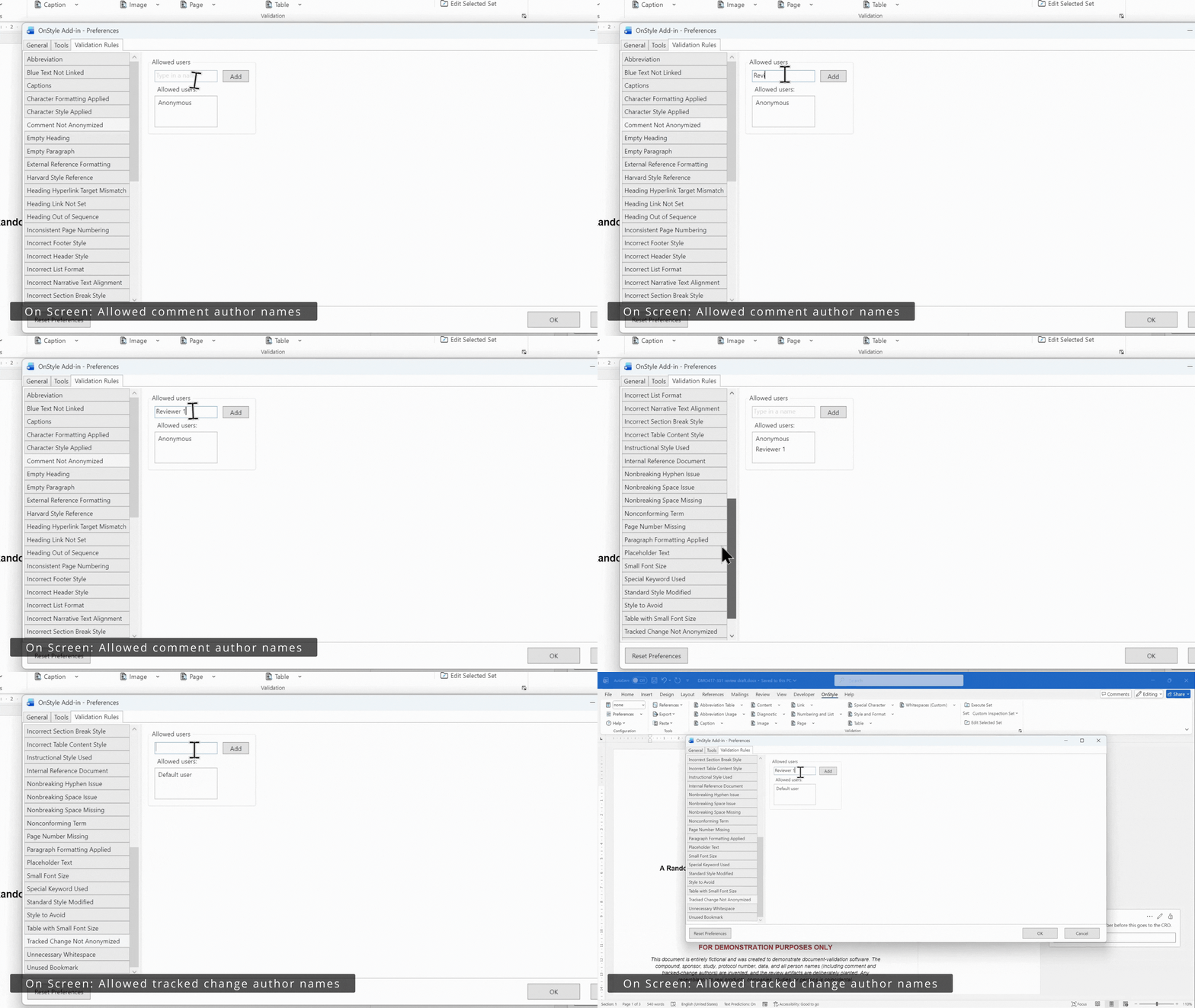
Step 1: Define allowed author names. In the OnStyle preferences, define which author names are allowed to appear. These may be anonymized reviewer labels that your process already uses.
Step 2: Run the anonymization checks. Use the OnStyle validation tools to run Comment Not Anonymized and Track Change Not Anonymized inspections.
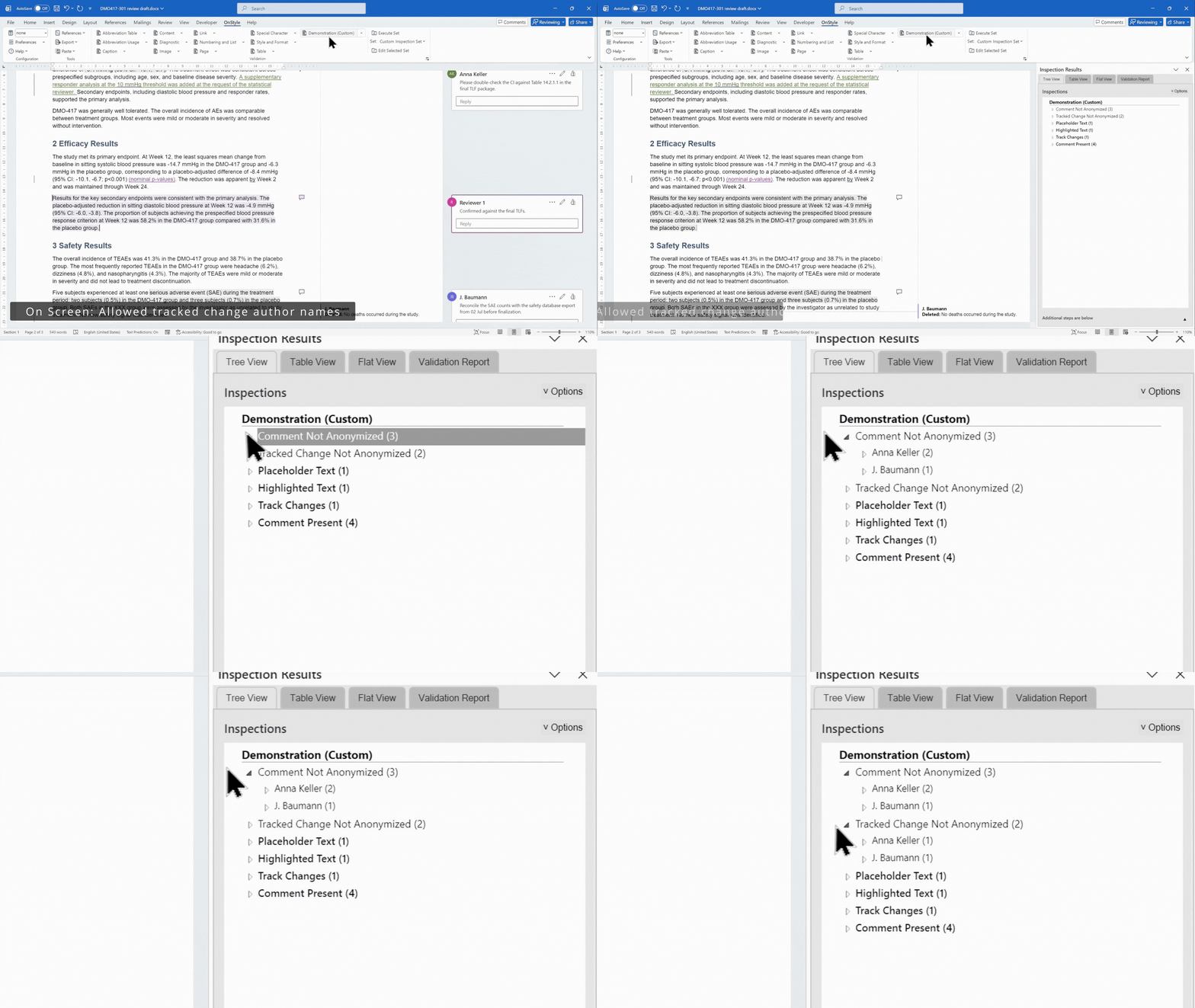
Step 3: Review the results by author. The inspections list every comment or tracked change that violates the configured rule and group the findings by author. This lets you see exactly which names would be exposed before the document is sent.
This makes the process more controlled than simply removing all personal information. Instead of discovering the problem after sharing the file, the reviewer can see the risky comment and tracked-change author names in the OnStyle results panel before export.
How to Remove Comment Names in Word with OnStyle
Section titled “How to Remove Comment Names in Word with OnStyle”OnStyle’s Export Anonymized Document tool creates a separate copy of the Word document and replaces the relevant author names with the configured anonymous username. It also anonymizes document properties such as Author and Last Modified By.
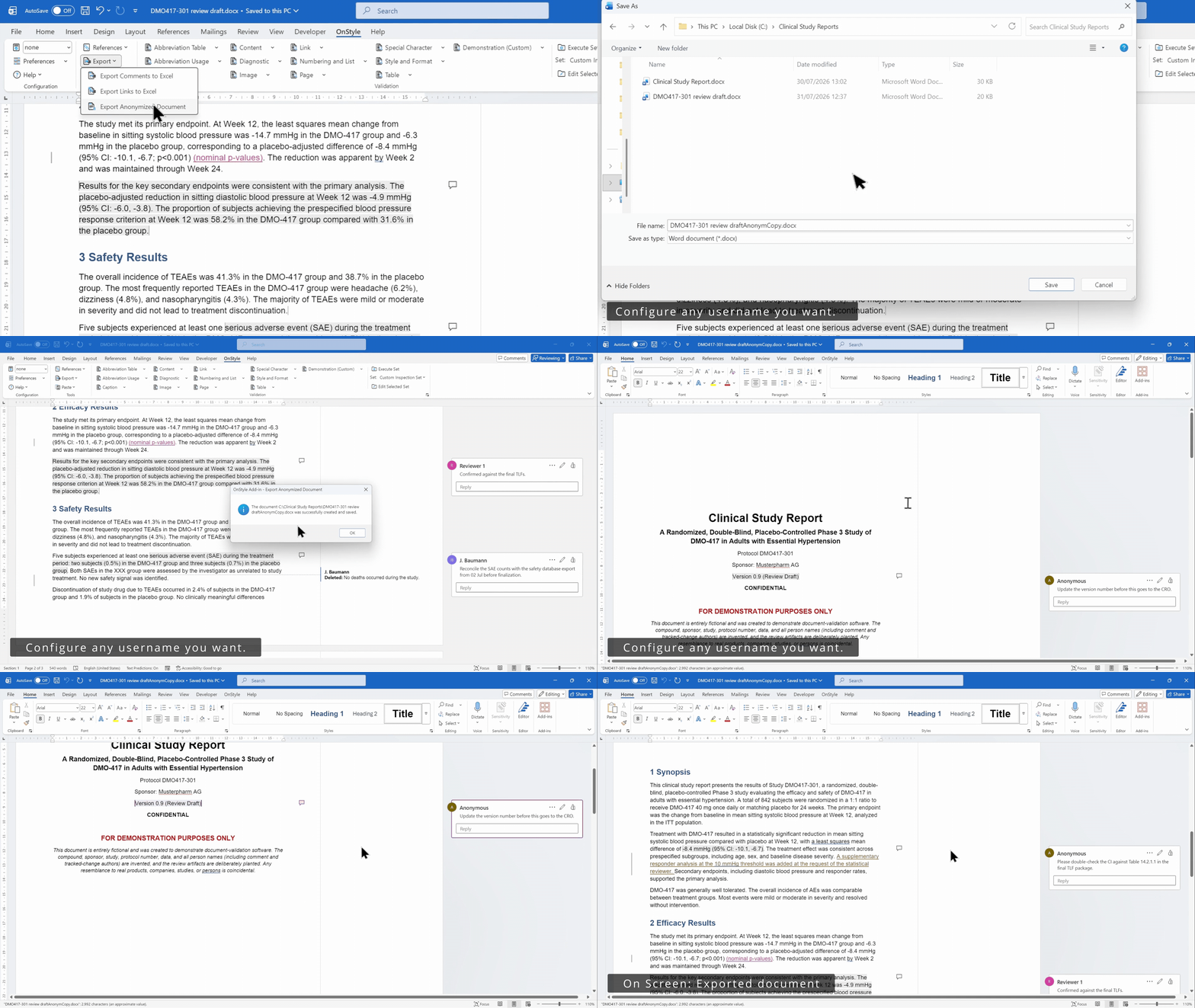
The main advantage is that the original document keeps full attribution for internal review, while the exported copy is prepared for external sharing. Internal reviewers can still see who asked for what, but the version that leaves the organization does not expose private reviewer names.
What to Check Before Sending a Word Document Externally
Section titled “What to Check Before Sending a Word Document Externally”Comment names and tracked-change author names are only part of a pre-send review. The same validation run can also help check other issues that should be resolved before a document leaves the organization, such as:
- Comments that should have been deleted entirely.
- Tracked changes that are still turned on or still visible.
- Highlighted text that was used during review.
- Leftover placeholders or instructions.
- Other technical or formatting issues that should not appear in the final shared document.
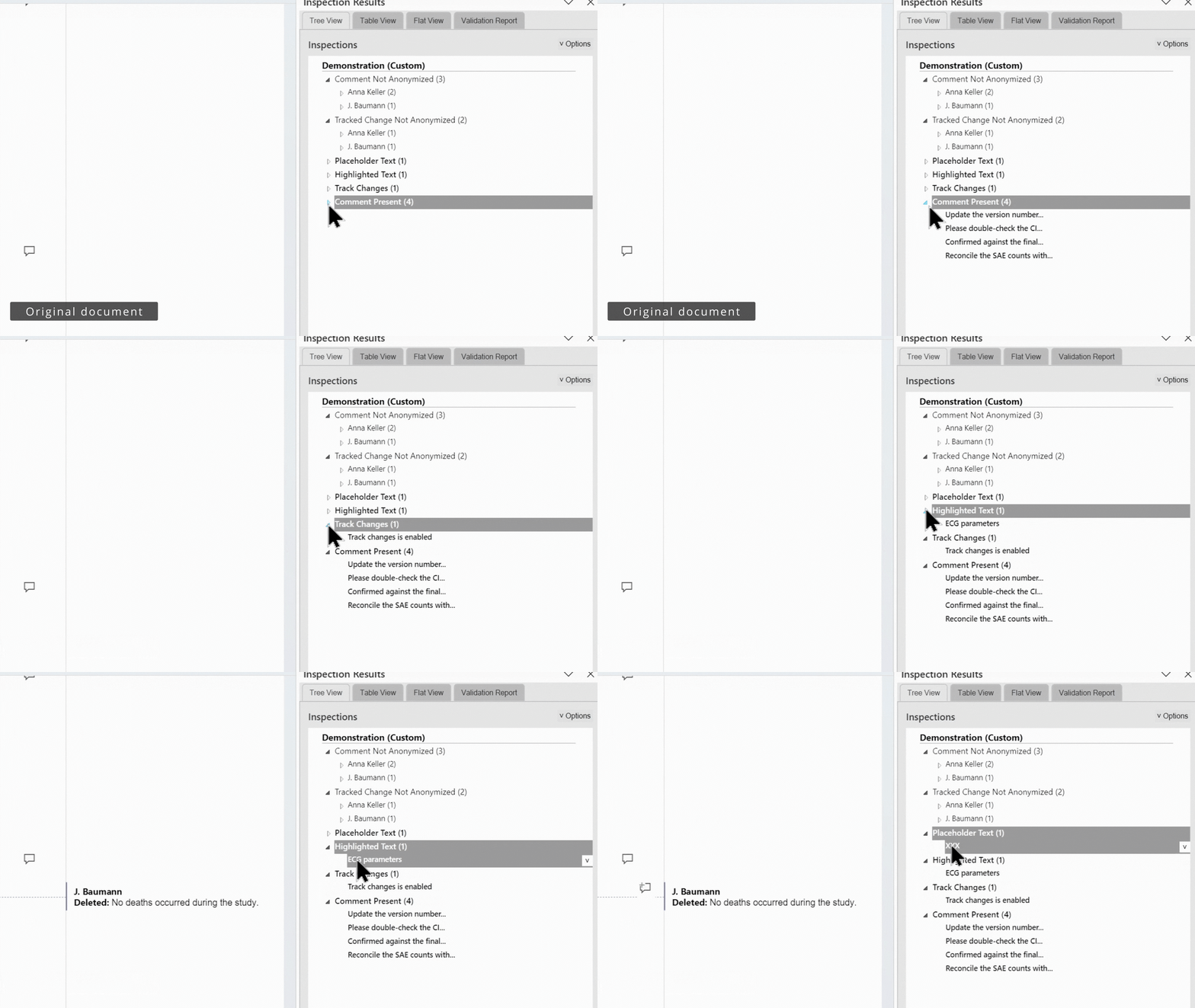
For controlled Word documents, this turns external sharing into a repeatable pre-send checklist instead of a last-minute manual scan.
Summary: How to Remove Comment Names in Word Safely
Section titled “Summary: How to Remove Comment Names in Word Safely”How to remove comment names in Word before sharing a document depends on the type of file and the level of control required. For a one-off external copy, Document Inspector can remove personal information so comment authors and tracked-change names appear as Author. For professional or regulated documents, OnStyle provides a safer workflow by validating comment and tracked-change author names first, then creating a separate anonymized copy while the internal document keeps its original attribution.