
How to Create an Abbreviation Table in Microsoft Word
Why Abbreviation Tables Are Important
Section titled “Why Abbreviation Tables Are Important”Abbreviation tables are commonly used in technical, scientific, and regulatory documents. They help readers quickly understand shortened terms used throughout a document and support consistent document formatting and document quality control.
For example, style guides often require that:
- The Table of Abbreviations appear early in the document (usually after the table of contents)
- Each entry includes an abbreviation and its clear definition
- Entries are listed in alphabetical order
- The table follows the document’s formatting standards
These requirements help ensure document standardization and readability, particularly in large or collaborative documents.
In this guide, we will explore four methods for creating abbreviation tables in Microsoft Word, from manual approaches to using automation tools.
Method 1: Create an Abbreviation Table Manually
Section titled “Method 1: Create an Abbreviation Table Manually”One method is to create the abbreviation table manually. To do this, you must review your document and record every abbreviation used. After identifying them, you place each abbreviation and its description into the table.
While this approach is straightforward, it can be time-consuming, especially for long documents with many abbreviations.
Manual creation also increases the risk of:
- Missing abbreviations
- Duplicated entries
- Incorrect alphabetical order
For this reason, many writers use more efficient techniques to help automate document preparation in Word.
Method 2: Use Excel to Collect and Sort Abbreviations
Section titled “Method 2: Use Excel to Collect and Sort Abbreviations”A faster approach is to use Microsoft Word’s search tools together with Excel. This method helps identify potential abbreviations and organize them efficiently.
1. Find Abbreviations in Word
Section titled “1. Find Abbreviations in Word”Open the Advanced Find dialog in Word and use this search expression that finds words written in uppercase and at least two characters long: [A-Z,0-9] {2}. This allows Word to locate potential abbreviations throughout the document. Once the results are found, Word will automatically select these matches.
![Open the Advanced Find dialog in Word and use this search expression that finds words written in uppercase and at least two characters long: [A-Z,0-9] {2}.](/wp-content/uploads/2026/03/Formatting-marks.gif)
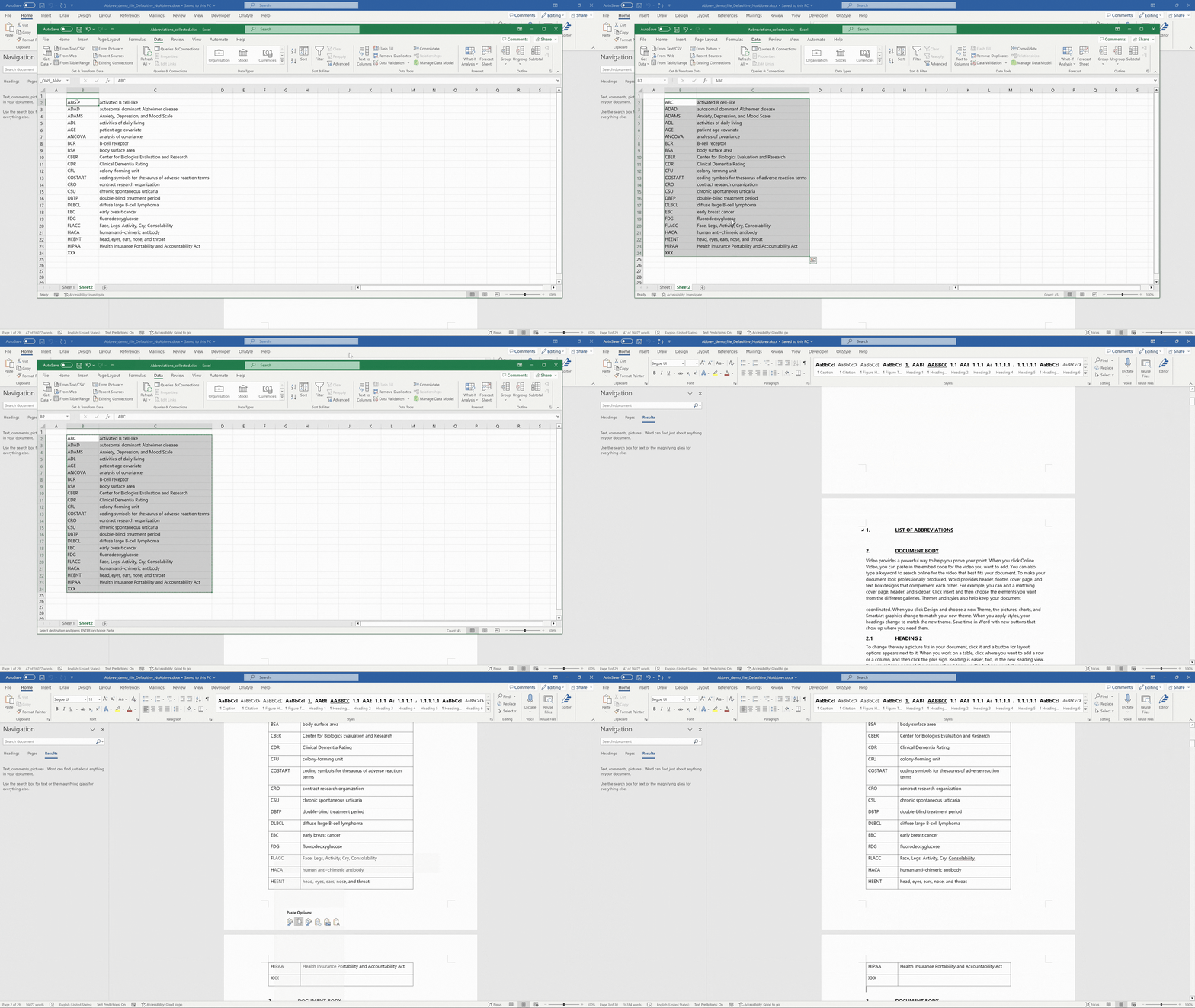
2. Paste the Results Into Excel
Section titled “2. Paste the Results Into Excel”After copying the identified abbreviations:
- Paste them into an Excel spreadsheet
- Remove duplicate entries so that each abbreviation appears only once
- Sort the remaining items in alphabetical order
3. Add Descriptions
Section titled “3. Add Descriptions”Next, add the description for each abbreviation. In many workflows, teams maintain a separate list or dictionary of common abbreviations that can be reused across documents. Once descriptions are added, copy the cleaned list back into Microsoft Word and format it as a table.
You may still need to adjust:
- Cell formatting
- Table styles
- Text alignment
This method is faster than manual work but still requires some manual formatting and validation.
Method 3: Generate an Abbreviation Table Using a Word Add-in
Section titled “Method 3: Generate an Abbreviation Table Using a Word Add-in”Another option is to use the OnStyle Word add-in designed to assist with document formatting and validation.
To use this feature:
1. Open the OnStyle tab in the Word ribbon
Section titled “1. Open the OnStyle tab in the Word ribbon”2. Run the Create Abbreviation Table function
Section titled “2. Run the Create Abbreviation Table function”3. The add-in scans the document and collects abbreviation data
Section titled “3. The add-in scans the document and collects abbreviation data”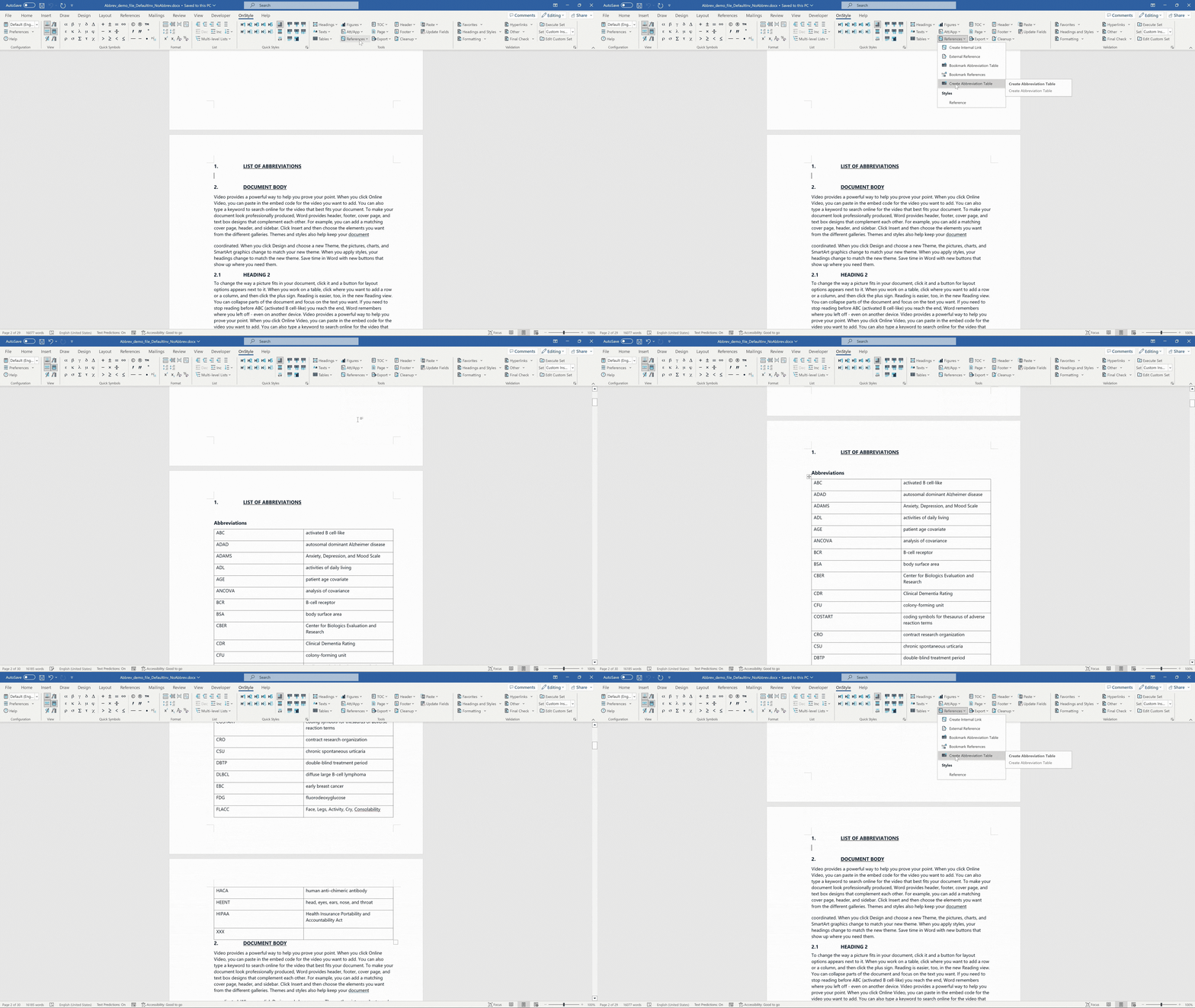
The feature uses a built-in dictionary of abbreviations that can include industry-specific terms, such as pharmaceutical abbreviations. Users can also extend or modify this dictionary by adding new entries in the add-in’s user preferences.
If an abbreviation appears in the document but does not exist in the dictionary, it may appear in the table without a description. These entries can then be reviewed and completed manually.
This approach helps reduce manual work and supports automated document formatting and document standardization workflows.
Method 4: Reuse an Existing Abbreviation Table
Section titled “Method 4: Reuse an Existing Abbreviation Table”Another practical method is to reuse an abbreviation table from an existing document. Many organizations maintain standard abbreviation tables that can be copied into new documents.
Two types of issues usually occur:
1. Abbreviations in the Table but Not in the Document
Section titled “1. Abbreviations in the Table but Not in the Document”Sometimes the copied table contains abbreviations that are not actually used in the current document. These entries should be removed to maintain accuracy.
2. Abbreviations in the Document but Missing From the Table
Section titled “2. Abbreviations in the Document but Missing From the Table”Conversely, the document may contain abbreviations that are not listed in the table. These must be added manually. Because abbreviations may appear throughout the document, locating them manually can take time.
Tools that perform automated checks for Word documents can help detect these inconsistencies.
Validating the Abbreviation Table
Section titled “Validating the Abbreviation Table”After editing the table, it is important to validate it.
Common validation checks include:
- Ensuring all abbreviations appear in alphabetical order
- Verifying that each abbreviation used in the document appears in the table
- Removing unused entries
- Confirming that descriptions are complete
If new entries are added, the alphabetical order may be disrupted. Running a validation again helps ensure the table still meets formatting requirements. These checks can be performed manually, but tools such as the OnStyle Word add-in can also automate abbreviation validation. This step supports document compliance and document quality control, particularly in regulated environments.
Summary
Section titled “Summary”Creating an abbreviation table in Microsoft Word can be done in several ways depending on your workflow and the complexity of your document.
The most common methods include:
Manual creation is straightforward for brief documents but can take considerable time.
- Using Excel, which helps collect and sort abbreviations more efficiently
- Using the OnStyle Word add-in, which can automate abbreviation table creation
- Reusing existing abbreviation lists, followed by validation and corrections
Regardless of the method used, maintaining an accurate abbreviation table helps improve document readability, enforce formatting standards, and support consistent document preparation.
In complex documentation environments, abbreviation tables are often part of broader document formatting automation and document validation processes used to maintain high-quality Word documents.