
How to Replace Styles in Word Document
It is a commont task to replace styles in Word document when standardizing formatting, updating document structure, or preparing documents for submission. This article covers both the built-in method and a more advanced rule-based approach.
Why Find and Replace Styles in Word Is Important
Section titled “Why Find and Replace Styles in Word Is Important”Styles define the structure and formatting of a document. When working with multiple contributors or imported content, inconsistent styles can affect readability, navigation, and compliance with formatting requirements.
It is commonly require to find and replace styles in Word when standardizing formatting, updating heading structures, aligning documents with style guides, or preparing documents for submission or compliance.
In this guide, we will look at two methods for replacing styles in Microsoft Word:
- Using the built-in Styles pane
- Using a Word add-in for more advanced style conversion
Method 1: How to Replace Styles in Word Using the Styles Pane
Section titled “Method 1: How to Replace Styles in Word Using the Styles Pane”The built-in Styles pane allows replacing styles directly within the document. This method is suitable for simple, one-time changes.
Step 1: Select a Style in the Document
Section titled “Step 1: Select a Style in the Document”- Place the cursor on text that uses the style to replace.
- Go to the Home tab of the Ribbon.
- Open the Styles pane using the launcher icon in the Styles group.
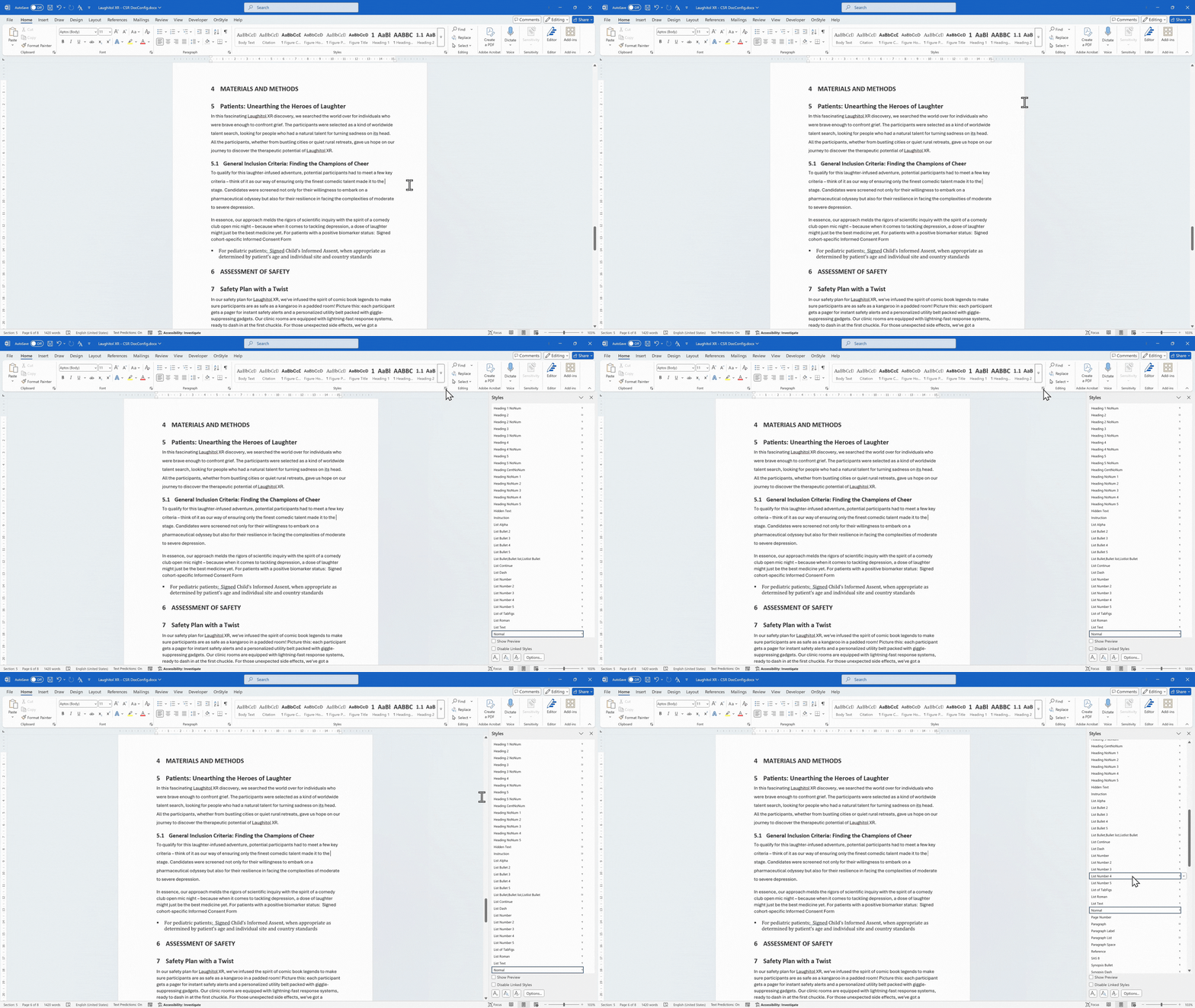
The applied style is highlighted with a blue border in the Styles pane.
Step 2: Select All Instances of the Style
Section titled “Step 2: Select All Instances of the Style”- In the Styles pane, locate the highlighted style.
- Right-click the style name.
- Click “Select All Instances”.
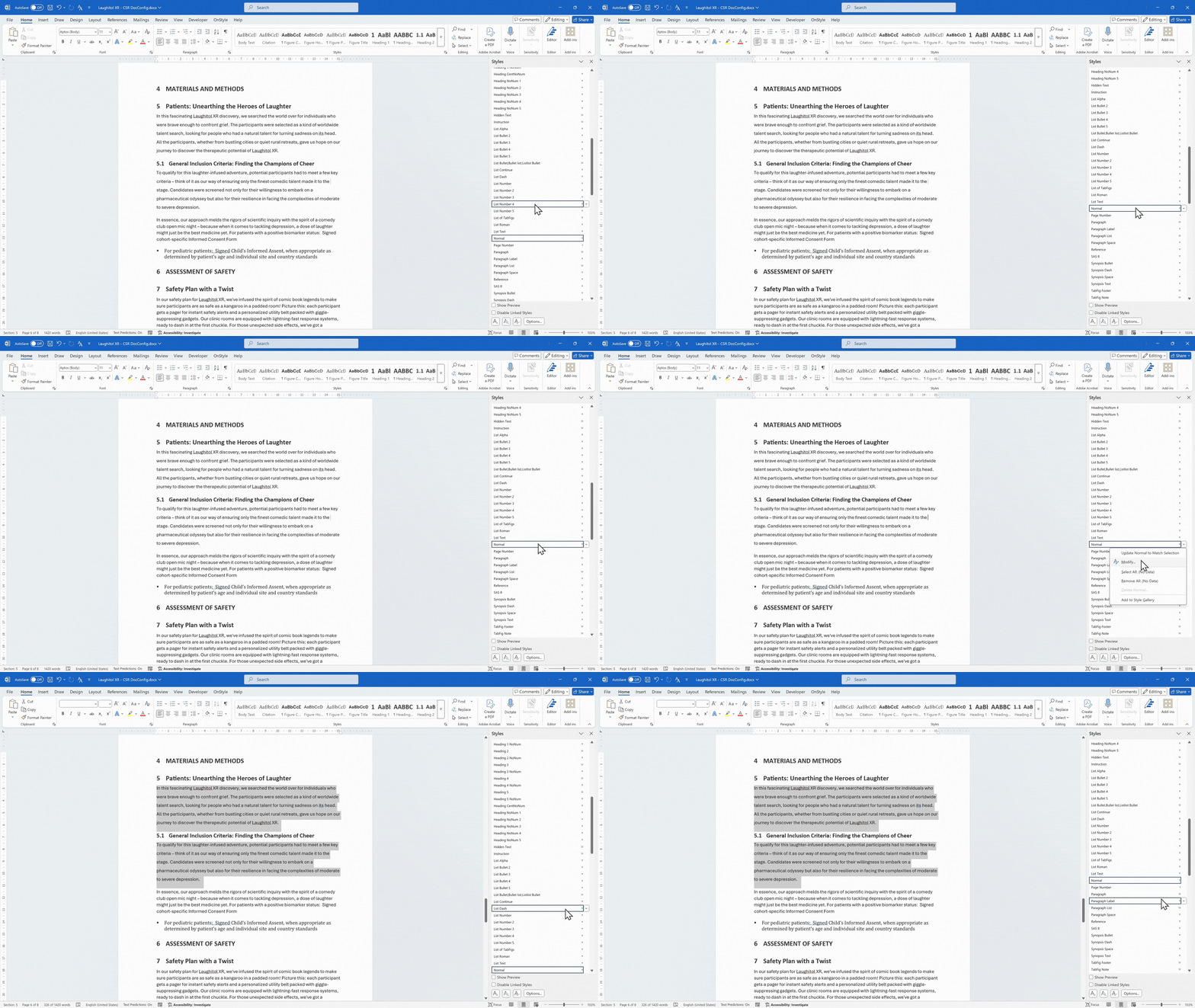
All text using that style is selected throughout the document.
Step 3: Apply a New Style
Section titled “Step 3: Apply a New Style”- With all instances selected, choose a different style from the Styles pane.
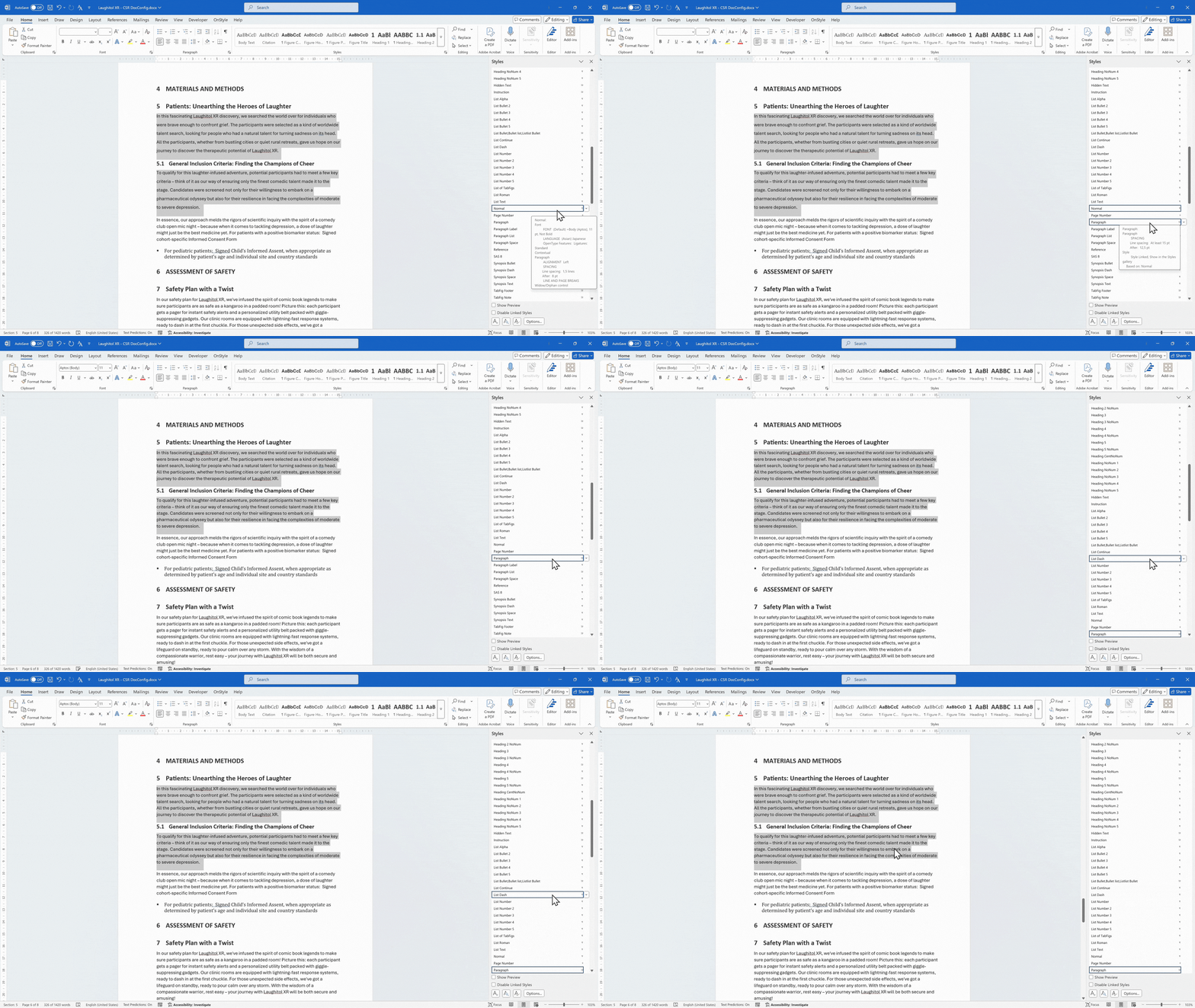
Word updates all selected text to the new style. This method works well for straightforward replacements within a single document.
Limitations of the Styles Pane Method
This method is effective for simple changes but becomes less practical in more complex scenarios. Complex style conversions require multiple manual steps. Navigating the Styles pane can become time-consuming, conversion settings cannot be saved or reused, and the process must be repeated for each document. Word may also become unresponsive or miss instances during replacement.
Method 2: How to Replace or Convert Styles Using a Word Add-in
Section titled “Method 2: How to Replace or Convert Styles Using a Word Add-in”A more advanced approach is to use the OnStyle Word add-in that supports rule-based style conversion. OnStyle provides a Convert Style tool that allows defining rules for replacing styles across a document.
Step 1: Open the Convert Style Tool
Section titled “Step 1: Open the Convert Style Tool”- Open the OnStyle tab of the Ribbon.
- In the Tools group, open the Text drop-down menu.
- Click Convert Style.
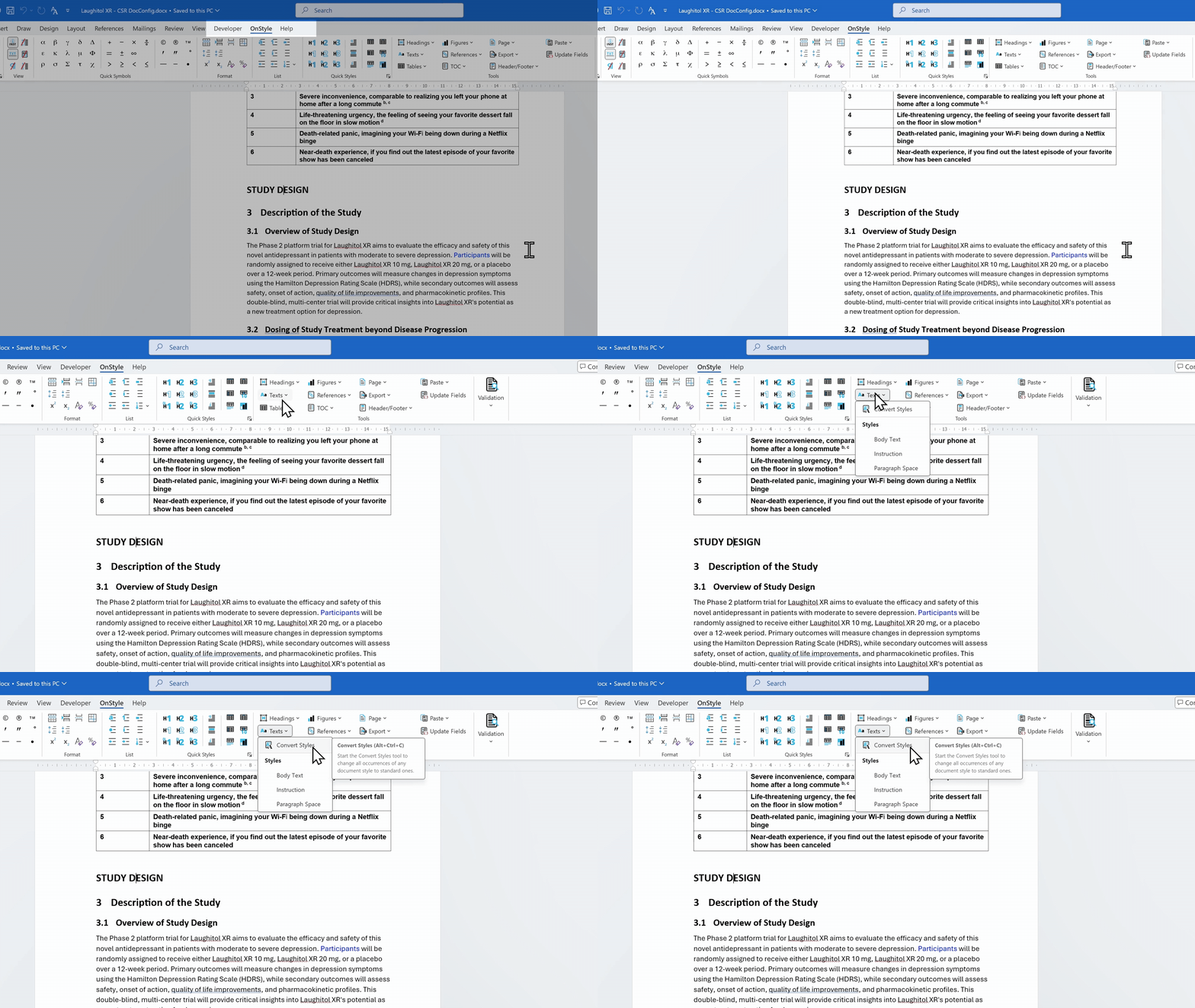
Step 2: Define Style Conversion Rules
Section titled “Step 2: Define Style Conversion Rules”Style conversion is performed by defining rules. Each rule specifies which style should be replaced and which style should replace it. This approach supports both simple replacements and complex transformations.
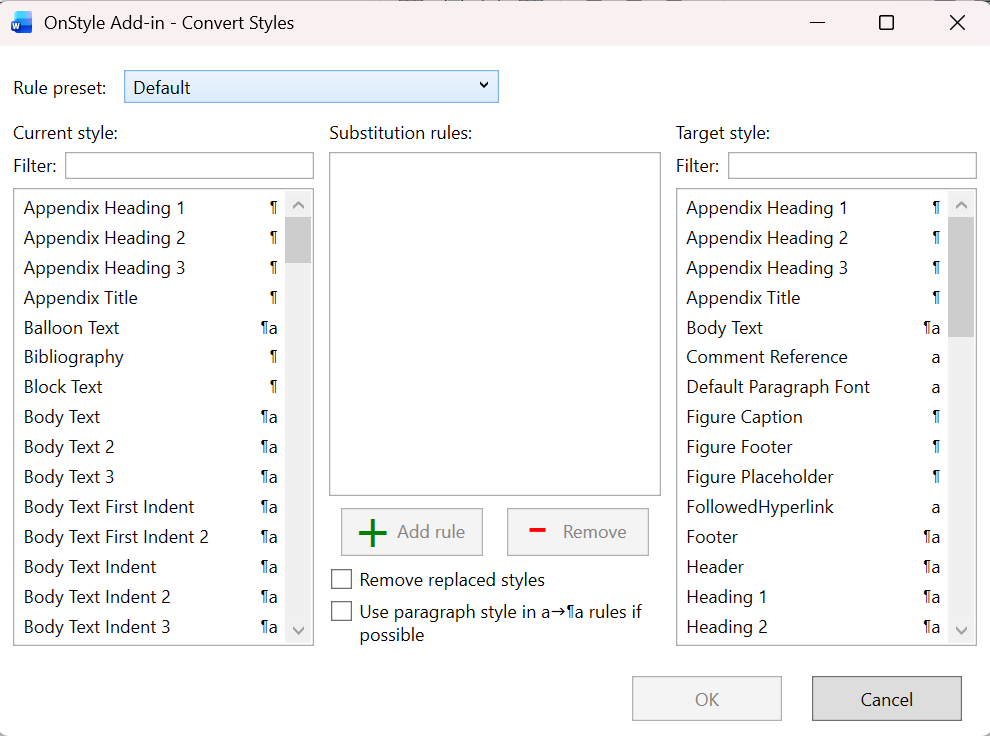
Example: Shift Heading Levels to Convert Styles in Word
Section titled “Example: Shift Heading Levels to Convert Styles in Word”A common use case is converting unnumbered headings into numbered headings. This may require adjusting existing heading levels to avoid conflicts.
Heading 1 → Heading 2
Heading 2 → Heading 3
This ensures that the resulting structure remains consistent.
Step 3: Apply the Style Conversion
Section titled “Step 3: Apply the Style Conversion”- Click Add Rule for each required conversion.
- Run the conversion process.
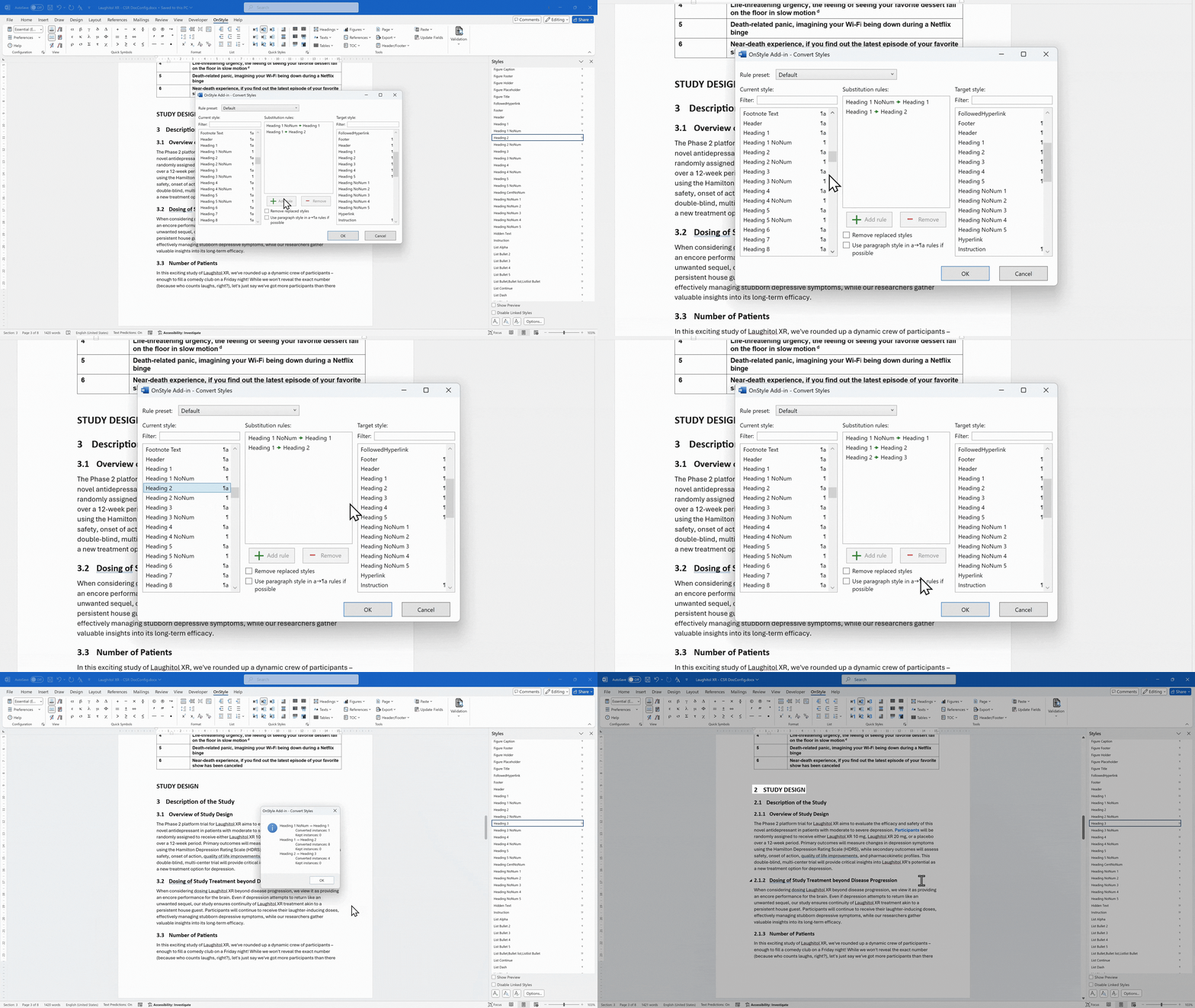
The document is updated automatically based on the defined rules. Unnumbered headings are converted to numbered headings, and existing headings shift to new levels.
Save and Reuse Style Conversion Rules
Section titled “Save and Reuse Style Conversion Rules”The Convert Style tool allows saving and reusing conversion logic. Rule sets can be saved, and presets can be exported and imported. This enables consistent style transformation across multiple documents.
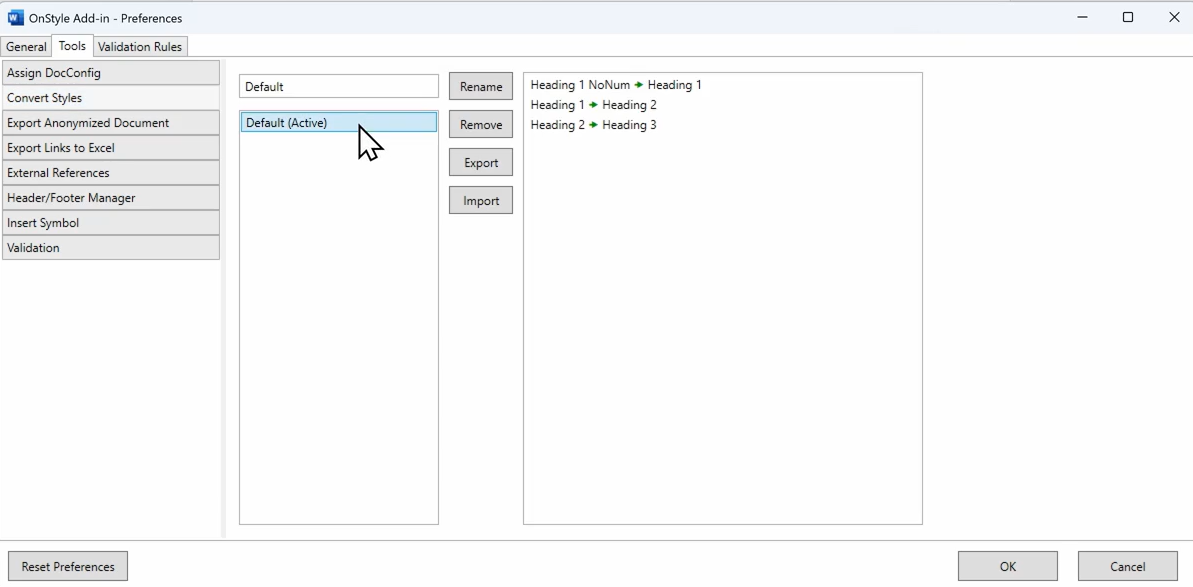
Advantages of Using the OnStyle Word Add-in for Style Replacement
Section titled “Advantages of Using the OnStyle Word Add-in for Style Replacement”Compared to manual methods, add-ins provide a more structured workflow. OnStyle supports faster style conversion, allows complex transformations, and enables the reuse of defined rules. This reduces manual effort and improves consistency across documents.
This is particularly useful in workflows that require document standardization, formatting automation, and document quality control.
Summary
Section titled “Summary”There are different approaches to replace styles in Word depending on the complexity of the task. The Styles pane provides a built-in method that works well for simple replacements but requires manual execution and cannot be reused across documents. Word add-ins like OnStyle provide a rule-based approach that allows defining and reusing conversion rules, supports more complex transformations, and reduces manual effort, making them more suitable for structured workflows and larger documents.