
How to Insert a PDF into Word and Edit It
Knowing how to insert a PDF into Word and edit it is useful when PDF content needs to become part of a Word document instead of staying as a separate attachment. This method converts the PDF content into editable Word content so text, images, tables, and other converted elements can be changed directly in the document.
This guide explains how to insert a PDF into Word using the built-in Text from File method, how to select the PDF correctly, what the PDF conversion message means, how to edit the imported content, and what formatting issues to check after conversion. It also explains when this method works best and how OnStyle can help clean up formatting issues after imported content has been added to Word.
When to Insert a PDF into Word as Editable Content
Section titled “When to Insert a PDF into Word as Editable Content”Choosing how to insert a PDF into Word and edit it depends on the goal. If the goal is only to attach a file for reference, a file attachment may be enough. If the goal is to reuse, edit, combine, or format the PDF content inside the Word document, the editable method is the better option.
This workflow is useful when PDF content should become part of a larger Word file, such as a report, proposal, form, manual, or other document. It works best when the PDF is mostly text and simple images.
How to Insert a PDF into Word as Editable Content
Section titled “How to Insert a PDF into Word as Editable Content”The built-in method uses the Text from File option in Word. The cursor position matters because Word inserts the converted PDF content exactly where the cursor is placed.
Step 1: Place the Cursor Where the PDF Should Go
Section titled “Step 1: Place the Cursor Where the PDF Should Go”- Open the Word document.
- Click in the document where the PDF content should be inserted.
Step 2: Open Text from File
Section titled “Step 2: Open Text from File”On the Insert tab of the Ribbon, go to the Text group.
Select the arrow next to Object.
In the Object drop-down menu, select Text from File.
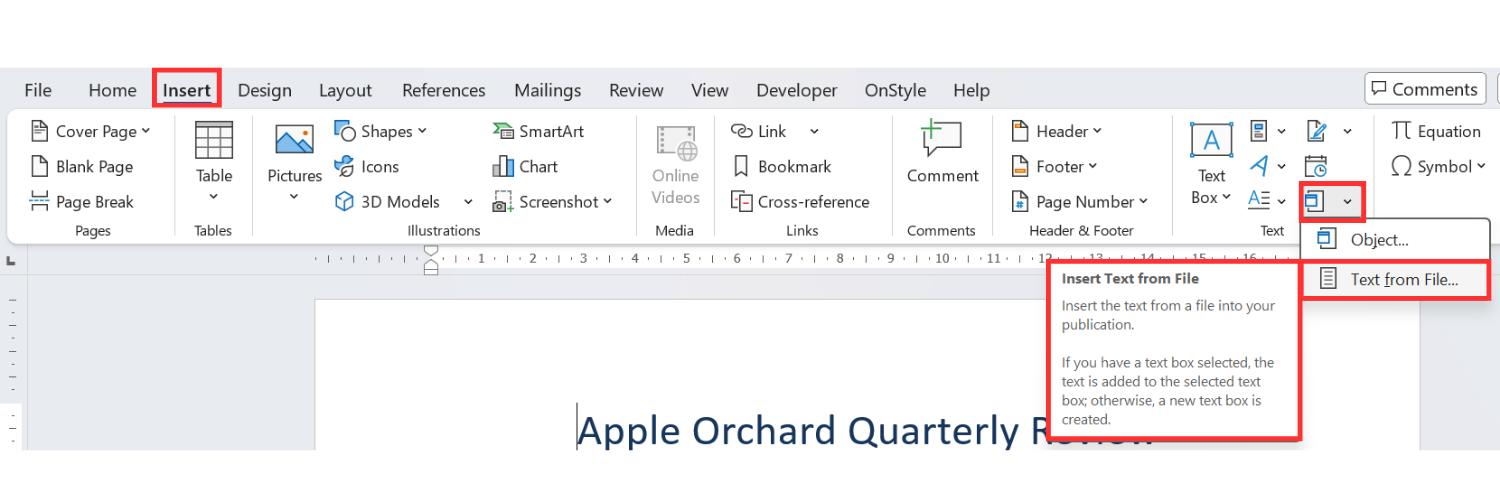
The Text from File option pulls the selected file content into the Word document. For this workflow, it is the correct option because the goal is editable content.
Step 3: Select the PDF File
Section titled “Step 3: Select the PDF File”- In the file picker window, locate the PDF file.
- Click the PDF once to select it.
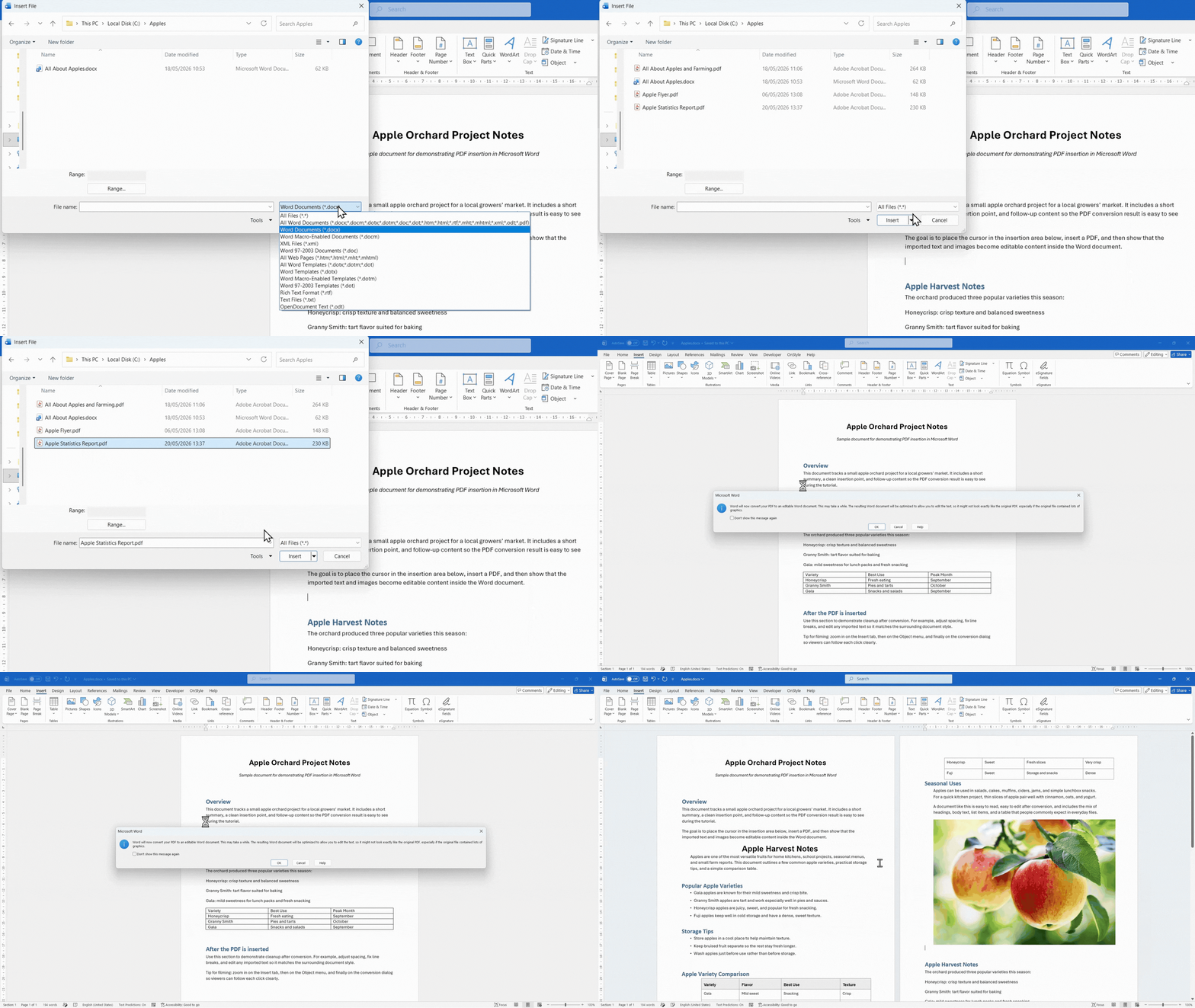
If the PDF does not appear, open the file type selector next to the “File name” field and choose All Files.
Select the PDF, then select Insert.
Choosing All Files is useful when the file picker does not show PDF files by default.
Step 4: Confirm the PDF Conversion
Section titled “Step 4: Confirm the PDF Conversion”Word displays a message explaining that it will convert the PDF and that the result may not look exactly like the original.
Select OK and wait for Word to complete the conversion.
Depending on the PDF, the conversion may take a few seconds.
How to Edit Imported PDF File in Word
Section titled “How to Edit Imported PDF File in Word”After conversion, the PDF content appears inside the Word document as editable content. This means the imported text can be selected, deleted, rewritten, and formatted like normal Word text.
If the PDF included images, those images may also be imported as editable objects. Tables may also appear as Word tables or converted table-like content, depending on the original PDF structure.
The key point is that the PDF has not only been attached. Word has converted the PDF content into Word content.
Best Use Cases for Inserting a PDF into Word
Section titled “Best Use Cases for Inserting a PDF into Word”This method works best when the PDF is mostly text and simple images. It is especially useful for:
- Bringing short reports into Word.
- Reusing sections from older PDF documents.
- Editing text from a PDF without rebuilding everything manually.
- Combining PDF content into a larger Word file.
- Adding PDF content to reports, proposals, or other documents.
For highly designed PDFs, scanned pages, complex tables, or graphic-heavy files, the conversion may require more cleanup.
What to Expect After Inserting a PDF into Word
Section titled “What to Expect After Inserting a PDF into Word”Knowing how to insert a PDF into Microsoft Word and edit it is useful, but the conversion is not always perfect. Some PDFs convert cleanly, while others need manual cleanup after import.
PDFs are designed for fixed layout, while Word is designed for editing. Because of this, minor cleanup after conversion is normal.
Common Formatting Issues After PDF Conversion
Section titled “Common Formatting Issues After PDF Conversion”After inserting the PDF, check whether the converted content matches the rest of the Word document. The most common issues include:
- Headings that do not match the document style.
- Paragraph spacing that does not match the surrounding text.
- Paragraph indentation that needs adjustment.
- Tablesthat need resizing or property changes.
- Images that need resizing or alignment fixes.
- Odd line breaks or spacing.
- Lists that need to be rebuilt as proper Word lists.
How to Clean Up Imported PDF Content in Word
Section titled “How to Clean Up Imported PDF Content in Word”After PDF content is inserted into Word, review the converted section before treating it as final. The fastest cleanup is usually to correct the visible structure first, then apply the correct document formatting.
Useful cleanup steps include:
- Apply matching heading styles where headings were imported as plain text or with inconsistent formatting.
- Reset paragraph spacing so imported text matches the rest of the document.
- Fix line breaks where Word split text incorrectly.
- Resize images that are too large, too small, or misaligned.
- Resize tables and check table properties if rows, columns, or page width are incorrect.
- Rebuild lists if bullet points or numbered lists were converted incorrectly.
How OnStyle Helps After Importing PDF Content into Word
Section titled “How OnStyle Helps After Importing PDF Content into Word”Imported PDF content often creates formatting problems that must be fixed before the document is ready. Manual fixes can slow down the workflow, especially when the document also contains styles, references, tables, headings, numbering, links, instructional text, or hidden content.
OnStyle automatically identifies and corrects issues in Word documents. It can help apply standard styles and formatting rules, especially when imported content disrupts document consistency.
OnStyle can help identify and correct issues related to:
- Styles and formatting consistency.
- Cross-references and linking issues.
- Instructional or hidden text.
- Heading numbering.
- Table formatting.
- Other document structure problems.
Using OnStyle after importing PDF content can help bring the document back to a standard format and reduce the amount of manual cleanup required.
Common Beginner Mistakes When Inserting PDFs into Word
Section titled “Common Beginner Mistakes When Inserting PDFs into Word”Several common mistakes can make the import process harder than necessary.
-
Mistake 1: Not Placing the Cursor First
- The imported PDF content is inserted where the cursor is located. Always click in the correct insertion area before importing the PDF.
-
Mistake 2: Choosing the Wrong Insert Option
- For editable content, use Text from File. Other insert options may attach or embed the PDF instead of converting its content into editable Word content.
-
Mistake 3: Expecting a Perfect One-to-One Conversion
- PDFs are fixed-layout files. Word documents are editable documents. Because these formats behave differently, the converted content may need formatting cleanup.
-
Mistake 4: Ignoring Scanned PDF Limitations
- Scanned PDFs are image-based. They may not convert as cleanly as text-based PDFs and may require more manual cleanup after import.
Summary
Section titled “Summary”How to insert a PDF into Microsoft Word and edit it is easiest with the built-in Text from File method. Place the cursor where the content should appear, go to Insert, open the Object drop-down, select Text from File, choose the PDF, confirm the conversion, and then review the result.
The imported PDF content becomes editable Word content, but the conversion may not perfectly match the original. Check headings, paragraph spacing, paragraph indentation, tables, images, alignment, line breaks, and lists after import. For more consistent results, clean up the formatting manually or use OnStyle to identify and correct document issues after the PDF content has been inserted.