
How to Export Comments in Word
Export comments in Word documents into standalone formats such as Excel to improve document review workflows and document quality control.
Why Export Comments in Word
Section titled “Why Export Comments in Word”When reviewing long documents, especially in collaborative environments, reviewers often leave dozens or even hundreds of comments. Extracting these comments into a structured format allows teams to analyze feedback more efficiently.
Some collaborators may not use Microsoft Word regularly or may prefer working with structured data. Sharing an Excel sheet containing all comments makes the review process more accessible.
Exporting comments also provides a centralized overview. Instead of scrolling through long documents, all comments are available in a single list. This allows filtering, sorting, and prioritizing feedback.
Exported comments can be converted into actionable tasks. Teams can categorize feedback, assign responsibilities, or import tasks into project management systems.
In regulated environments such as life sciences or legal, exporting comments supports structured validation and compliance workflows.
Microsoft Word does not provide a built-in feature to export comments directly into structured formats such as Excel.
Two approaches:
- Export comments using Word macros
- Export comments using the OnStyle Word Add-in
How to Export Comments from Word to Excel Using Word Macros
Section titled “How to Export Comments from Word to Excel Using Word Macros”Macros are recorded sequences of commands written in VBA (Visual Basic for Applications) that automate tasks in Microsoft Word.
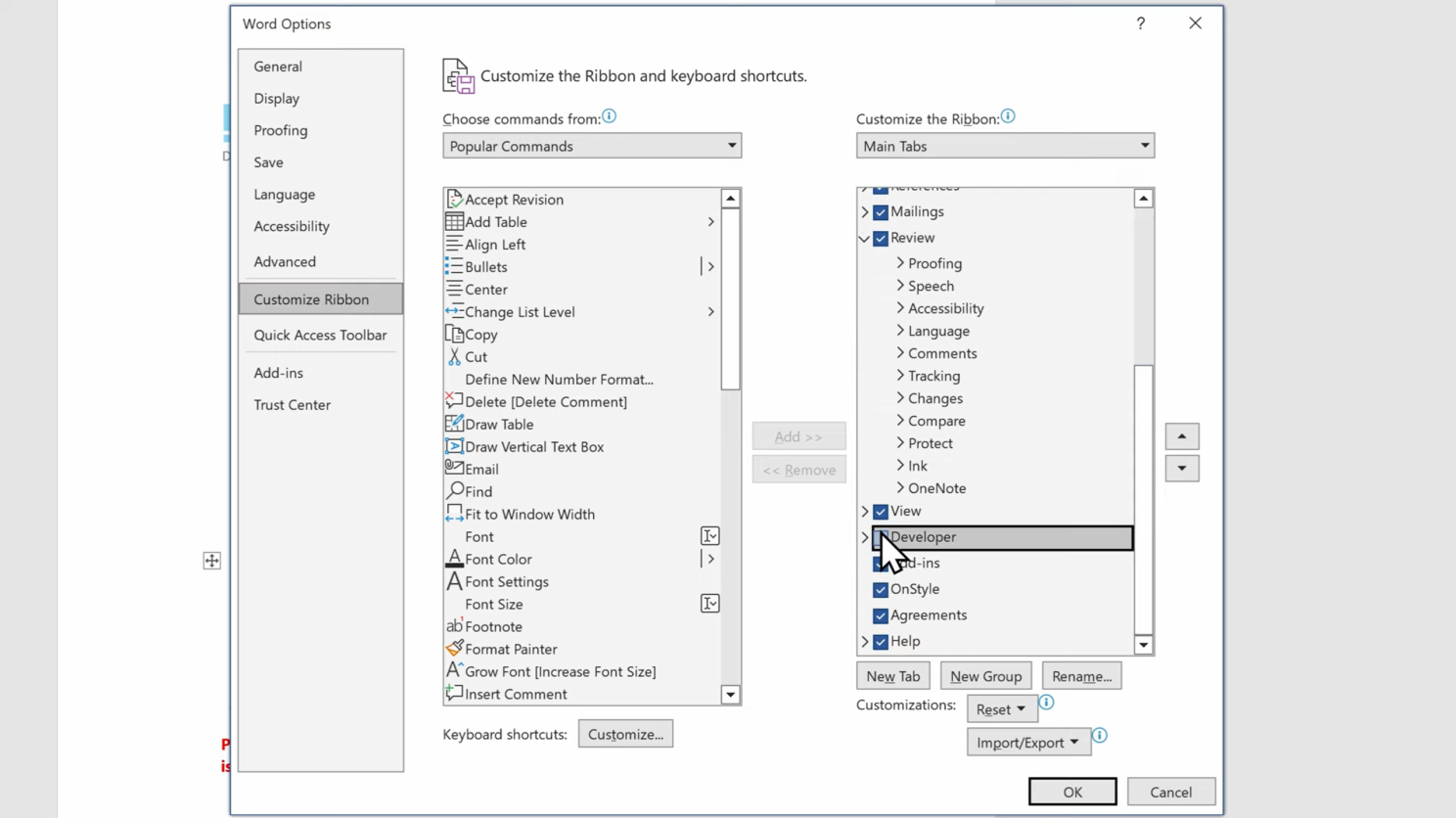
Step 1: Enable the Developer Tab
- Open File → Options
- Go to Customize Ribbon
- Enable Developer
- Click OK
The Developer tab appears in the Word ribbon.
Step 2: Create a Word Macro
- Go to Developer → Macros
- Enter a macro name (no spaces or special characters)
- Click Create
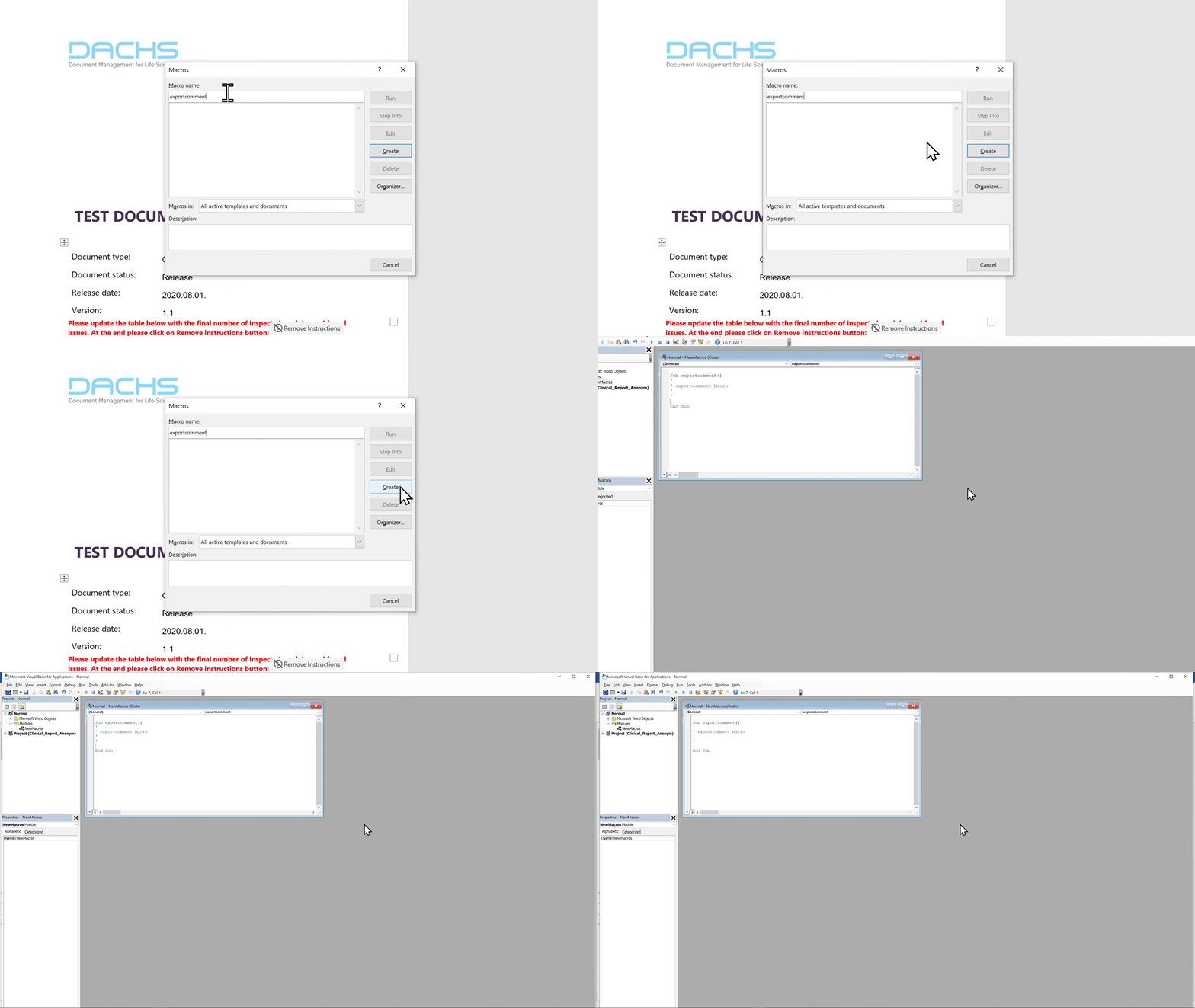
The Microsoft Visual Basic for Applications editor opens. Delete the placeholder code and paste the following:
Sub CopyCommentsToExcel()Dim xlApp As Excel.ApplicationDim xlWB As Excel.WorkbookDim i As IntegerSet xlApp = CreateObject("Excel.Application")xlApp.Visible = TrueSet xlWB = xlApp.Workbooks.AddWith xlWB.Worksheets(1) For i = 1 To ActiveDocument.Comments.Count .Cells(i, 1).Formula = ActiveDocument.Comments(i).Initial .Cells(i, 2).Formula = ActiveDocument.Comments(i).Range .Cells(i, 3).Formula = Format(ActiveDocument.Comments(i).Date, "dd/MM/yyyy") Next iEnd WithSet xlWB = NothingSet xlApp = NothingEnd SubStep 3: Enable the Excel Object Library
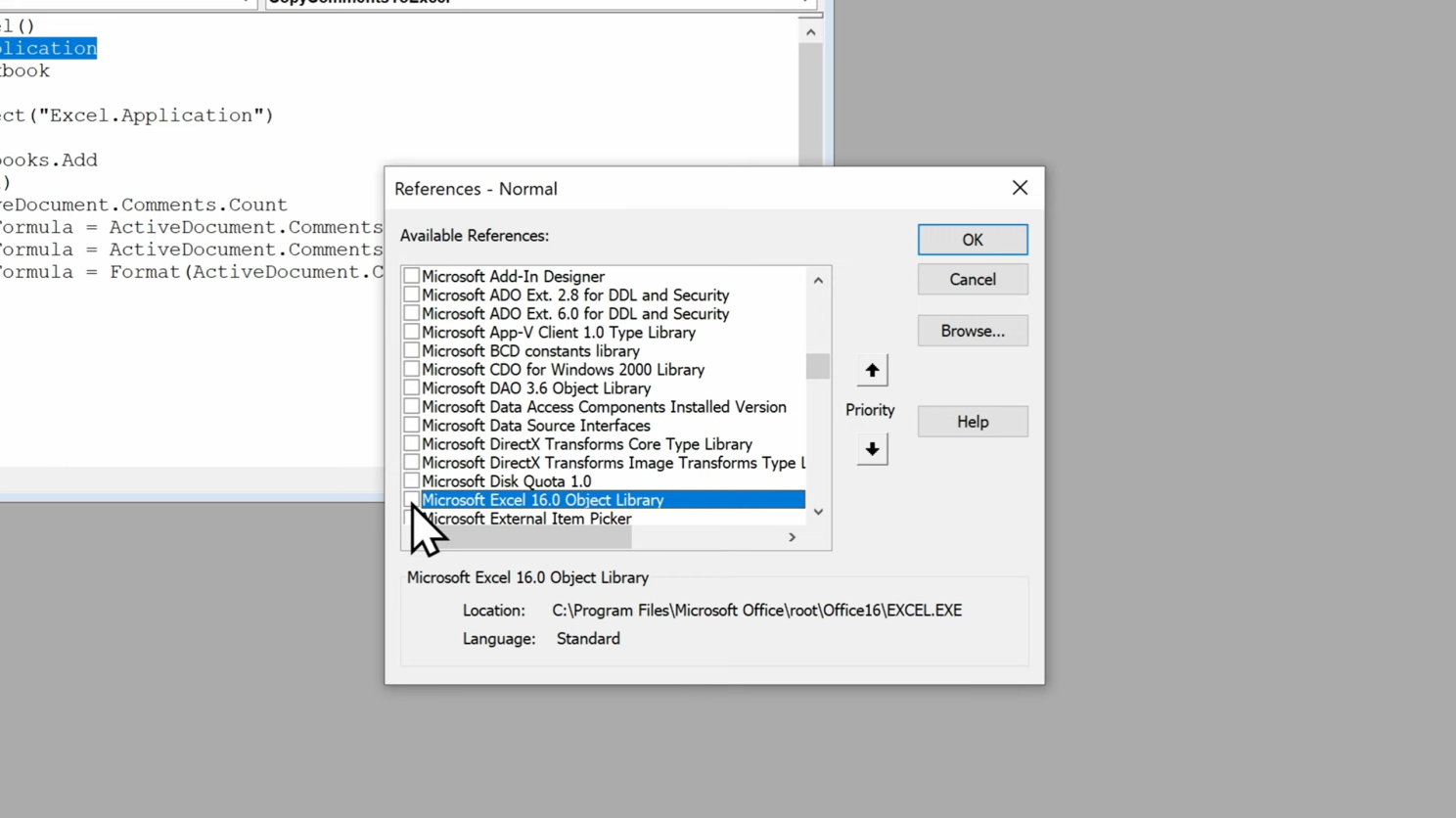
- In the VBA editor, click Tools → References
- Enable Microsoft Excel Object Library, which should be something similar to “Microsoft Excel 16.0 Object Library” (The library name will vary depending on the version of Excel you have installed on your machine)
- Click OK
Step 4: Run the Word Macro
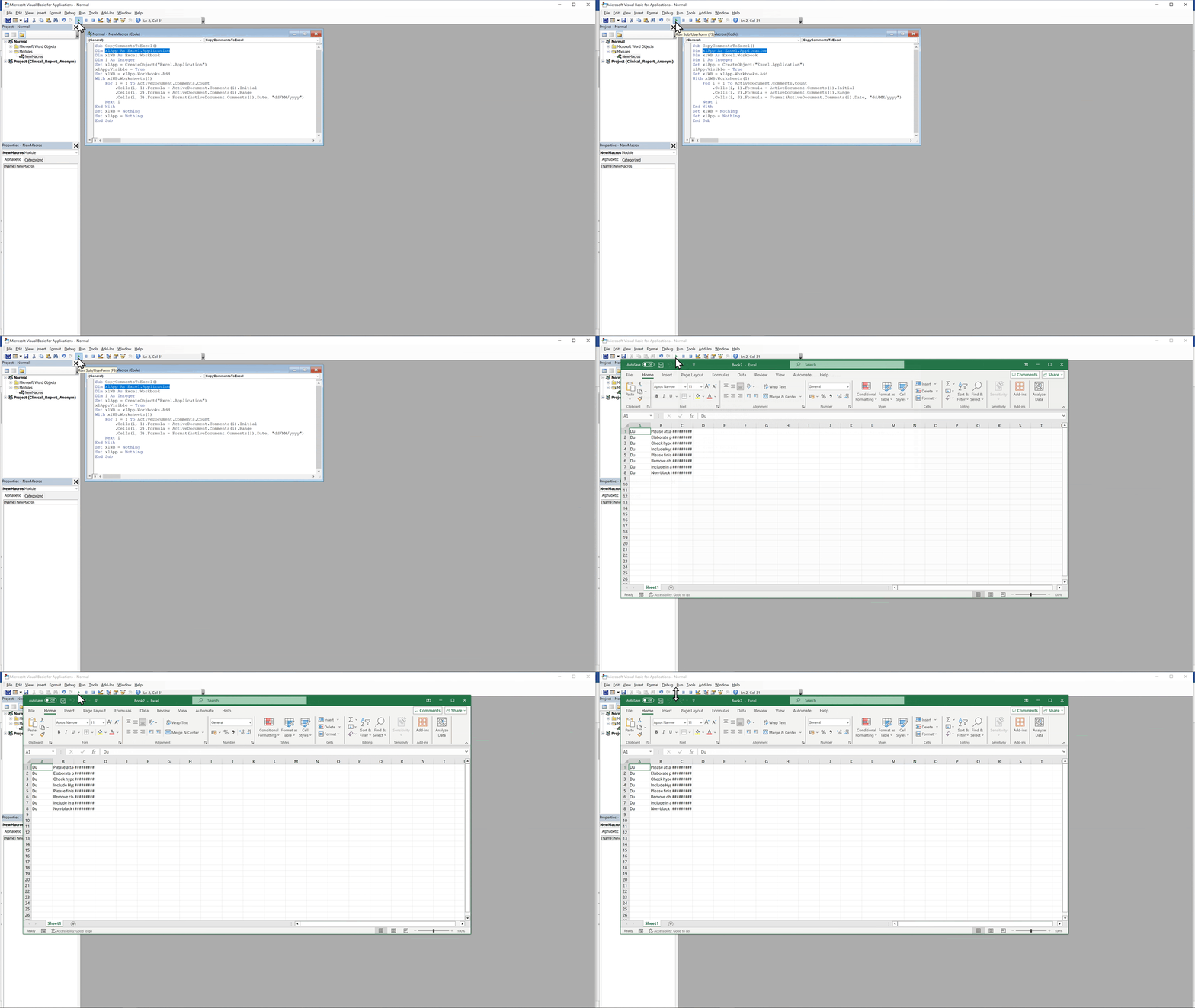
- Click Run or press F5.
Excel opens with a sheet containing author initials, comment text, and dates.
Limitations of Word Macros
Section titled “Limitations of Word Macros”Macros can introduce security risks, may be restricted by organizational policies, and may not function in all environments.
Export Comments from Word to Excel Using the OnStyle Word Add-in
Section titled “Export Comments from Word to Excel Using the OnStyle Word Add-in”The OnStyle Word Add-inprovides a direct method to export comments without using macros.
After installation, an OnStyle tab appears in the Word ribbon.
How to Export Comments from Word to Excel Automatically
Section titled “How to Export Comments from Word to Excel Automatically”- Go to the OnStyle tab
- Open the Export dropdown
- Select Export Comments to Excel
OnStyle generates an Excel file with structured information.
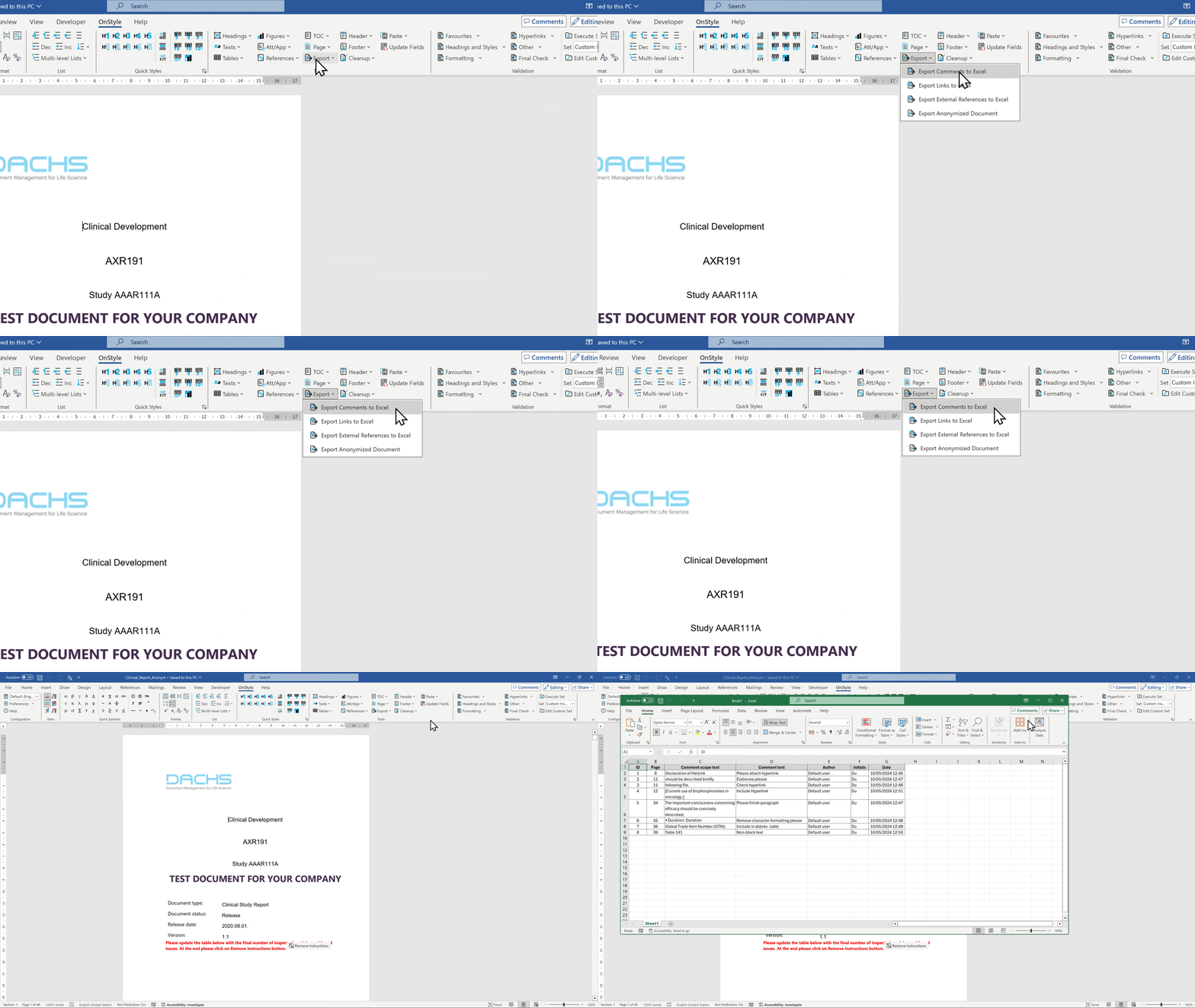
The exported file includes:
- Comment ID
- Page number
- Comment text
- Comment scope
- Author information
- Timestamp
This method removes the need to create macros or edit VBA code.
It supports structured workflows such as document standardization, validation, and compliance.
Summary
Section titled “Summary”The best solution depends on the workflow and technical environment. The use case, document type, and process determine which method is suitable.
Macros can be used to export comments, but they have limitations. They may be disabled by system administrators due to security policies. They can introduce security risks, require manual setup, and depend on VBA. In larger documents, performance and stability may become an issue, and Word may slow down or become unresponsive. Exporting certain data, such as page numbers, is also difficult with macros.
OnStyle does not use Word macros to export comments. It exports comments with more detailed and structured information. It does not require admin rights and can be installed or removed without modifying system settings.
Both approaches improve document review workflows, collaboration, and document quality control.