
How to Remove or Replace Formatting Marks in Word
What are Paragraph Marks, Page Breaks or Spacing Issues
Section titled “What are Paragraph Marks, Page Breaks or Spacing Issues”Formatting marks in Word control document structure. Incorrect use can cause spacing issues, broken paragraphs, or unexpected page breaks. This article explains how to remove or replace formatting marks in Word using built-in Word tools.
What are Formatting Marks in Word
Section titled “What are Formatting Marks in Word”Formatting marks (non-printing characters) define document structure but are not visible in print.
- Spaces
- Tabs
- Paragraph marks (¶)
- Manual page breaks
- Line breaks
Incorrect use often leads to inconsistent spacing and layout issues.
How to Show or Hide Formatting Marks
Section titled “How to Show or Hide Formatting Marks”Display formatting marks before editing. This helps identify hidden issues.
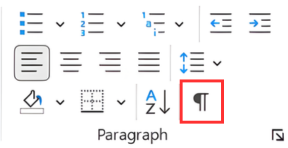
- Go to the Home tab.
- In the Paragraph group, click Show/Hide (¶).
This reveals non-printing characters so you can locate formatting problems.
How to Remove Extra Paragraph Marks using Find and Replace
Section titled “How to Remove Extra Paragraph Marks using Find and Replace”Extra paragraph marks create unwanted spacing and break text flow.
Use Find and Replace to remove them across the document instead of deleting them manually.
- Press Ctrl + H to open Find and Replace.
- Click More >>.
- Click inside the Find what field.
- Click Special → Paragraph Mark (inserts ^p).
- Click inside the Replace with field.
- Press the space bar once.
- Click Replace All.
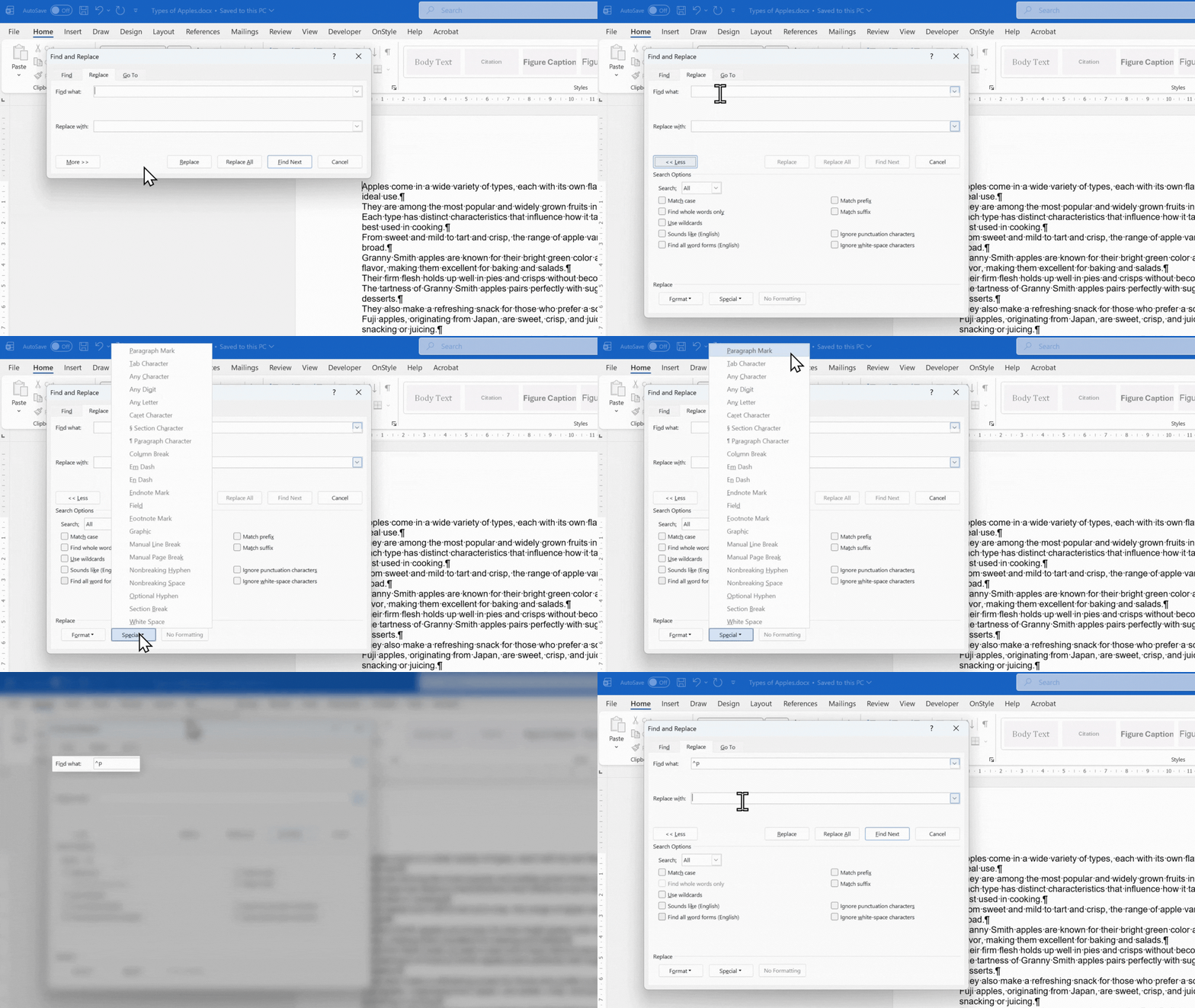
This replaces paragraph breaks with spaces and creates continuous text.
How to Remove or Replace Manual Page Breaks
Section titled “How to Remove or Replace Manual Page Breaks”Manual page breaks can disrupt layout when used inconsistently.
Replace them with paragraph marks to restore normal text flow.
- Press Ctrl + H to open Find and Replace.
- Click More >>.
- In Find what, select Special → Manual Page Break (inserts ^m).
- In Replace with, enter ^p.
- Click Replace All.
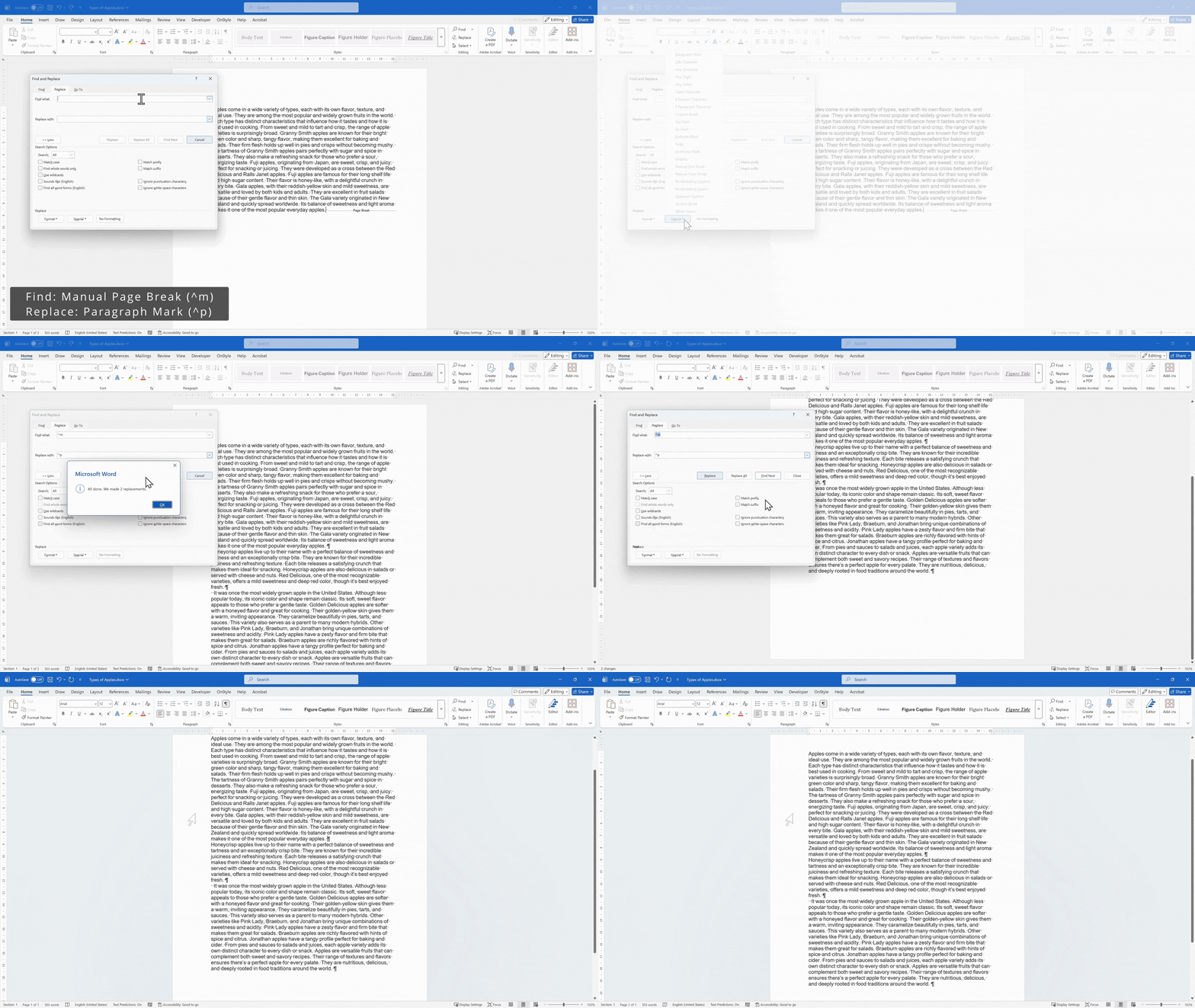
This replaces page breaks with standard paragraph spacing.
Common Formatting Marks Problems and How to Fix Them
Section titled “Common Formatting Marks Problems and How to Fix Them”- Extra blank lines throughout the document
- Text split into single-line paragraphs after copy-paste
- Unexpected page breaks inside content
- Inconsistent spacing between sections
Use Find and Replace to apply consistent fixes across the document.
Limitations of Manual Formatting Cleanup
Section titled “Limitations of Manual Formatting Cleanup”Find and Replace requires knowledge of search codes such as ^p and ^m. You must identify issues manually, which can be time-consuming in large documents.
How to Automate Formatting Checks for Better Consistency
Section titled “How to Automate Formatting Checks for Better Consistency”Tools such as the OnStyleWord add-in can scan documents and detect formatting issues automatically.
- Excessive or empty paragraph marks
- Manual page breaks
- Inconsistent heading structures
- Deviations from formatting rules
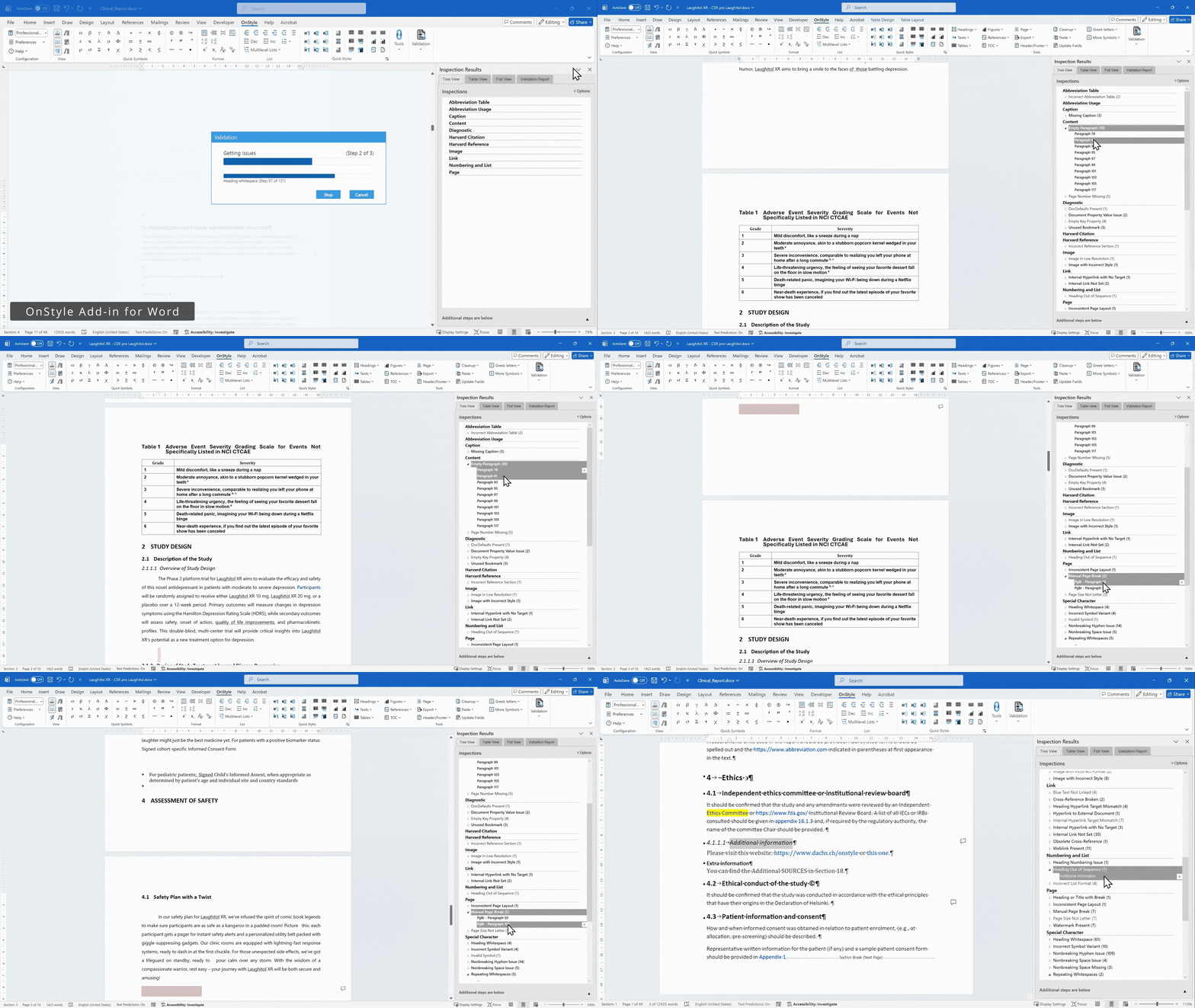
These tools can apply corrections and support standardized formatting workflows.
Summary
Section titled “Summary”Formatting marks control document structure but can cause layout issues when used incorrectly.
To clean them up:
- Use Show/Hide (¶) to display hidden formatting
- Use Find and Replace to remove extra paragraph marks (^p)
- Replace manual page breaks (^m) with paragraph marks to restore flow
For large or complex documents, manual cleanup can miss issues. Use automated tools such as OnStyle to detect and correct formatting inconsistencies efficiently.