
Uninstalling or Disabling OnStyle
Uninstalling OnStyle
Section titled “Uninstalling OnStyle”Step 1 – Open Add or Remove Programs
Section titled “Step 1 – Open Add or Remove Programs”- In Windows, open the Add or Remove Programs settings.
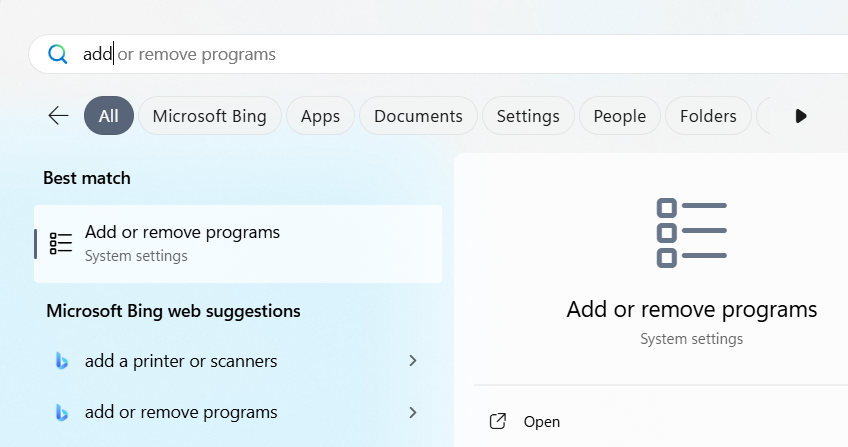
- Type OnStyle in the search bar to filter installed apps.

Step 2 – Uninstall the Components
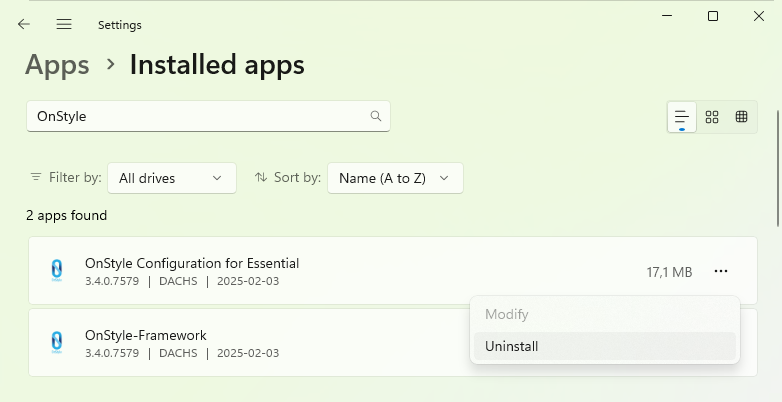
Section titled “Step 2 – Uninstall the Components”Uninstall both components in the following order:
- First: OnStyle Configuration – Essential or Professional
- Then: OnStyle Framework
Click Uninstall and confirm each step.
Step 3 – Verify Removal
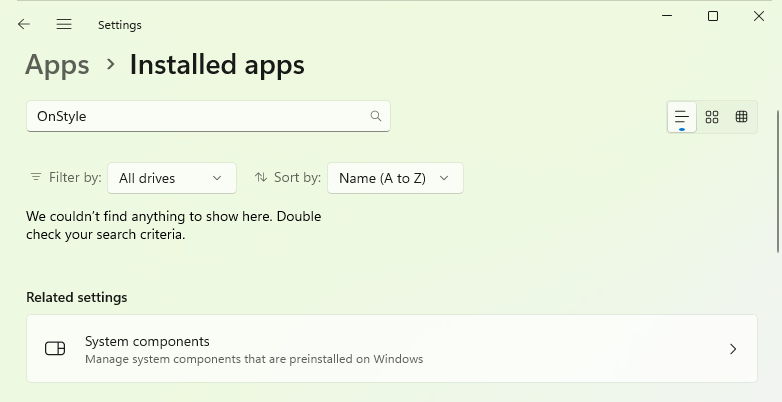
Section titled “Step 3 – Verify Removal”Make sure OnStyle no longer appears in the list of installed programs.
Disabling OnStyle
Section titled “Disabling OnStyle”Step 1 – Open Word Options
Section titled “Step 1 – Open Word Options”- Open Microsoft Word and click File > Options.
- Go to the Add-ins section.
Step 2 – Manage COM Add-ins
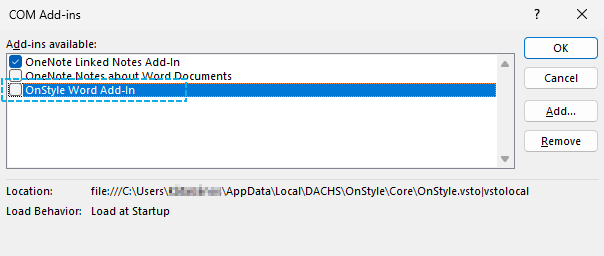
Section titled “Step 2 – Manage COM Add-ins”- In the Manage dropdown at the bottom, select COM Add-ins and click Go…
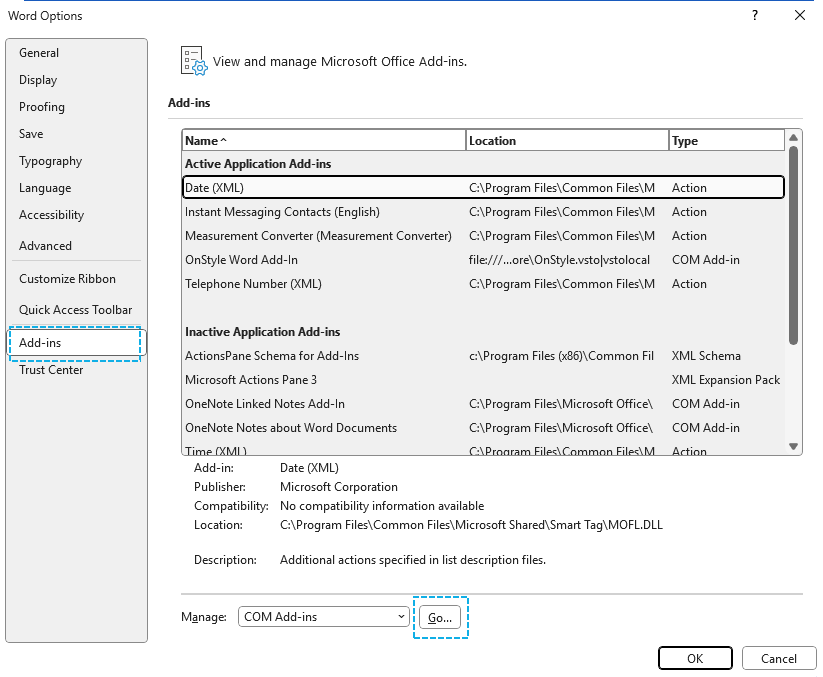
- Uncheck OnStyle Word Addin and click OK.
Step 3 – Restart Word
Section titled “Step 3 – Restart Word”After restarting, the OnStyle tab will no longer appear in the Ribbon.