
How to Find and Remove Hidden Text in Word
Step-by-Step Guide for Problems with Hidden Text
Section titled “Step-by-Step Guide for Problems with Hidden Text”Hidden textin Word is one of the most common and risky formatting issues users encounter.
You may not see it on screen, but hidden text can still:
- Appear when you print a Word document
- Show up in PDF exports
- Be included in search results and word counts
- Accidentally expose confidential or outdated information
If you’ve ever asked:
- “Why is Word printing text I can’t see?”
- “How do I remove hidden text in Word?”
- “How do I find hidden content before sending a document?”
This guide gives you the exact steps to fix it.
What Is Hidden Text in Word?
Section titled “What Is Hidden Text in Word?”Hidden text in Word is a font formatting option that makes text invisible on screen but does not delete it.
That means:
This is why hidden text is not just a formatting detail; it’s a document risk.
Method 1: Find Hidden Text in Word (Find and Replace)
Section titled “Method 1: Find Hidden Text in Word (Find and Replace)”Best for: Quickly locating hidden text in a document
Steps to find hidden text
Section titled “Steps to find hidden text”- Press Ctrl + H (Find and Replace)
- Click More >>
- Click in the Find what field
- Go to Format → Font
- Check Hidden
- Click OK
- Select Find Next or Find All
Steps to remove hidden text formatting
Section titled “Steps to remove hidden text formatting”- Select the found text
- Right-click → Font
- Uncheck Hidden
- Click OK
Pro tip
Section titled “Pro tip”To show hidden text in Word before searching:
- Click the ¶ Show/Hide button in the Home tab
- Or enable hidden text in Word Options → Display → Always show these formatting marks on screen → Hidden text
Limitations
Section titled “Limitations”- You must already suspect hidden text exists
- Easy to miss in long or complex documents
Method 2: Remove Hidden Text Before Sharing (Document Inspector)
Section titled “Method 2: Remove Hidden Text Before Sharing (Document Inspector)”Best for: Final check before sending or exporting a document
- Go to File → Info
- Click Check for Issues → Inspect Document
- Run the inspection
- Look for Hidden Text
- Click Remove All
Why this is important
This is one of the most effective ways to:
- Remove hidden text in Word before sending a document
- Prevent hidden content from appearing in PDF exports
Limitations
Section titled “Limitations”- Removes content without detailed review
- Less control compared to methods where you can review hidden text found in the document
Method 3: Automatically Detect and Remove Hidden Text in Word (OnStyle)
Section titled “Method 3: Automatically Detect and Remove Hidden Text in Word (OnStyle)”Best for: Professional documents and large files
Manual methods rely on you noticing the problem. OnStyle removes that dependency.
Option A: Find Hidden Text, Review, and Fix Automatically
Section titled “Option A: Find Hidden Text, Review, and Fix Automatically”- Open the OnStyle tab in Word
- Navigate to Hidden Text Present Validation. By default, it is in the Style and Format Inspection group.
- Run Hidden Text Present inspection.
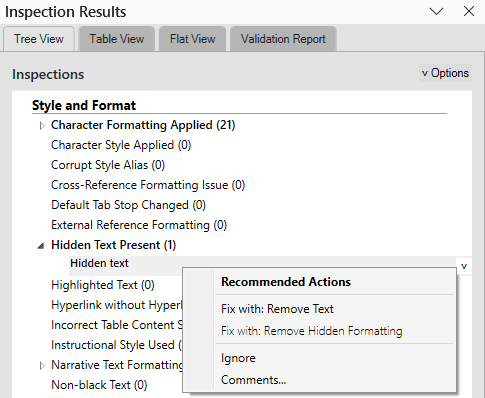
- In the Validation Results pane, locate issues listed by the Hidden Text Present inspection.
- Review the found issues and apply corrections.
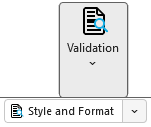
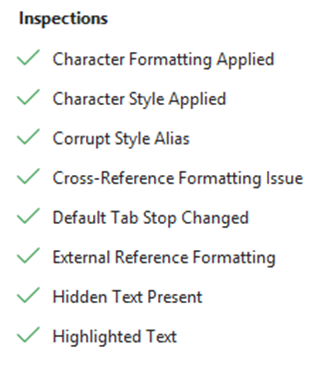
OnStyle’s validation identifies hidden text across the entire document automatically.
In the Validation Results pane, the Hidden Text Present inspection lists all issues of hidden text found in the document. You can review all instances if you want and when you click on an issue in the list OnStyle navigates you to the found issue in the document. You can choose to fix all issues at once or select which issues to fix automatically.
There are two automatic fixes available:
Remove Text: The correction module automatically removes hidden text identified by the Hidden Text Present inspection module.
Remove Hidden Formatting: The correction module automatically removes the hidden character formatting from the text, leaving the text in the document. The text will no longer be hidden.
Option B: Remove Hidden Text in One Click with the Cleanup Tool
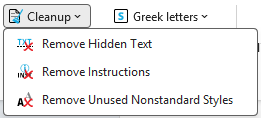
Section titled “Option B: Remove Hidden Text in One Click with the Cleanup Tool”- Go to Tools → Cleanup
- Click Remove Hidden Text
This built-in tool removes hidden text directly and efficiently.
Why Users Choose OnStyle
Section titled “Why Users Choose OnStyle”- Finds hidden text you didn’t know existed
- Works across large or collaborative documents
- Enables batch removal of text or hidden formatting instead of manual cleanup
- Ensures documents meet formatting and compliance standards
OnStyle is designed to identify and fix formatting issues quickly, reducing manual effort and risk.
Common Questions (FAQ)
Section titled “Common Questions (FAQ)”Why is Word Printing Hidden Text?
Section titled “Why is Word Printing Hidden Text?”Because hidden text is still part of the document and may be included depending on print settings. If you want to leave hidden text in the document but want to avoid printing it, change the settings in Options→ Display → Printing options → Print hidden text.
Does Hidden Text Show in PDF?
Section titled “Does Hidden Text Show in PDF?”Yes. If not removed, hidden text can appear in exported PDFs.
How do I Permanently Delete Hidden Text?
Section titled “How do I Permanently Delete Hidden Text?”Use:
- Find and Replace (manual removal)
- Document Inspector (bulk removal)
- OnStyle Cleanup tools (automated removal)
- OnStyle Remove Text (automated removal after review)
- +1 OnStyle Remove Hidden Formatting (automated removal of hidden formatting after review)
Best Practices for Avoiding Hidden Text Issues
Section titled “Best Practices for Avoiding Hidden Text Issues”- Always check for hidden text before printing or exporting
- Avoid using hidden text for:
- Notes
- Comments
- Temporary content
- Run OnStyle validation before finalizing documents
- Use structured tools instead of manual formatting workarounds
Summary
Section titled “Summary”| Method | Use Case | Key Benefit |
|---|---|---|
| Find & Replace | Find hidden text in Word | Precise control |
| Document Inspector | Remove hidden text before sharing | Full document scan |
| OnStyle | Automatically detect, review and remove hidden text or hidden formatting | Fast, reliable, scalable |
Final Takeaway
Section titled “Final Takeaway”You can:
- Search for it manually
- Inspect and remove it before sharing
- Or use OnStyle to detect and fix it automatically
For professional documents, the safest approach is to identify and remove hidden text before it becomes a problem.